
UK business owner comparing a freelance WordPress developer vs agency quote with a developer at a desk

Hire a Freelance WordPress Developer vs Agency: What UK Businesses Should Know

Quick answer: For most UK small businesses, a freelance WordPress developer vs agency decision comes down to project size and risk tolerance. Freelancers cost 40–60% less and suit defined, single-scope projects. Agencies cost more but bring a full team, which pays off on complex, multi-part builds with tight deadlines.

I get asked this question almost every week. A UK business owner has a WordPress project, two quotes on the table — one from a freelancer, one from an agency — and no clear way to compare them beyond the number at the bottom.

What’s the Real Difference Between a Freelancer and an Agency?

A freelancer is one person handling design, development, testing, and communication. An agency is a team, usually two to six people, splitting those roles across specialists.

That structural difference explains almost everything else. Freelancers work faster on small tasks because there’s no handoff between people. Agencies work faster on complex builds because multiple specialists move in parallel instead of one person doing everything in sequence.

How Much Does a Freelance WordPress Developer Cost in the UK?

UK freelance WordPress developer rates typically run £35–£85 per hour, based on current Upwork UK data. For a full project rather than an hourly rate, expect £1,000–£5,000 for a custom-built small business site, depending on experience and scope.

Agencies charge more. A UK brochure site from a professional agency usually starts around £3,000 and can reach £8,000 or more for a 5–15 page site with custom design. That premium isn’t padding — it pays for a project manager, a dedicated designer, and QA testing running alongside the build.

As a rough rule, agencies charge 50–100% more than freelancers for comparable work. Whether that’s worth it depends entirely on what you’re building.

When Should You Hire a Freelancer Instead of an Agency?

Choose a freelancer when your project has a clear, bounded scope. Think: a new theme, a WooCommerce store setup, a site migration, or ongoing maintenance on an existing build.

You also get one real advantage that agencies can’t fully replicate: direct access to the person actually writing your code. No account manager relaying messages, no waiting for updates to trickle down a chain. That matters more than people expect once a project hits a snag.

The trade-off is availability. If your freelancer gets sick, takes another project, or simply goes quiet, your build stalls. You’re also the de facto project manager — coordinating timelines and reviewing work yourself, because nobody’s doing that for you.

When Does an Agency Actually Make More Sense?

Agencies earn their premium on projects with multiple moving parts happening at once — say, a WooCommerce store that also needs custom design, copywriting, and a tight launch date.

Here’s the part most cost comparisons miss: a freelancer charging £40/hour who takes 120 hours to finish a project can end up costing more than an agency charging £70/hour that completes the same scope in 50 hours through parallel work. Hourly rate alone is a misleading comparison once a project gets complex enough to benefit from a team working simultaneously rather than one person working through a list.

Agencies also tend to offer stronger contractual protections — warranties, service level agreements, and built-in backup if a team member is unavailable. For a business-critical site, that safety net is often worth paying for.

What UK Businesses Need to Know About IR35

This is the part that catches UK business owners off guard, and it’s genuinely worth five minutes of your time before you sign anything.

IR35, officially the off-payroll working rules, exists so that contractors who effectively work like employees pay similar tax to employees, even when they operate through a limited company. According to GOV.UK’s official guidance, the rules apply on a contract-by-contract basis and depend heavily on how the working relationship actually functions, not just what the contract says.

Here’s the good news for most small businesses reading this: if you’re classed as a small company under the Companies Act, responsibility for determining IR35 status sits with the contractor’s own limited company, not with you. And from 6 April 2026, the turnover threshold for “small” rises to £15 million — so more businesses fall into this simpler category, not fewer.

For a genuine project-based engagement — you brief a developer, they deliver a finished WordPress site on their own schedule using their own equipment — IR35 concerns rarely apply in practice. It starts to matter more if you’re engaging a freelancer full-time, long-term, dictating their hours, and treating them functionally like an employee. If that sounds like your situation, it’s worth a conversation with an accountant before you commit to a structure.

A Nuance Most Guides Skip: Vetting Matters More Than the Label

“Freelancer” and “agency” aren’t quality tiers. I’ve seen freelancers deliver better, cleaner code than agencies charging three times as much, and I’ve seen the reverse. The label tells you about team structure and support, not skill.

Before you hire either, ask for actual code samples or a GitHub link, not just a portfolio of finished sites. Finished sites show design outcomes. Code shows how someone actually builds. If the project involves WooCommerce or anything AI-related, ask directly whether they’ve shipped something similar before — vague reassurance isn’t the same as evidence.

Freelancer, Agency, or Something in Between?

There’s a middle path worth knowing about: a single experienced full-stack freelancer who covers WordPress, WooCommerce, and integrations like Wix Velo, without agency-level overhead. That’s often the practical answer for UK small businesses that need production-grade work without a five-figure agency invoice.

WordPress still powers roughly 42% of all websites globally, according to W3Techs’ market share data, so the pool of people who “do WordPress” is enormous. Narrowing that pool by experience and project fit matters more than narrowing it by freelancer-versus-agency alone.

If you’re still unsure which platform or hiring model fits your project, the Platform Finder Quiz takes two minutes and gives you a clearer starting point. You can also run your project through the Free Website Cost Calculator to get a realistic budget range before you request quotes.

Frequently Asked Questions

Is a freelance WordPress developer cheaper than an agency in the UK?
Yes. UK freelancers typically charge £35–£85/hour and £1,000–£5,000 per project, while agencies charge 50–100% more for comparable work due to team overhead.

Does IR35 apply to a small UK business hiring a freelance developer?
Usually not directly. If your business qualifies as small under the Companies Act, the contractor’s own limited company is responsible for determining IR35 status, not you.

Are agencies faster than freelancers for WordPress projects?
For complex, multi-part projects, often yes, because specialists work in parallel. For small, defined tasks, freelancers are usually faster since there’s no handoff between team members.

What’s the biggest risk of hiring a freelancer instead of an agency?
Availability. A freelancer is one person, so illness, other commitments, or unresponsiveness can stall your project with no built-in backup.

Can a freelancer handle a WooCommerce store on their own?
Yes, many freelancers specialise in WooCommerce builds. Ask for examples of live stores they’ve built and check post-launch support is included.

Should I choose based on price or portfolio when comparing freelancers and agencies?
Portfolio and code samples matter more than price alone. A higher rate with proven, relevant experience is often better value than a lower rate with an unverified track record.

Not Sure Which Fits Your Project?

If you’d rather skip the guesswork and talk through your specific project, message me on WhatsApp and I’ll give you an honest read on what it actually needs — no pressure, no generic sales pitch.
Wix Studio vs WordPress 2026: Which Is Better for Your Business Website?

Wix Studio vs WordPress 2026: Which Is Better for Your Business Website?

In 2026, choosing between Wix Studio and WordPress is one of the biggest decisions for businesses building or rebuilding their online presence. Both platforms have evolved significantly, but they serve different needs.

As Syed Aoun Raza, a freelance developer specializing in both Wix Velo custom coding and WordPress development, I’ve built websites on both for clients across the US, UK, EU, and beyond. This in-depth guide shares real-world experience to help you decide.

Quick Verdict

  • Choose Wix Studio for speed of launch, built-in tools, and designer-friendly workflows.
  • Choose WordPress for ultimate flexibility, SEO power, ownership, and scalability.

Let’s break it down in detail.

Platform Overview

Wix Studio (2026) Wix’s advanced platform for agencies and professionals. It includes powerful drag-and-drop, Velo coding for custom logic, better hosting, and CMS capabilities.

WordPress (2026) The open-source powerhouse. With Elementor, Gutenberg, and thousands of plugins, it powers over 40% of the web.

Detailed Comparison

1. Ease of Use Wix Studio wins for beginners and designers — intuitive editor, no hosting hassles. WordPress has a learning curve but offers more control once mastered. I use Elementor to make it almost as visual.

2. Design Freedom Wix Studio: Excellent templates and advanced editor. WordPress: Unlimited freedom with custom code, themes, and builders. Winner for complex designs.

3. Speed & Performance Wix has improved but can be bloated. WordPress, when optimized (caching, CDN, good hosting), often outperforms. My WordPress sites regularly hit 95+ PageSpeed scores.

4. SEO Capabilities WordPress is stronger with plugins like Rank Math/Yoast and full control over structure. Wix has improved significantly but still lags in some advanced areas.

5. Cost Wix: Subscription model with limits. WordPress: Lower ongoing costs but requires hosting/maintenance.

6. Scalability & Custom Development WordPress wins for large sites and custom features. Wix Studio + Velo is good for medium projects.

7. E-commerce Both capable. WooCommerce on WordPress offers more flexibility.

Real Client Examples from My Work

  • Tourism Booking Site (Aruba): Chose WordPress + FareHarbor for maximum control and SEO. View project.
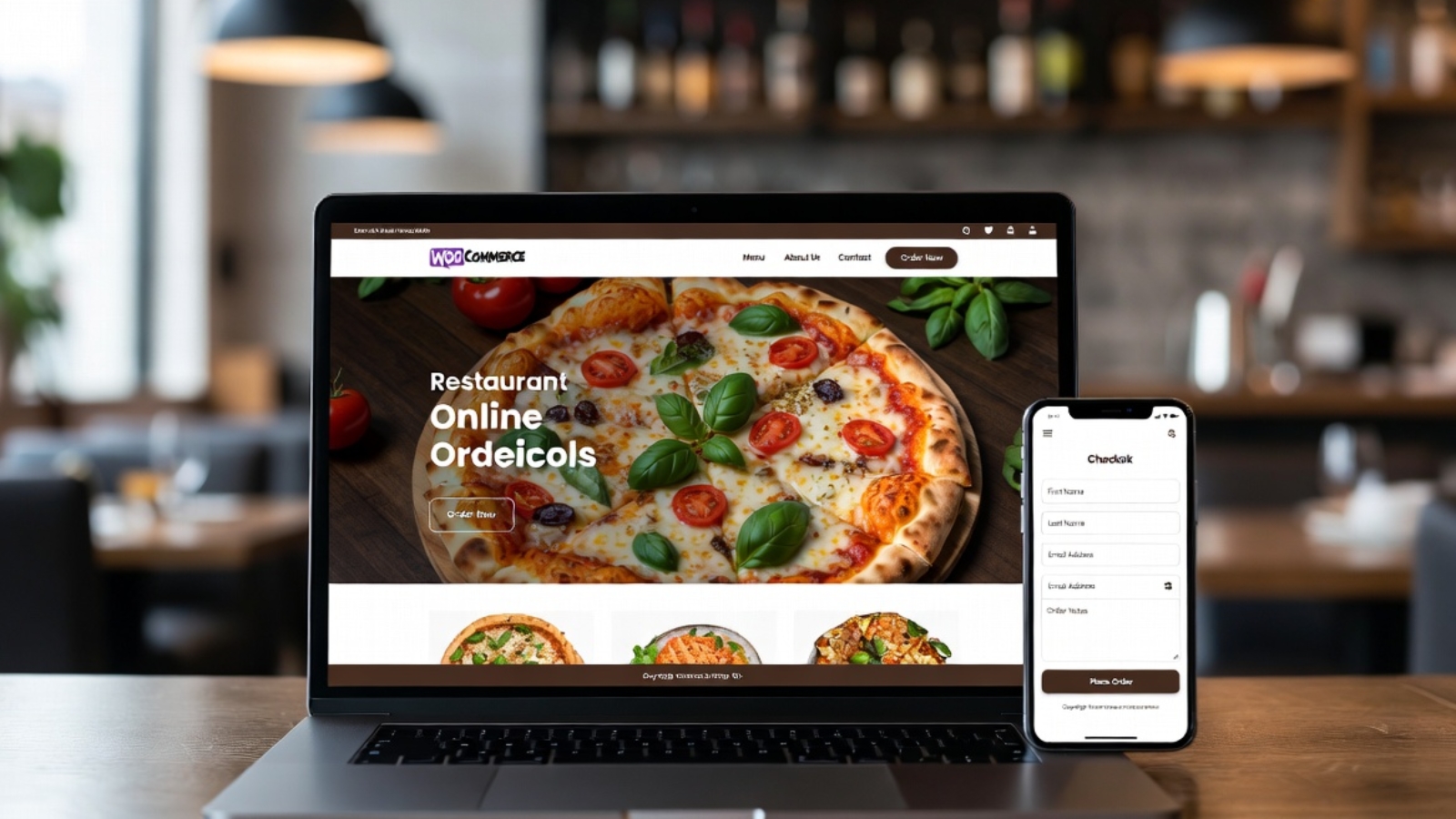
  • Restaurant Sites (Denmark): WordPress + WooCommerce for full menu and ordering control.
  • Wix Velo Projects: Used when clients wanted faster launch with custom coding.

When to Choose Wix Studio

  • Need a site live quickly.
  • Prefer all-in-one platform.
  • Team has designers, not developers.
  • Smaller to medium projects.

When to Choose WordPress

  • Want full ownership and no platform lock-in.
  • Need advanced SEO and traffic growth.
  • Complex functionality or e-commerce.
  • Long-term scalability.

Migration & Hybrid Approaches Many clients start on Wix and move to WordPress as they grow. I help with both migrations and custom Velo coding.

Performance & Security in 2026 WordPress requires maintenance but offers better long-term security when updated properly. Wix handles more automatically.

My Recommendation as a Freelance Developer For most businesses targeting organic growth in the US/UK/EU — WordPress provides better ROI. For speed-to-market or specific design needs — Wix Studio with Velo.

I offer development services on both platforms. Contact me for an honest assessment of your project.

Conclusion Wix Studio and WordPress are both excellent in 2026, but the right choice depends on your goals, budget, and technical needs.

Ready to build or rebuild your website? Let’s discuss the best option for your business. Message me on WhatsApp .

How to speed up a WordPress website in 2026 — developer guide

How to Speed Up a WordPress Website in 2026 (What Actually Works)

Speed up your WordPress website and you fix two problems at once — Google ranks you higher, and visitors actually stay long enough to become customers. Ignore it and you’re bleeding traffic from both ends.

I’ve worked on WordPress sites for restaurants in Denmark, tourism businesses in Aruba, nonprofits in the US, and e-commerce stores in the UK. Every single one of them had speed problems when they first came to me. Not because WordPress is slow — WordPress itself is fine. The problems were almost always the same three things: bad hosting, unoptimised images, and a bloated page builder doing ten times more work than necessary.

This guide covers what I actually fix on client sites, in the order I fix it. Not a generic checklist of 23 things you’ll never do. Real fixes, real order of priority, real results.

Why Your WordPress Site Is Slow (The Actual Reasons)

Before you install any plugin or change any setting, you need to know what’s making your site slow. Guessing wastes time. A free speed test takes two minutes.

Open Google PageSpeed Insights and run your homepage URL. Do it in a new incognito window so browser cache doesn’t skew the results. You’ll get two scores — mobile and desktop — and a list of specific issues ranked by their impact.

Most WordPress sites I audit fail on mobile. Desktop scores look acceptable, sometimes even good. But mobile is what Google uses to rank your site. If your mobile score is below 50, your rankings are being actively suppressed.

The most common issues I see in PageSpeed reports:

Largest Contentful Paint (LCP) too slow — usually caused by a large unoptimised hero image loading above the fold. The browser has to download a 3MB JPEG before it can show the page.

Cumulative Layout Shift (CLS) too high — elements jumping around as the page loads. Usually caused by images without defined dimensions, web fonts loading late, or ad slots appearing after content.

Interaction to Next Paint (INP) failing — the page is technically loaded but feels sluggish to interact with. Almost always JavaScript bloat — too many scripts running on page load from plugins that don’t need to load everywhere.

Fix these three and you fix your Core Web Vitals. Fix your Core Web Vitals and your Google rankings improve. It’s that direct.

Fix 1 — Your Hosting Is Probably the Root Cause

I’ll say this directly: cheap shared hosting is a performance ceiling you cannot overcome with plugins.

You can install WP Rocket, optimise every image, minify every script, and your site will still load slowly if your server response time (TTFB — Time to First Byte) is above 600ms. No frontend optimisation fixes a slow server. It’s like trying to make a slow car faster by changing the tyres.

For small to medium WordPress sites in 2026, Hostinger Business or Hostinger Cloud handles most needs at a reasonable price. For high-traffic or e-commerce sites, Cloudways on a DigitalOcean or Linode server is what I recommend. Cloudways gives you server-level caching with Redis and Varnish, which is a completely different performance tier from shared hosting.

The test is simple. Run your site through WebPageTest and look at the TTFB number. Under 200ms is good. 200–600ms is acceptable but improvable. Above 600ms — fix your hosting before doing anything else, because nothing else will matter.

✅ Pro Tip: If you’re on Hostinger, enable LiteSpeed Cache from the Hostinger dashboard before installing any other caching plugin. Hostinger’s servers run LiteSpeed and the native integration is significantly faster than generic caching plugins on the same server.

Fix 2 — Images Are Destroying Your Load Time

Images are the single biggest contributor to slow WordPress sites. Not plugins, not themes — images. I’ve seen restaurant sites with 8MB hero images and tourism sites with 40 photos uploaded straight from a phone camera at full resolution.

In 2026 there is no reason to serve JPEG or PNG for photographs on a WordPress site. The correct format is WebP. WebP files are 25–35% smaller than JPEG at the same visual quality and are supported by every modern browser.

The even better option is AVIF — roughly 50% smaller than JPEG and browser support is now above 95%. If your image optimisation plugin supports AVIF, use it with a JPEG fallback.

For automatic conversion and compression, I use ShortPixel on most client sites. It gives the best file-size-to-quality ratio of any image plugin I’ve tested, supports both WebP and AVIF, and pay-per-image pricing makes it cost-effective for sites that aren’t uploading hundreds of images per month.

Beyond format, two other image rules matter:

Set explicit width and height attributes on every image. This prevents layout shift (CLS) and tells the browser how much space to reserve before the image loads.

Use lazy loading on everything below the fold. WordPress enables this by default since version 5.5, but check that your theme or page builder isn’t overriding it.

⚠️ Watch Out: Never lazy load your hero image — the large image at the top of the page that’s visible immediately on load. Lazy loading delays images that are off-screen. Your hero image is on-screen. Lazy loading it actually hurts your LCP score. In Elementor, set the hero image widget’s loading attribute to “eager” to prevent this.

Fix 3 — Caching: What to Install and What to Skip

Caching plugins store a static HTML version of your pages so WordPress doesn’t have to rebuild them from scratch every time someone visits. It’s one of the highest-impact changes you can make.

The right caching plugin depends entirely on your hosting:

On Hostinger — use LiteSpeed Cache. It’s free and integrates natively with the server. Enable page cache, browser cache, CSS/JS minification, and lazy load from its settings. Don’t install WP Rocket on top of it — two caching plugins conflict and create problems.

On Cloudways — use Breeze (Cloudways’ own plugin). It’s designed specifically for their server stack and works better than third-party alternatives on their infrastructure.

On any other shared hosting — WP Rocket is the most reliable all-in-one option. It handles caching, file minification, lazy loading, and database cleanup in one plugin with a clean interface that doesn’t require technical knowledge to configure.

After installing and configuring your caching plugin, run PageSpeed Insights again. A well-configured cache should improve your performance score noticeably, sometimes by 15–25 points on its own.

✅ Pro Tip: After any significant site change — new page, new plugin, updated content — clear your cache. Visitors can see outdated versions of pages if cache isn’t cleared. Every major caching plugin has a “Clear All Cache” button in the WordPress admin toolbar. Use it after every update.

Fix 4 — Elementor Is Probably the Slowest Thing on Your Site

I use Elementor on client sites. It’s a powerful page builder and most clients love the flexibility. But I’ll be direct — Elementor is one of the heaviest page builders available in terms of what it loads on every page.

By default, Elementor loads its CSS and JavaScript on every single page of your site, even pages that have nothing built with Elementor. It also generates inline CSS for every widget which adds page weight.

Here’s how I reduce Elementor’s impact without removing it:

Go to Elementor → Settings → Advanced → Enable “Improved CSS Loading.” This loads widget CSS only when that widget is actually used on the page rather than loading all widget styles globally.

Enable “Improved Asset Loading” in the same menu. This reduces the number of JavaScript files Elementor loads.

Disable the Elementor font awesome library if you’re using a theme that already loads it. Duplicate icon libraries loading twice is a common culprit for script bloat.

Use the Elementor Image widget’s native lazy loading option rather than relying on a plugin to add it.

None of these fixes make Elementor as fast as a lightweight theme with no page builder. But they close the gap significantly. After making these changes on a restaurant client site, the mobile PageSpeed score went from 41 to 67 — without changing hosting or images.

Fix 5 — Minify CSS and JavaScript (But Test After)

Minification removes unnecessary characters — spaces, line breaks, comments — from your CSS and JavaScript files. It reduces file size and speeds up delivery. Every caching plugin mentioned above handles this automatically.

The thing nobody tells you is that aggressive minification breaks things. JavaScript minification in particular can conflict with how some plugins and themes load their scripts, causing visual or functional errors on the front end.

My approach: enable CSS minification first, test the site thoroughly. Then enable JavaScript minification, test again. Never enable both at once without testing. Check every page type — homepage, single post, shop page, checkout — because different pages load different scripts.

If anything breaks after enabling JS minification, look for the “exclude” option in your caching plugin settings. You can exclude specific scripts from minification while minifying everything else.

⚠️ Watch Out: Never enable JavaScript deferral or delay on pages with inline scripts that need to run on page load — payment gateways, booking widgets like FareHarbor, and map embeds are common casualties. A broken checkout or booking flow is a far bigger problem than a slightly lower PageSpeed score.

Fix 6 — Use a CDN for Static Assets

A Content Delivery Network (CDN) serves your images, CSS, and JavaScript files from servers geographically close to each visitor. If your site is hosted in Europe and someone visits from the US, without a CDN they’re waiting for files to travel across the Atlantic. With a CDN, those files come from a server in the US.

For most WordPress sites, Cloudflare’s free tier is the right starting point. It’s easy to set up, improves load times for international visitors, and adds a basic layer of security as a bonus.

If you’re on Hostinger Business or above, Cloudflare CDN integration is available directly from the Hostinger dashboard. Enable it there rather than setting it up separately — it’s preconfigured for their infrastructure.

After enabling a CDN, check your PageSpeed score again. The improvement is most noticeable for visitors who are geographically distant from your server.

How to Know If Your Fixes Are Actually Working

Speed optimisation without measurement is guesswork. After every change, run these three tools:

Google PageSpeed Insights — the most important one since it directly reflects how Google scores your site. Aim for 90+ on desktop and 70+ on mobile as your initial targets.

GTmetrix — gives you waterfall view showing exactly which files are taking longest to load. Useful for identifying specific problem scripts or images that PageSpeed Insights doesn’t pinpoint clearly.

WebPageTest — shows your TTFB clearly and lets you test from different geographic locations. Use this to verify your CDN is working and your server response time is acceptable.

Run each test three times and average the results. Speed scores fluctuate based on server load at the time of testing. One bad result doesn’t mean your site is broken and one good result doesn’t mean your work is done.

Common WordPress Speed Mistakes I See Constantly

Installing multiple caching plugins. They conflict. Pick one and use only that one.

Using full-size images in thumbnails. WordPress generates thumbnail sizes automatically but only if images are properly registered. If your theme or page builder is displaying your 2400px hero image at 400px wide, the browser is still downloading 2400px of image.

Leaving hello-world post and unused demo content indexed. Extra pages Google crawls for zero benefit. Delete them.

Installing plugins for every small feature. Every plugin adds code that loads on every page. A contact form, a social share widget, a cookie notice, a popup, a chat widget — individually fine, collectively they add seconds to your load time. Audit your plugins and remove anything that isn’t actively earning its place.

Not testing on actual mobile. Desktop PageSpeed scores and mobile PageSpeed scores are completely different. Most clients only ever test on desktop. Check your site on a real phone on a real mobile network before calling a project done.

FAQ

What PageSpeed score should I aim for in 2026?
Target 90+ on desktop and 70+ on mobile as your baseline. Google’s ranking algorithm weighs mobile score heavily. A desktop score of 95 with a mobile score of 45 means your SEO is still being penalised.

Is WP Rocket worth paying for?
For non-LiteSpeed hosting, yes. It’s the most reliable all-in-one caching and optimisation plugin available. The configuration is straightforward, it works well with most themes and plugins, and the support is good. On LiteSpeed servers, use LiteSpeed Cache instead — it’s free and performs better on that infrastructure.

Will a caching plugin break my WooCommerce store?
It can if configured incorrectly. Cart pages, checkout pages, and account pages must be excluded from caching — every major plugin does this automatically when it detects WooCommerce, but always verify. A cached checkout page where all customers see the same cart content is a serious problem.

Does image optimisation affect visual quality?
With modern formats like WebP and AVIF at 80–85% quality settings, the difference is invisible to the human eye at normal viewing sizes. The files are dramatically smaller. I’ve never had a client notice a quality difference after converting to WebP.

How often should I check my site speed?
After every significant change — new plugin, updated theme, new page template. Set a reminder to run a full PageSpeed check monthly even if nothing has changed. Server environments change, plugin updates add new scripts, and speed regressions creep in silently over time.

Can I speed up WordPress without any paid plugins?
Yes. LiteSpeed Cache is free and powerful on compatible hosting. ShortPixel has a free tier. Cloudflare CDN has a free tier. The honest answer is that combining free tools gets you 80% of the way there. Paid tools like WP Rocket make the process faster and more reliable but aren’t strictly necessary if you’re willing to configure free alternatives carefully.

Final Thoughts

Speeding up a WordPress website is not complicated — but it is sequential. Fix the hosting first. Then the images. Then the caching. Then the page builder settings. Then the minification. Each step builds on the last.

Most slow WordPress sites I encounter aren’t slow because WordPress is bad. They’re slow because they were built quickly, without performance in mind, on the cheapest hosting available, with whatever theme looked nice in the preview. That’s a solvable problem. And the impact of solving it — on rankings, on bounce rate, on conversions — is immediate and measurable.

If you want an expert to audit and optimise your WordPress site’s speed, get in touch at https://syedaounraza.online/contact/

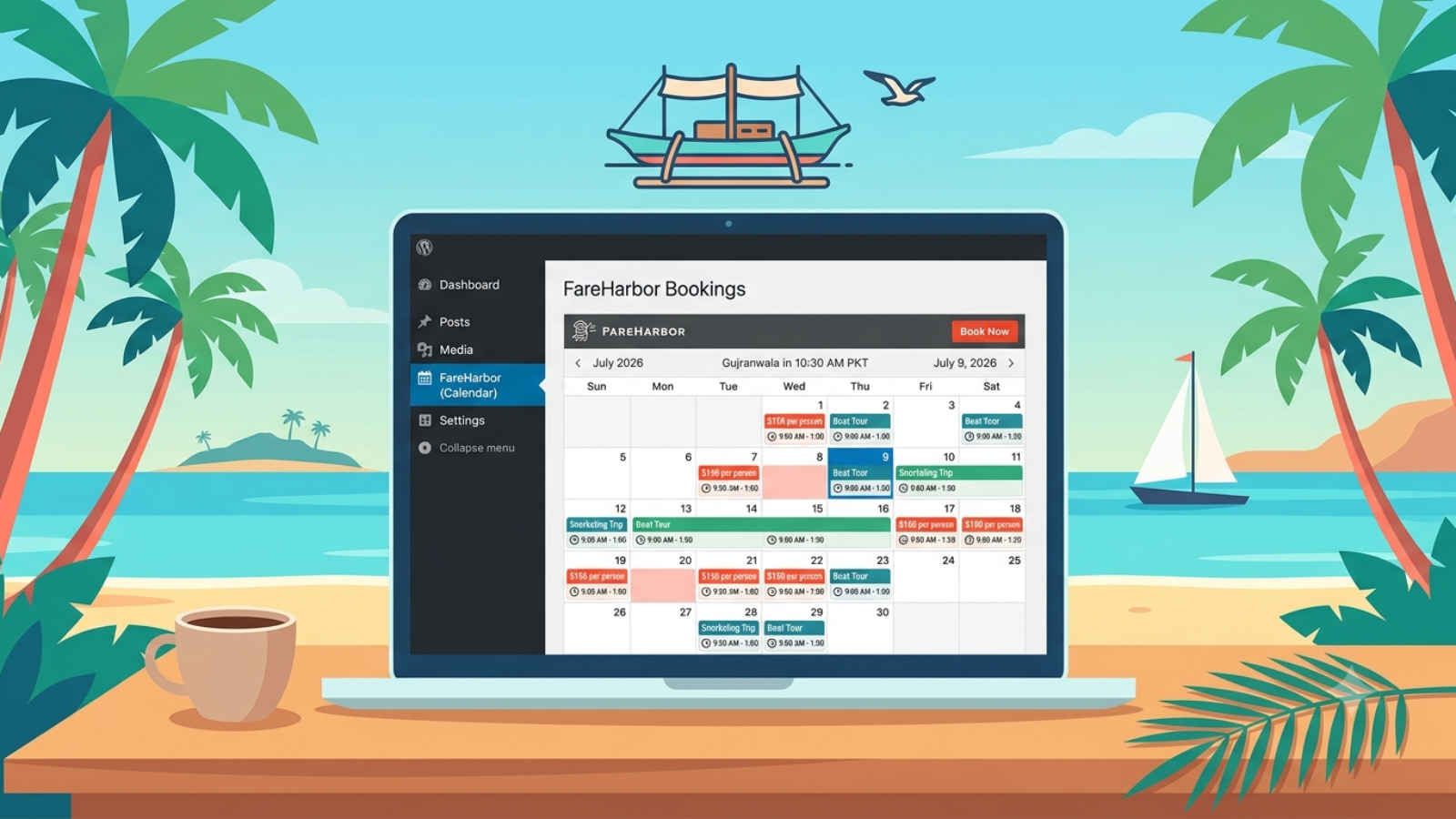
FareHarbor WordPress integration setup showing booking calendar on WordPress site

Add FareHarbor to WordPress: The Real Developer Guide (2026)

How to Add FareHarbor to WordPress (And Not Lose Your Commission Like I Did)

I almost cost my client real money on their first month of bookings. Not because the integration broke. Not because the plugin had a bug. Because I forgot to set the ASN.

If you don’t know what that means yet — you will by the end of this guide. And you won’t make the same mistake I did.

I’ve built FareHarbor WordPress sites for three tourism brands in Aruba: Pelican Adventures, De Palm Tours, and Kukoo Kunuku. Each one is a separate WordPress site, each targeting a different audience, each with its own booking flow. I’ve gone through the plugin setup, the shortcode configuration, the multi-brand partner pages, and yes — the moment where commissions weren’t tracking and I had to figure out why.

This guide is everything I learned doing it for real clients, not just reading the docs.


What Is FareHarbor and Why Tourism Sites Need It on WordPress

FareHarbor is the booking system that most serious tour and activity operators use. It handles availability, payments, customer communications, and operator commissions all in one place. If your client runs boat tours, island excursions, or any kind of ticketed experience — they’re probably already on FareHarbor or about to be.

WordPress is where most of these businesses want their public-facing site. So connecting the two is one of the most common requests I get from tourism clients.

The good news: FareHarbor has an official WordPress plugin. The bad news: the plugin documentation tells you the minimum, not the reality. There are decisions you need to make before you even install it — and if you skip them, you’ll spend hours debugging something that should have taken 20 minutes.

Let me walk you through the whole thing.


Step 1: Start With the Client’s Goal, Not the Plugin

Most developers jump straight to installing the FareHarbor plugin. I used to do this too. Now the first thing I do is ask the client one question: what are you actually trying to achieve with this integration?

That question changes everything.

Some clients want a simple “Book Now” button on their homepage. Others want a full availability calendar embedded on each tour page. Some are resellers who earn commission on other operators’ bookings — and that requires a completely different setup than a direct operator.

If you skip this conversation, you’ll build the wrong thing. I’ve seen developers embed a full calendar when the client just needed a lightframe button. I’ve seen reseller sites set up without affiliate tracking, meaning every booking they drove earned them nothing.

Know the goal first. Then choose your integration method.


Step 2: Install the FareHarbor WordPress Plugin

Once you know what you’re building, installation is straightforward.

Go to your WordPress dashboard, navigate to Plugins → Add New, and search for “FareHarbor.” Install and activate the official plugin by FareHarbor. As of 2026 it’s at version 3.6.13 with over 9,000 active installs, so it’s well maintained.

After activation, go to Settings → FareHarbor. You’ll see a settings page with a few options. The two that matter most:

Default Shortname — set this to your client’s FareHarbor shortname (more on this below). If you’re only building for one operator, set it here and you won’t need to type it in every shortcode.

Enable Auto Lightframing — check this box. Always. It means any link on the site that points to a FareHarbor booking URL will automatically open in the Lightframe overlay instead of taking the user away from your site. It’s a conversion improvement with zero downsides.

Enable FH Buttons Stylesheet — check this too if your client wants styled booking buttons. It loads FareHarbor’s button CSS so you can use their pre-built button styles.


What Is a Shortname and Why It Almost Broke My Project

Here’s the thing nobody explains clearly in the docs.

Every FareHarbor operator has a shortname. It’s the unique identifier for their account — the bit that appears in their FareHarbor dashboard URLs. For Pelican Adventures it was pelican-aruba. For De Palm Tours it was depalmtours. For Kukoo Kunuku it was kukookunuku-au.

You get this from the client or directly from their FareHarbor account. You cannot guess it. You cannot derive it from their business name. You need the exact string.

This is important because every shortcode you write uses it. Get it wrong and nothing loads. Get it right but forget the ASN — and you’ll lose commission tracking entirely.

I’ll explain the ASN issue in a moment. First, let me show you the shortcodes.


Step 3: The Four Shortcodes You Actually Need

The FareHarbor plugin gives you four shortcodes. Here’s when to use each one.

[fareharbor shortname=”companyname”] — This embeds a full availability calendar directly on the page. Use it on dedicated tour pages where you want visitors to see all available dates and book without leaving. It’s immersive but heavy — don’t put it on your homepage.

[itemgrid shortname=”companyname”] — This creates a grid of all activities or a specific flow. Use it on category pages where you want to show multiple tours at once. It looks clean, loads faster than the full calendar, and works well as a browsing interface before the customer picks a specific tour.

[lightframe shortname=”companyname”]Book Now[/lightframe] — This wraps any text or button to open the FareHarbor booking overlay on click. Use it for CTAs anywhere on the site — hero sections, tour description pages, sidebar widgets. This is the most flexible shortcode and the one you’ll use most.

[partners shortname=”companyname” include=”brand1,brand2″] — This is for reseller sites that want to show multiple operators’ inventory together. I didn’t use this for the Aruba project because each brand had its own separate WordPress site. But if you’re building a single site that aggregates multiple operators — a tourism hub, for example — this is what you need.


Step 4: The ASN — The Thing That Cost My Client Commission

This is the part I wish someone had told me before I launched.

If your client is a reseller — meaning they earn a commission when they drive bookings to another operator — FareHarbor tracks this through something called an ASN (Affiliate Short Name). Think of it as a tracking identifier that tells FareHarbor “this booking came through this reseller’s site.”

Without the ASN set correctly, FareHarbor has no way of attributing the booking to your client. The booking still happens. The customer still pays. But your client earns nothing from it.

For the Aruba project, the ASN for the account was toptiervacationrental. Every shortcode on every partner brand site needed to include this. And in my first build, I forgot to add it.

The first month went live. Bookings were happening. But when the client checked their FareHarbor dashboard, the commission column was empty.

It took me an hour of digging through the FareHarbor documentation to realize what was missing. The fix was a single parameter added to every shortcode. But the damage was real — a month of bookings with no commission tracked.

The correct shortcode format for a reseller looks like this:

[lightframe shortname=”pelican-aruba” asn=”toptiervacationrental”]Book Pelican Adventures[/lightframe]

[itemgrid shortname=”depalmtours” asn=”toptiervacationrental”]

That asn parameter is what creates the commission trail. Add it to every single shortcode on every page. Don’t leave it out on “just the homepage” or “just this one page.” Every shortcode needs it.

PRO TIP: Set the ASN as a default in the FareHarbor plugin settings page if your entire site is running under one reseller account. That way it applies automatically to every shortcode without typing it each time.

WATCH OUT: The ASN is case-sensitive. toptiervacationrental is not the same as TopTierVacationRental. Get the exact string from the FareHarbor account, copy it, paste it — don’t type it manually.


Step 5: Building Separate Pages Per Brand

For the three Aruba brands I mentioned — Pelican Adventures, De Palm Tours, and Kukoo Kunuku — we built separate WordPress sites rather than one multi-brand site. Each operator had their own domain, their own branding, and their own booking pages.

This approach has real advantages. Each site can be SEO-optimized for that specific brand’s search terms. There’s no confusion for the customer about whose tours they’re booking. And each site can have its own design that matches the brand’s identity.

The structure I use for these sites is simple and repeatable:

Homepage — hero section with a [lightframe] Book Now CTA, brief brand intro, featured tours using [itemgrid].

Individual tour pages — one page per tour, with description, photos, FAQs, and a full [fareharbor] calendar embed for that specific item ID.

Tours overview page — [itemgrid] showing all available tours, filterable by category if the operator has flows set up in FareHarbor.

This structure works. It converts. And it’s easy to hand off to the client to manage without them breaking anything.


Common Mistakes I See Other Developers Make

Beyond the ASN issue, here are the other things I’ve seen go wrong on FareHarbor WordPress builds.

Not enabling Auto Lightframing. When this is off, clicking a FareHarbor link takes the user completely away from the WordPress site to FareHarbor’s own booking page. You lose the branded experience and the customer feels like they’ve left the site. Always enable it.

Embedding the full calendar on the homepage. The [fareharbor] calendar shortcode is heavy. It loads a full iframe with date pickers and availability data. On a homepage it slows the page down and overwhelms visitors who are still deciding whether to book. Use [itemgrid] or a [lightframe] button on the homepage instead.

Not testing on mobile. FareHarbor’s Lightframe overlay works fine on desktop. On mobile, especially older Android browsers, there can be scroll issues inside the overlay. Always test the full booking flow on an actual phone before handing the site to the client.

Using the wrong item ID. When embedding a specific tour’s calendar using [fareharbor item=”12345″], you need the item ID from FareHarbor’s dashboard — not a guess. Pull it from the URL of the item in the operator’s FareHarbor account.


FAQ

How do I find my FareHarbor shortname?
Log into the FareHarbor dashboard and look at the URL — it usually contains the shortname. Or ask your FareHarbor account manager directly. Don’t guess it.

Can I use FareHarbor on WordPress without the plugin?
Yes — you can embed the Lightframe API script manually and use raw HTML links. But the plugin makes it cleaner, handles Auto Lightframing automatically, and is the approach FareHarbor officially supports. Use the plugin.

Does FareHarbor work with Elementor?
Yes. The shortcodes work inside Elementor’s Text Editor or Shortcode widgets. The [lightframe] shortcode wrapping an Elementor button needs a bit more work — you’ll need to add the shortcode around the button’s text content, not the button widget itself.

What if my client is not a reseller — do I still need the ASN?
No. The ASN is only relevant for reseller/affiliate setups where commission tracking is required. If your client is a direct operator taking their own bookings, skip the ASN entirely.

Can I show multiple operators on one WordPress site?
Yes — use the [partners] shortcode with the include parameter listing each operator’s shortname. This is the right approach for tourism hub sites or aggregators rather than building separate sites per brand.

How do I test if commission tracking is working?
Make a test booking through the site and check the FareHarbor dashboard for that booking. Look for the referral source — it should show your ASN. FareHarbor support can also verify this on their end if you’re unsure.


Final Thoughts

FareHarbor is a solid booking system and the WordPress plugin works well once you understand what it’s actually doing. The documentation covers the basics. What it doesn’t cover is the real-world decisions — the ASN, the per-brand site structure, the difference between embedding a calendar and using a lightframe button.

I learned most of what’s in this guide by building real sites for real clients in Aruba. Some of it came easy. Some of it — like the missing ASN — came with consequences.

If you’re a developer taking on a FareHarbor WordPress project, save this guide. And if you’re a tourism business trying to figure out whether you need a developer or can do this yourself — feel free to reach out. I’ve built these setups from scratch and know exactly what your site needs.

Get in touch at https://syedaounraza.online/contact/

: WordPress website protected by security measures against hacking attempts

WordPress Security in 2026: The Complete Protection Guide

Quick answer: WordPress security in 2026 is mostly a plugin problem, not a core-software problem — 91% of vulnerabilities are found in plugins, with only 6 in WordPress core itself. Roughly 13,000 WordPress sites are hacked every day, and attackers now move within 5 hours of a vulnerability being disclosed. The good news: basic security hygiene (updates, strong passwords, 2FA, a WordPress-specific firewall, and off-site backups) stops an estimated 90% of attacks. Security here isn’t about doing everything — it’s about doing the handful of things that actually matter, consistently.

If you run a WordPress site and have never audited its security, this is the real 2026 picture — and the specific fixes that make the biggest difference.

How Big Is the Actual Problem?

The scale is genuinely large, but it’s worth understanding why before reacting to it. WordPress runs 43.5% of all websites on the internet — nearly half the web — which makes it the single most attractive target for cybercriminals, not because WordPress is uniquely insecure, but because attacking it at scale makes economic sense. FS Code

The daily numbers back that up: roughly 13,000 WordPress sites are hacked per day, totaling around 4.7 million annually. And once a vulnerability becomes public, the window to react is short — the weighted median time from vulnerability disclosure to mass exploitation is just 5 hours. GigaPressGigaPress

It’s Not WordPress Itself — It’s the Plugins

This is the single most important thing to understand, and it changes how you should actually spend your security effort. 11,334 vulnerabilities were discovered in 2025 alone, up 42% year-over-year, and 91% of those vulnerabilities are found in plugins — only 6 were in WordPress core itself. Google

Put plainly: WordPress core is very secure, and a WordPress site with minimal, well-maintained plugins and proper security practices is as safe as any platform. Your actual attack surface is almost entirely the plugins you’ve chosen to install, not WordPress itself. Google

The Uncomfortable Part: Nearly Half Have No Patch Available

This is why “just update everything” isn’t a complete security strategy on its own. 46% of vulnerabilities had no developer patch available when they were disclosed, meaning you can’t rely solely on updates — proactive security like a web application firewall and active monitoring is necessary too. Google

Traditional defenses also fall short here more than most site owners assume. 87.8% of exploits bypass standard hosting-level defenses, and separately, traditional web application firewalls block only about 12% of WordPress-specific attacks — WordPress-specific security tooling matters more than generic protection. FS CodeGoogle

Passwords Are Still a Bigger Problem Than You’d Expect

Some of the most preventable breaches still come down to basics. 81% of hacked WordPress sites involved weak or stolen passwords as a contributing factor, and a Melapress study found 41% of WordPress users aren’t using two-factor authentication or a strong enough password. GigaPressZapier

This matters more than it might seem, because the vast majority of credential-stuffing attacks target the standard /wp-login.php and /wp-admin paths — meaning a default login setup is essentially inviting every automated attack that knows where to look. GigaPress

What Happens When a Site Actually Gets Hacked

It’s rarely as visible as people assume. Most hacked WordPress sites are turned into distribution channels, not billboards — the common outcomes are injected scripts, redirects, and spam, since these models monetize quietly, meaning a homepage can look completely fine while the site is still redirecting visitors, serving SEO spam, or dropping malicious code behind the scenes. WPBeginnerWPBeginner

This is exactly why regular monitoring matters more than a one-time security check — a compromised site can operate invisibly for weeks before anyone notices.

The Real Cost of Getting This Wrong

The average recovery cost for a small business after a hack is around $14,500, compared to roughly $8/month for proactive protection. Beyond direct cleanup costs, there’s also real business disruption — Google can flag a compromised site, tanking both traffic and trust in the process. GigaPress

Recovery is also far worse without a plan in place. Sites without a documented incident response plan take 3-4 times longer to recover — not because the team is less capable, but because decisions are being made under stress without a framework. FS Code

The Actual Fixes That Matter (In Priority Order)

Given how concentrated the risk actually is, here’s where effort should go, roughly in order of impact:

1. Keep WordPress core, themes, and plugins updated — outdated plugins, themes, and WordPress files remain the most common way hackers get in, and updates often include patches for exact vulnerabilities hackers actively exploit. Zapier

2. Enable two-factor authentication and avoid “admin” as a username — limiting login attempts and enabling 2FA stops brute-force attacks, and avoiding “admin” as a username matters because it’s the first guess in every automated attack script. Zapier

3. Use a WordPress-specific firewall, not just a generic one — given how much traditional WAFs miss, tools purpose-built for WordPress’s specific vulnerability patterns catch meaningfully more.

4. Store backups off-site, not on the same server — if the server itself is compromised, backups stored on that same server can be deleted along with everything else — off-site storage (Dropbox, Google Drive, Amazon S3) is the safer strategy. Zapier

5. Disable file editing from the WordPress dashboard — WordPress allows editing theme and plugin files directly from the dashboard, and if a hacker gets in, this is the first place they go to inject malware. Bookly

6. Audit your plugin list regularly — plugins not updated for 6+ months should be removed or replaced, since fewer active plugins directly means a smaller attack surface. Themewinter

Why Basic Hygiene Genuinely Works

Despite the scary headline numbers, the practical reality is reassuring once you understand attacker behavior. Basic security hygiene stops more than 90% of attacks, because most attackers are opportunistic — when a site looks harder to target than average, they simply move on to an easier one. FS Code

You don’t need every possible security measure. You need the handful that address where the real risk actually concentrates — plugins, passwords, and backups — applied consistently rather than as a one-time setup task.

A New Regulatory Shift Worth Knowing About

If you rely on third-party plugins for your site (nearly everyone does), there’s a regulatory change arriving that should improve things over time. The EU’s Cyber Resilience Act requires that from September 2026, every commercial WordPress plugin available in the EU must have a vulnerability disclosure program — a genuinely significant shift that forces the WordPress plugin ecosystem to formalize its security processes. Themewinter

For the full technical detail behind these 2026 statistics, Patchstack’s official State of WordPress Security whitepaper is the primary source most of this data draws from.

Frequently Asked Questions

Is WordPress itself insecure?
No — WordPress core had only 6 vulnerabilities in 2025, out of over 11,000 total. The real risk comes almost entirely from third-party plugins, not the core software.

Do I really need a security plugin if my host offers protection?
Yes — hosting-level firewalls miss a large share of WordPress-specific attacks. A WordPress-specific firewall catches patterns generic hosting protection isn’t built to recognize.

How often should I audit my installed plugins?
At minimum, review them monthly; sites that change frequently should do it more often. Remove anything unmaintained for 6+ months.

What’s the single biggest security mistake WordPress site owners make?
Relying on updates alone. Nearly half of disclosed vulnerabilities have no patch available at the time of disclosure, so proactive monitoring and a firewall matter just as much as staying updated.

Can a hacked site look completely normal to visitors?
Yes — many compromised sites are used quietly for redirects, spam injection, or malicious code delivery, with no visible sign on the homepage itself. Regular scanning, not just visual checks, is necessary to catch this.

For how ongoing security fits into your overall WordPress budget, see our WordPress website cost guide, and for the performance side of site health, our Core Web Vitals 2026 guide.


Want your WordPress site’s security properly audited and hardened? Contact us with your site URL for a real assessment.

Website content being optimized for AI search engines through AEO and GEO

What Is AEO and GEO? How to Optimize for AI Search in 2026

Quick answer: AEO (Answer Engine Optimization) means structuring content so AI-powered search features — Google AI Overviews, ChatGPT, Perplexity — can extract a direct answer and cite it. GEO (Generative Engine Optimization) is the broader discipline of getting AI models to trust and recommend your brand at all, even outside a traditional search box. Neither replaces SEO — nearly 40% of Google’s AI Overviews rank in the top 10 organic search results, and nearly 70% rank in the top 100 — so strong traditional SEO is still the foundation both are built on. Medium

If you’ve been publishing content and wondering why AI tools never mention your site, this is the actual mechanics of why — and what to fix.

Why This Matters Now, Not Later

The shift in how people search is no longer a prediction — it’s already measurable. Ahrefs found that AI overviews reduced click-through rates for top-ranking Google content by 58%, up from 34.5% the year before, largely because Google now gives users the information they need directly, without requiring a click through to the source page. MediumMedium

It’s not just Google, either. ChatGPT alone processes 2.5 billion prompts daily, 65% of which qualify as search-type queries. Separately, SparkToro research shows more than 38% of Google searches now end with zero clicks — the user gets their answer directly in an AI Overview, Featured Snippet, or People Also Ask card, meaning if your content isn’t optimized for this, you effectively don’t exist for a third of all searches. MediumWix

AEO vs GEO vs SEO: The Actual Difference

These three terms get used interchangeably, but they’re not the same thing.

  • SEO gets your page onto the results page in the first place
  • AEO makes your content the direct answer extracted from that page
  • GEO gets your brand cited and recommended by AI models more broadly, even in conversational contexts outside a search bar

As one clear framing puts it: SEO gets you onto the results page, AEO makes your content the answer within that page, and GEO ensures AI models recommend you outside the Google ecosystem entirely. Wix

Crucially, these aren’t competing priorities. AEO and SEO are not competing strategies — they are complementary layers of a unified search visibility framework, and content that satisfies AEO requirements (clear answers, structured data, entity authority) simultaneously improves traditional SEO, since Google’s algorithms increasingly reward the same signals AI models use for citation selection. Wix

You Cannot Skip SEO and Jump to GEO

This is the single most important thing to understand before doing anything else. Studies show a 92% correlation between pages ranking in the top 10 organically and pages cited in AI Overviews — you cannot skip traditional SEO and jump to GEO, because the AI reads the top results, and if you’re not in the top 10, you’re statistically unlikely to be read by the AI in the first place. Omi AI

That said, ranking well isn’t sufficient on its own either — only 38% of AI Overview citations come from top-10 Google results, but strong organic rankings still provide the authority signals that AI engines rely on for source selection, meaning ranking well raises your odds substantially without guaranteeing citation. OpenAI Developer Community

What Actually Gets Content Cited: The Research

There’s real empirical research behind this, not just marketing claims. The Princeton GEO study found that adding expert quotes boosts AI visibility by roughly 41%, statistics by about 30%, and citations by around 30%. A separate study reached a similar conclusion from a different angle: a 2024 study by Georgia Tech, Princeton, and IIT Delhi found sites optimized for generative engines see 30-115% higher AI citation rates. Omi AIWix

The practical takeaway: adding real data, expert framing, and verifiable sources to your content measurably increases the odds an AI model treats it as citable.

The Structural Formula That Works

Across nearly every current guide on this topic, the same structural pattern shows up. Format headings as questions (“What is X?”, “How does Y work?”, “How much does Z cost?”) since search engines recognize these as Featured Snippet candidates, then give a concise, direct answer of 40-60 words immediately under the heading before going into further detail — this is the TL;DR rule, and Google actively surfaces it. Wix

This is echoed almost word-for-word elsewhere: place the direct answer to a question in the first 40-60 words immediately following a question-based heading. Omi AI

Beyond structure, format matters too: use formats like FAQs, bullet points, tables, and lists that align with how answer engines present information, and write in plain, precise language that’s easy for AI systems to interpret, avoiding ambiguity or unnecessary jargon. Medium

Schema Markup: The Machine-Readable Layer

Structured data doesn’t guarantee citation, but it removes ambiguity for AI systems trying to parse your content. Implementing Schema.org FAQPage markup on pages with questions and answers helps search engines and AI systems recognize exactly what’s being asked and answered. Wix

It’s worth being realistic about its limits, though: structured data helps clarify content and can improve machine understanding, but it does not guarantee that a page will be cited or surfaced — content quality, relevance, and trust still matter far more. Wix

E-E-A-T: Why Authorship Suddenly Matters More

This is the part most sites still get wrong. AI models use Google’s E-E-A-T guidelines (Experience, Expertise, Authoritativeness, Trustworthiness) as a proxy for truth, since an LLM can’t independently “know” what’s true — it looks for signals instead, and if content lacks a clear author, verifiable data, or credible sourcing, the retrieval pipeline tends to ignore it. Dude Lemon

Practically, this means: every page should have an author byline with a link to a real biography, a clear publication date, a modification date, and cited sources — AI systems check these signals before citing content. Wix

Platform-Specific Behavior Worth Knowing

Not every AI platform behaves the same way. Google AI Overviews pull mostly from top-10 results, Perplexity rewards freshness and authority, and Microsoft Copilot leans heavily on LinkedIn specifically for B2B queries. If your audience skews B2B, that Copilot/LinkedIn detail is worth acting on directly rather than treating all platforms identically. Omi AI

Content Freshness Is a Real Ranking Lever Here

AI-driven answer surfaces change faster than traditional rankings. Featured Snippets and AI answer selections shift monthly as old content drops out, so refreshing older articles every 3-6 months with a new date, new information, and new citations meaningfully helps maintain visibility. Wix

Common Mistakes That Undermine AEO/GEO Efforts

Publishing generic AI content with no proof, ignoring third-party authority, measuring success by screenshots instead of actual business outcomes, and splitting every long-tail query into a separate thin page are among the most common mistakes brands make. YouTube

Beyond that, technical fundamentals still gate everything else: a site that loads slowly, isn’t mobile-friendly, or has a poor user experience will never win at AEO, since technical SEO is simply the cost of entry — without it, a brand isn’t even in the race. This connects directly to something we’ve covered in detail — see our Core Web Vitals 2026 guide for the technical foundation AEO is built on top of. Wix

How to Measure Whether Any of This Is Working

Traditional analytics don’t capture AI citation well. Top-performing brands in 2026 track “Share of Voice in AI Responses” — the percentage of AI answers for a target query that actually cite the brand — treating this as the new equivalent of ranking position #1. Dude Lemon

More broadly, effective AEO measurement tracks mentions, citations, traffic, sentiment, and conversion quality — not just impressions, clicks, or rankings in isolation. YouTube

Frequently Asked Questions

Do I need to abandon traditional SEO to focus on AEO and GEO?
No. Traditional SEO is the foundation both disciplines are built on — strong organic rankings substantially increase your odds of being cited by AI systems, even though ranking well doesn’t guarantee citation on its own.

What’s the single fastest structural change I can make to existing content?
Add a direct, 40-60 word answer immediately after any question-format heading, before going into further detail. This single change aligns with how most AI systems extract citable content.

Does adding an author bio actually make a measurable difference?
Current evidence suggests yes — AI systems increasingly check for author credibility, publication dates, and sourcing as trust signals before treating content as citable.

How often should I update existing articles for AEO/GEO purposes?
Roughly every 3-6 months for pages that matter most, since AI-driven answer selections shift faster than traditional search rankings and older content can quietly lose visibility.

Is GEO just a rebrand of SEO, or a genuinely different discipline?
It’s related but genuinely different — SEO targets ranking position, GEO targets whether AI models trust and cite your brand at all, including in conversational contexts entirely outside a traditional search engine.

For how this fits into your broader budget and platform decisions, see our complete website development cost guide.


Want your existing content audited and restructured for both SEO and AI search visibility? Contact us with your site for a review.

Core Web Vitals Optimization Service | Fix LCP, INP & CLS

Core Web Vitals 2026: LCP, INP & CLS Explained (Full Guide)

Quick answer: Core Web Vitals are three Google metrics measuring real user experience: Largest Contentful Paint (LCP, loading speed, good under 2.5 seconds), Interaction to Next Paint (INP, responsiveness, good under 200 milliseconds), and Cumulative Layout Shift (CLS, visual stability, good under 0.1). They’re a confirmed Google ranking factor — not the dominant one, but increasingly a real filter rather than just a tiebreaker in 2026. Most sites still fail at least one metric, especially INP, which is now the hardest to pass.

If your site “feels slow” but you’re not sure why — or you’ve heard Core Web Vitals matter for SEO but don’t know what to actually fix — this is the full picture, using real 2026 data.

What Each Metric Actually Measures

The three Core Web Vitals are Largest Contentful Paint (LCP), which measures loading speed with a “good” threshold of under 2.5 seconds; Interaction to Next Paint (INP), which measures responsiveness with a “good” threshold of under 200 milliseconds; and Cumulative Layout Shift (CLS), which measures visual stability with a “good” threshold of under 0.1. All three must be passing at the 75th percentile of real visitor data for a page to achieve an overall “good” Core Web Vitals assessment. ScribdScribd

In plain terms:

  • LCP — how long until the biggest visible thing on your page (usually a hero image or headline) finishes loading
  • INP — how fast your site responds when someone actually clicks, taps, or types
  • CLS — whether things jump around on screen while the page loads (a button shifting right just as someone taps it)

Why INP Is the One Tripping Up Most Sites in 2026

This is the metric that changed the game. Interaction to Next Paint replaced First Input Delay in March 2024 and measures interactivity by tracking how quickly a page responds to every user interaction — clicks, taps, and keyboard inputs — not just the first one. WebMD

The difference matters more than it sounds. First Input Delay only measured the delay before a browser could begin processing the very first interaction on a page — a single data point that told you almost nothing about overall responsiveness — while INP captures every interaction throughout the full page lifecycle and reports the worst one at the 75th percentile, making it far harder to game. Yoast

The result: 43% of sites still fail the 200ms INP threshold, making it the most commonly failed Core Web Vital in 2026. If your site passed Core Web Vitals a couple of years ago and you haven’t checked since, there’s a real chance it’s failing now on this metric alone. Yoast

Is This Actually a Ranking Factor, or Just a Nice-to-Have?

The honest answer sits in the middle, and this has shifted in 2026. Historically, Core Web Vitals have been a real but modest ranking factor, with the bigger practical impact showing up in bounce rate, conversion, and AI-engine retrieval eligibility rather than rankings directly. One analysis of real engagements found the practical ranking effect is roughly 1 to 2 positions for pages that improve from “poor” to “good” across all three metrics — meaningful, but not transformative on its own. YoastYoast

But 2026 brought a shift worth knowing about. Following the March 2026 core update, performance has moved from functioning purely as a tiebreaker to acting more like a filter — if your metrics are in the red, even genuinely strong content can be pushed down in rankings. Supporting this, pages ranking in position 1 on Google show a measurably higher Core Web Vitals pass rate than pages sitting in position 9. Bicycle CouriersBicycle Couriers

Google’s own position, cited consistently across sources, is that Core Web Vitals can serve as a tiebreaker when two pages have similar content quality, and while content relevance remains the most important ranking factor, failing Core Web Vitals puts a site at a real disadvantage in competitive niches. Scribd

The Business Case: Why This Matters Beyond SEO

Even if you set rankings aside entirely, the user-behavior numbers make a strong case on their own. Pages loading in under 2 seconds show around a 9% bounce rate, while those exceeding 5 seconds see bounce rates explode to roughly 38%. More specifically, for every second of delay beyond the 2.5-second LCP threshold, bounce rates increase by roughly 32%, and a one-second delay in load time reduces conversions by about 7%. Bicycle CouriersBicycle Couriers

Put in real terms: for an e-commerce site generating $100,000 per month, that conversion drop translates to roughly $7,000 in lost revenue. Separately, sites that get all three metrics into “good” territory see a compounding benefit: passing all three Core Web Vitals thresholds correlates with 24% lower bounce rates alongside measurable ranking improvements. Bicycle CouriersYoast

How to Fix Each Metric

Fixing LCP (loading speed):
Image preloading, critical CSS inlining, font preloading with display swap, and server-side rendering are the four highest-impact fixes for slow LCP scores. In practice, this usually means: compress and modernize your images (WebP or AVIF format), avoid render-blocking scripts above the fold, and use a quality host — slow hosting makes passing LCP extremely difficult since server response time directly impacts loading speed. YoastWebMD

Fixing INP (responsiveness):
This is the harder one. INP demands a fundamental shift in how developers handle JavaScript — breaking long tasks, deferring non-critical work, yielding to the main thread during interactions, and minimizing DOM complexity. INP usually fails because of long-running JavaScript tasks, so unlike a caching fix for LCP, there’s no single plugin toggle that resolves it — it requires actual code-level attention. YoastYoast

Fixing CLS (visual stability):
Every image, video, iframe, and ad slot needs explicit width and height attributes, and font-display swap combined with reserved space for dynamic content eliminates most remaining layout shift sources. Yoast

Specific Fixes for WordPress Sites

If you’re running WordPress — which most small business sites are — the common failure points are well understood. WordPress sites benefit from performance plugins like WP Rocket or LiteSpeed Cache for caching and optimization, image optimization plugins like ShortPixel or Imagify, lazy loading plugins, and lightweight themes designed for performance, since WordPress sites commonly struggle with Core Web Vitals due to plugin bloat and heavy themes. WebMD

More bluntly: most WordPress Core Web Vitals problems come from three sources — cheap hosting, bloated themes, and too many plugins — and those three should be fixed before optimizing anything else. Yoast

We’ve covered this in more hands-on detail specific to a real project in our WordPress restaurant website speed-up case study.

Mobile Matters More Than Desktop Now

Mobile devices represent approximately 58% of all website visits in 2026, making mobile Core Web Vitals performance the primary factor in Google’s ranking algorithms, largely because Google has fully implemented mobile-first indexing, meaning mobile scores are what matter most for rankings. If you only have budget to optimize one version of your site first, make it mobile. MediumWebMD

How to Actually Check Your Scores

Use these tools, in this order of reliability:

  1. Google Search Console → Core Web Vitals report — shows real field data from your actual visitors, grouped by URL
  2. PageSpeed Insights — Google’s own tool, combining real-world field data with simulated lab testing for any URL
  3. Chrome DevTools Lighthouse — deeper technical, simulated lab testing

Field data from real visitors always carries more ranking weight than lab data from simulated tests, so treat Search Console as your source of truth over any one-off Lighthouse score. Yoast

How Long Fixes Take to Show Results

Don’t expect overnight movement. Google Search Console updates Core Web Vitals data based on 28 days of real user data, so after implementing fixes, expect to see metric improvements within 4-6 weeks, with ranking improvements often taking longer since Google’s algorithm weighs many factors beyond Core Web Vitals — most sites see measurable ranking changes within 2-3 months of sustained good scores. WebMD

Frequently Asked Questions

Do Core Web Vitals directly determine my Google ranking?
No — they’re one signal among many, acting mainly as a tiebreaker between pages of similar content quality, though 2026 data suggests failing badly can act more like a filter than before.

Which Core Web Vital is hardest to pass in 2026?
INP (Interaction to Next Paint), which requires deeper JavaScript-level fixes rather than a quick caching or image-compression solution.

Does site speed matter more on mobile or desktop?
Mobile, due to Google’s mobile-first indexing and mobile devices making up the majority of web traffic in 2026.

How quickly will fixing Core Web Vitals improve my rankings?
Metric improvements typically show in Search Console within 4-6 weeks; ranking changes often take 2-3 months of sustained good scores.

Can a WordPress site realistically pass all three metrics?
Yes, but usually only after addressing the three most common causes: cheap hosting, a bloated theme, and too many active plugins.

For a broader look at how performance fits into overall project budgeting and platform choice, see our complete website development cost guide.


Want your site’s Core Web Vitals audited and fixed properly? Contact us with your URL for a real diagnostic, not a generic checklist.

Website development cost comparison dashboard showing pricing tiers by platform

Website Development Cost in 2026: The Complete Pricing Guide

Quick answer: Website development in 2026 typically costs between $1,000 and $15,000 for most small businesses, with basic sites at the low end and custom-featured builds at the high end. WordPress ranges roughly $500–$30,000+ depending on complexity, Wix Studio sites usually fall in a similar low-to-mid range with more predictable bundled pricing, and mobile apps (like Flutter builds) start higher due to backend and platform requirements. The real number depends far more on scope — integrations, e-commerce, custom design, and ongoing maintenance — than on which platform you choose.

If you’ve searched this question and found ranges anywhere from $500 to $500,000, you’re not imagining things — that’s genuinely how wide the market is. This guide breaks down why, using real 2026 market data, so you can budget with actual numbers instead of guesses.

Why “How Much Does a Website Cost” Has No Single Answer

A recent industry-wide survey of over 300 web development firms across 31 countries found that fixed-price web development projects in 2026 range from $1,000 to $150,000 or more, with 63% of agencies quoting between $1,000 and $15,000. That’s the honest starting point: most small business projects land in a fairly predictable band, but the ceiling is genuinely open-ended once you add complexity. YouTube

The same survey found that basic websites and MVPs cost $1,000 to $3,000 for 60% of agencies, with 71% delivering them in under four weeks, while enterprise builds show the widest spread — 36% quote $20,000 to $50,000, and 7% go as high as $200,000 to $500,000. Two businesses can both say “I need a website” and mean completely different projects. YouTube

WordPress Pricing: The Full Range

WordPress remains the most commonly used platform among web development firms — the same 2026 survey found 83% of respondent agencies build on WordPress, far ahead of any competitor. That popularity is exactly why its pricing spans so widely. YouTube

Basic WordPress sites: According to industry pricing data, simple WordPress websites typically cost $500 to $5,000, while fully custom builds with advanced features range from $5,000 to $30,000. Wix

Mid-range custom builds: Looking at the market more broadly, WordPress’s $3,000 to $10,000 modal range reflects its versatility, while complex builds handled by experienced WordPress development companies regularly reach $40,000 or more when custom plugin development, multisite architecture, or advanced editorial workflows are involved. YouTube

What actually drives the price up: One detailed 2026 pricing breakdown notes that the important factor isn’t a flat number but what kind of WordPress site you’re buying and what has to keep working after launch — deeper planning, custom design systems, cleaner development, more QA, migration planning, and long-term support all separate a $5,000 site from a $25,000 one. Omi AI

Maintenance — the cost most people forget: This is where budgets get blindsided. WordPress maintenance through a managed service typically runs $79 to $200 per month for a small business site, with the industry average across major providers landing around $246 per month. That’s an ongoing cost on top of the initial build — and it’s rarely mentioned in the first quote. Wix

For a full breakdown specific to smaller projects, see our WordPress website cost guide for 2026.

Custom WordPress Development: Plugins, Themes, and Integrations

If your project needs something WordPress doesn’t do out of the box — a custom plugin, a fully bespoke theme, or an integration with an external system — pricing shifts into a different bracket entirely. A detailed 2026 custom development pricing guide puts it plainly: custom WordPress development typically ranges from $2,000 to $15,000 or more, depending on whether you need a plugin, theme, or integration, and the level of complexity involved — and vague ranges like “$500 to $50,000” aren’t a budget, they’re a guess. Wix

At the higher end of custom plugin work specifically, plugins with complex logic, custom admin dashboards, or integration with third-party services — like booking systems or custom reporting tools — typically run $4,000 to $6,000 or more. Wix

This is directly relevant if you’re building something like a booking system or an AI-powered feature — these fall squarely into “custom integration” territory, not template pricing.

Wix Studio Pricing: How It Compares

Wix Studio sits in a genuinely different pricing model — instead of piecing together hosting, themes, plugins, and developer hours separately, most of that gets bundled into a plan. This tends to make Wix pricing more predictable upfront, though it comes with less long-term flexibility once you’re locked into the platform’s ecosystem (a tradeoff we cover in detail in our Wix Studio vs WordPress comparison).

For most small-to-medium projects, Wix Studio costs land in a broadly similar range to a mid-tier WordPress build — the real differentiator isn’t raw cost, it’s what you’re trading for that predictability: less control over hosting and long-term portability, in exchange for less maintenance overhead.

Enterprise and Corporate Website Pricing

If you’re planning something bigger — a full corporate site, a lead-generation platform for a mid-market company, or an e-commerce build at scale — the numbers jump substantially. Recent 2026 pricing data shows midmarket and corporate marketing sites typically span $15,000 to $75,000 for a complete project, with a median around $36,500. Wix

E-commerce specifically scales even higher: full custom e-commerce builds on platforms like Shopify Plus, or headless architectures, typically land between $45,000 and $250,000 depending on catalog complexity, ERP integration, and front-end requirements. Wix

Interestingly, even with AI tools now standard across the industry, prices haven’t dropped at this tier. The same data notes AI coding assistants have compressed production timelines by 22 to 34%, yet average project invoices have held steady or increased slightly, because buyers now expect more for the same budget — Core Web Vitals compliance, accessibility standards, and conversion optimization are no longer optional extras. Wix

Mobile App Development: Flutter and Firebase Costs

If your project is a mobile app rather than a website, the cost structure shifts again — apps typically involve backend infrastructure (like Firebase) from day one, which websites often don’t need. We cover this in detail in our Flutter app development cost guide, but the short version: a simple MVP app costs meaningfully less than a full-featured app with real-time data, authentication, and payments, and the smartest budgeting approach is scoping your exact feature list before requesting quotes — generic per-app pricing ranges are even less reliable for mobile than they are for websites.

What Actually Pushes Any Project’s Price Up

Across WordPress, Wix, and custom app development, the same cost drivers show up repeatedly:

  • Custom design work — Original UX research and bespoke visual design adds real hours, not just template customization
  • Content operations — Professional copywriting and image direction is frequently underestimated in a first budget
  • Third-party integrations — Payment gateways, CRMs, booking systems, or AI features all add scoped development time
  • Technical instrumentation — Analytics, tag management, and search monitoring are increasingly standard but rarely included in the cheapest quotes
  • Ongoing maintenance — Security updates, backups, and monitoring are a recurring cost, not a one-time fee

One 2026 industry breakdown puts it simply: the right price for a project is determined more by scope clarity and integration complexity than by which vendor or platform you choose, and spending even a few hours defining scope in detail before requesting proposals typically reduces quoted price variance by 30 to 50%. Wix

How to Get an Accurate Quote (Not a Guess)

Given how widely these numbers swing, the only reliable way to budget is to define your scope before asking for a price. That means listing out:

  1. Every page or screen your project needs
  2. Whether you need e-commerce, bookings, or user accounts
  3. Any third-party integrations (payments, CRMs, booking systems, AI features)
  4. Whether content and copywriting are included or handled separately
  5. Your expectations for ongoing maintenance and support after launch

A developer working from that list can give you a scoped, defensible number. A developer working from “how much for a website?” is guessing just as much as you are.

Frequently Asked Questions

Is WordPress cheaper than Wix Studio?
Not necessarily — for comparable small business projects, both land in a similar overall range. The real difference is in what you’re paying for: WordPress offers more long-term flexibility and plugin variety, while Wix bundles hosting and maintenance into more predictable pricing.

Why do WordPress quotes vary so much between freelancers and agencies?
Freelancers typically charge 30–100% less than agencies for comparable scope, since agency pricing includes project management, QA processes, and broader accountability structures that freelancers often don’t carry as overhead.

Does a cheaper website cost more in the long run?
Often, yes — if it lacks proper technical foundations (clean code, security practices, scalable structure), it can require a costly rebuild sooner than a slightly more expensive, properly built site would have.

Is AI making websites cheaper to build in 2026?
For basic sites, yes — AI-assisted tools have compressed timelines and lowered entry-level pricing. For complex, custom, or enterprise builds, overall invoices have held steady or risen slightly, since expectations for quality and functionality have risen alongside the efficiency gains.

What’s the single biggest hidden cost people forget to budget for?
Ongoing maintenance. A website’s launch cost is only part of the picture — hosting, security updates, and content upkeep are recurring costs that should be part of the original budget conversation, not a surprise afterward.


Not sure what your specific project should actually cost? Contact us with your requirements for a scoped, honest estimate — not a generic range.

WordPress booking plugin calendar interface for restaurant table reservations

Best WordPress Booking Plugins for Restaurants & Tours (2026)

Quick answer: There’s no single “best” WordPress booking plugin — the right choice depends on what you’re booking. Restaurants need table and party-size logic (Five Star Restaurant Reservations, WPCafe), tour and activity businesses need departure-based inventory (FareHarbor, Yatra Pro), and WooCommerce store owners selling bookable products should use WooCommerce Bookings directly inside their existing store. Picking based on category — not a generic “top 10” list — is what actually matters.

If you’ve searched “best WordPress booking plugin” and found a dozen conflicting lists, that’s because the word “booking” covers very different workflows. Here’s how to actually choose, based on your business type.

Why “Best Overall” Doesn’t Really Exist Here

An appointment plugin built for a salon handles staff schedules and service slots. A restaurant reservation system needs to think in tables, covers, and party size. A tour booking plugin needs departure dates, capacity limits, and anti-overbooking logic. A rental plugin needs inventory and pricing tiers. Stretching one tool to do all of these usually leads to a clunky setup — the smarter approach is matching the plugin to the category your business actually falls into.

If You Run a Restaurant or Café

Restaurant bookings are about tables, service windows, and party size — not staff calendars. For this category, dedicated restaurant reservation tools tend to outperform generic appointment plugins because they’re built around the actual guest-flow problem: party size rules, service hours, blocked dates, and reducing no-shows through automated reminders.

If you’re also running food ordering alongside reservations (not just bookings), an all-in-one restaurant plugin that handles both menus and table bookings in one dashboard tends to be less messy than stitching two separate tools together.

This connects directly to a project we’ve covered before — see our case study on migrating a restaurant from Gloria Food to WooCommerce, where ordering and booking needed to work together on one platform.

If You Run Tours, Activities, or Rentals

This is a completely different problem: you’re managing departure dates, capacity per date, and often multi-day availability — not single time slots. Tools built specifically for this space handle departures as core objects (with cutoffs and anti-overbooking locks), rather than treating dates as an afterthought bolted onto a generic booking form.

We’ve built this exact kind of system before — see our FareHarbor booking integration case study and the accompanying step-by-step FareHarbor + WordPress setup guide for a real example of how this works in practice.

If You Already Run a WooCommerce Store

If you’re selling physical products and want to add bookable services (equipment rental, workshop seats, photography sessions) without leaving your existing store, WooCommerce’s official Bookings extension is built specifically for this — every booking flows through the same order management, payment gateways, and reporting you’re already using, so you’re not managing two disconnected systems.

What to Actually Check Before Choosing Any Plugin

Regardless of category, these matter more than feature-list length:

  • Real-time availability — booked slots should close immediately, with no double-booking risk
  • Reminder automation — email/SMS reminders meaningfully reduce no-shows
  • Payment/deposit support — especially important for tours and higher-value reservations
  • Elementor or page-builder compatibility — if your site is built in Elementor, confirm the plugin’s booking widgets work natively inside it, rather than needing a separate shortcode workaround
  • Support and update history — check the plugin’s WordPress.org page for recent updates and real user reviews, not just the vendor’s own marketing page

A Word on “Free” Plugins

Many booking plugins offer a free tier, but it’s worth checking exactly what’s excluded before committing — commonly, free versions limit you to one staff member/location, no payment processing, and no SMS/WhatsApp reminders. If your business genuinely needs multi-location support or automated payment collection, budget for a paid tier from the start rather than hitting a wall mid-setup.

Frequently Asked Questions

Can one plugin handle both restaurant reservations and tour bookings?
Generally not well. These require fundamentally different data models — tables/party size versus departures/capacity — so using a dedicated tool for each category gives a cleaner result than forcing one plugin to do both.

Do I need WooCommerce to add booking functionality to WordPress?
No. Standalone booking plugins work independently of WooCommerce. WooCommerce Bookings is only the right choice if you’re already running a WooCommerce store and want bookings integrated into that existing setup.

What’s the biggest mistake businesses make when choosing a booking plugin?
Picking based on a generic “best of” list rather than their actual booking category — an appointment plugin, a restaurant reservation tool, and a tour booking system solve genuinely different problems.

Does Elementor work with booking plugins?
Many do offer Elementor-compatible widgets (search forms, booking calendars, listing shortcodes), but this varies by plugin — always confirm before building your page layout around it.


Not sure which booking system fits your restaurant, tour business, or rental operation? Contact us and we’ll help you scope the right setup.

Side-by-side comparison of Wix Studio and WordPress website platforms

Wix Studio vs WordPress: Which Should You Choose in 2026?

Quick answer: Choose WordPress if you need maximum flexibility, plugin variety, and long-term scalability for a growing business. Choose Wix Studio if you want a faster build, easier design control, and don’t need deep custom functionality. Neither is universally “better” — the right choice depends on your technical needs, budget, and how much control you want over the backend.

If you’re starting a new website project in 2026, this is one of the first decisions you’ll make. Here’s an honest, practical comparison — not just a features list.

The Core Difference

  • WordPress is open-source and self-hosted. You control everything, but you’re also responsible for updates, security, and hosting.
  • Wix Studio is a hosted, all-in-one platform. Wix manages hosting and security, and you build using their visual editor, with Velo (Wix’s custom code layer) available for advanced functionality.

When WordPress Makes More Sense

  • You need specific plugins (advanced booking systems, complex WooCommerce stores, membership sites)
  • You expect to scale significantly and want full control over performance and hosting
  • You want the flexibility to switch developers or hosts freely — WordPress isn’t locked to one platform
  • Your project needs deep custom functionality beyond what page builders support

When Wix Studio Makes More Sense

  • You want a faster turnaround with strong built-in design tools
  • You don’t want to manage hosting, security updates, or plugin conflicts
  • Your site needs moderate custom functionality — Velo handles a lot without needing a fully custom build
  • You’re a small business or startup that values simplicity over maximum flexibility

Cost Comparison

  • WordPress: Hosting and plugin costs vary, but you have full control over spend — from cheap shared hosting to premium managed hosting
  • Wix Studio: Pricing is bundled into plans, generally predictable, but less negotiable since you’re tied to Wix’s ecosystem

Neither is inherently cheaper — it depends on scope, plugins/apps needed, and long-term maintenance.

Performance and SEO

Both platforms can rank well in 2026 if built correctly. WordPress historically has more SEO plugin options (like Yoast), giving more granular control. Wix Studio has significantly improved its native SEO tools in recent years and is no longer the weak point it once was.

Long-Term Flexibility

This is often the deciding factor: WordPress gives you full ownership and portability — you can move hosts, developers, or platforms anytime. Wix Studio, while flexible in design, keeps you within its ecosystem.

Frequently Asked Questions

Is Wix Studio good enough for a business website?
Yes, especially for small-to-medium businesses that want a fast, professional site without managing technical maintenance.

Can Wix Studio handle custom functionality like WordPress plugins?
To a large extent, yes, through Velo (Wix’s custom code platform), though highly specialized plugins available in the WordPress ecosystem may not have a direct Wix equivalent.

Which platform is better for e-commerce?
Both handle e-commerce well. WordPress (via WooCommerce) offers more customization for complex stores; Wix offers a simpler, more guided e-commerce setup.

Can I switch from Wix to WordPress later?
Yes, but it typically requires rebuilding the site rather than a direct migration, since the platforms work differently under the hood.


Not sure which platform fits your project? Contact us and we’ll help you decide based on your specific needs.