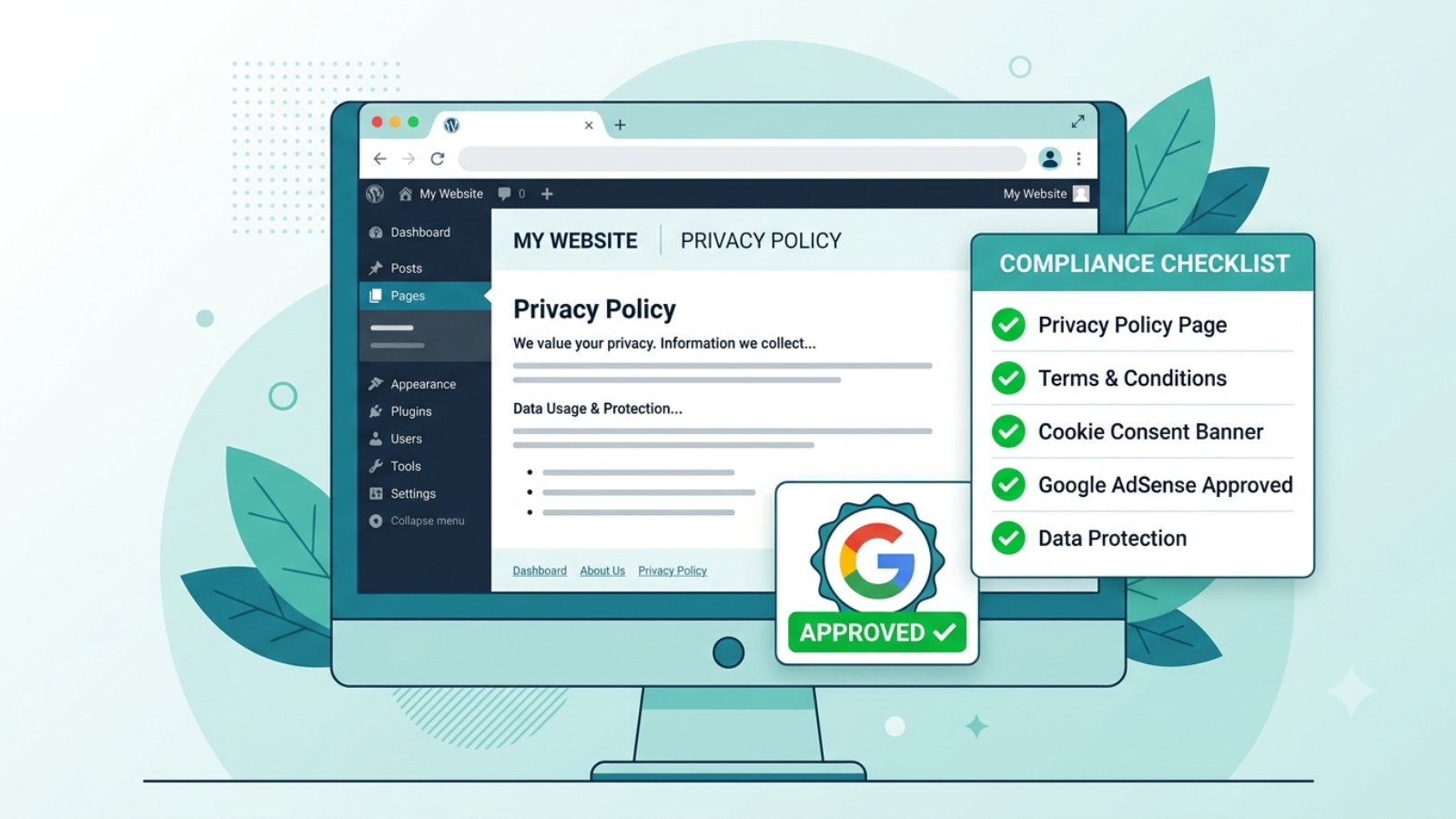
A privacy policy page for Google AdSense is not optional — Google will reject your AdSense application without one. It is one of the first things their review team checks, and getting it wrong is one of the most common reasons new sites fail AdSense approval even when everything else looks fine.
This guide covers exactly what your privacy policy needs to say, how to create one for free, where to add it on your WordPress site, and what else Google checks alongside it during the AdSense review process.
If you’re preparing your WordPress site for AdSense and want to get approved on your first application rather than going back and forth with rejections — read this before you apply.
Why Google AdSense Requires a Privacy Policy
Google AdSense displays personalized ads based on visitor behavior and cookies. Privacy laws in the US (COPPA), EU (GDPR), and UK (UK GDPR) require any website displaying behavioral advertising to disclose this to visitors clearly.
Google enforces this requirement as a condition of AdSense participation. Your privacy policy must specifically disclose that third-party ad networks — including Google — use cookies and collect data to serve personalized ads.
A generic privacy policy template that doesn’t mention advertising cookies will not satisfy AdSense requirements even if it covers everything else correctly.
⚠️ Watch Out: Don’t copy someone else’s privacy policy from another website. Google’s review team checks for this. Copied policies also create legal liability — a policy written for someone else’s business may not accurately describe yours.
What Your Privacy Policy Must Include for AdSense
Google publishes its own requirements for publisher privacy policies. Your policy must cover all of these areas:
1. What Data You Collect
List every type of data your site collects from visitors:
- Name and email (if you have contact forms or email signup)
- IP addresses (collected automatically by your server)
- Browser type and device information
- Pages visited and time spent (via Google Analytics)
- Cookies placed by your site and third-party services
2. How You Use That Data
Explain why you collect each type of data:
- Contact form data — to respond to enquiries
- Analytics data — to understand how visitors use the site
- Advertising data — to display relevant ads through Google AdSense
3. Google AdSense and Advertising Cookies
This section is the most critical for AdSense approval. You must specifically state:
- Your site uses Google AdSense to display advertisements
- Google uses cookies to serve ads based on visitor behavior
- Visitors can opt out of personalized ads via Google’s Ads Settings
- Third-party vendors including Google use cookies to serve ads based on prior visits
Google provides exact required language for this disclosure in their AdSense program policies.
4. Google Analytics
If you use Google Analytics (which you should), disclose this separately:
- Your site uses Google Analytics to collect anonymous usage data
- This data helps you understand visitor behavior and improve the site
- Visitors can opt out via the Google Analytics opt-out browser add-on
5. Cookies
Explain what cookies your site uses and why:
- Essential cookies — required for the site to function (WooCommerce cart, login sessions)
- Analytics cookies — Google Analytics tracking
- Advertising cookies — Google AdSense personalized ads
- Third-party cookies — any other services (Stripe, WPForms, etc.)
6. Third-Party Links
If your site links to other websites, state that you’re not responsible for the privacy practices of those external sites.
7. Children’s Privacy (COPPA)
State clearly that your site does not knowingly collect data from children under 13. This is required for AdSense regardless of your site’s topic.
8. How to Contact You
Include a contact method — email address or contact form link — so visitors can ask questions about your privacy practices.
9. Policy Last Updated Date
Add a “Last Updated: [date]” line at the top or bottom of the policy. Google wants to see that the policy is maintained and current.
✅ Pro Tip: After AdSense approval, update this date any time you add a new plugin, service, or data collection method to your site. A policy that says “Last Updated: 2023” on a site actively collecting data in 2026 is a red flag during any audit.
How to Create Your Privacy Policy for Free
You have three options — from fastest to most thorough:
Option 1 — Privacy Policy Generator (Fastest)
Use a free privacy policy generator that covers AdSense requirements specifically. The best free options:
- Termly.io — generates a comprehensive policy covering GDPR, CCPA, and AdSense requirements. Free tier available.
- PrivacyPolicies.com — clean generator with AdSense-specific options. Free for basic use.
- GetTerms.io — simple and fast, covers the essentials.
When using any generator:
- Select “Google AdSense” when asked about advertising services
- Select “Google Analytics” when asked about analytics
- Enter your website URL and contact email accurately
- Download or copy the generated policy
Option 2 — WordPress Privacy Policy Tool (Built In)
WordPress has a built-in privacy policy generator at Dashboard → Settings → Privacy. It creates a draft policy page automatically with common sections pre-filled.
The limitation: the default WordPress policy doesn’t include AdSense-specific language. Use it as a starting point, then add the Google AdSense disclosure section manually from Option 1 above.
Option 3 — Write It Yourself
If you want full control and accuracy, write your policy manually based on the section headings above. This takes longer but produces a policy that accurately describes your specific site rather than a generic template.
For a WordPress developer site like syedaounraza.online, a self-written policy covering all eight sections above is both legally more accurate and more credible to Google’s reviewers than an obvious template.
✅ Pro Tip: Whatever method you use, read the full policy before publishing it. Make sure every service it mentions is actually on your site and every service on your site is actually mentioned. A policy that lists services you don’t use or omits services you do is worse than having no policy at all.
How to Add the Privacy Policy to WordPress
Once your policy is written, adding it to WordPress takes about two minutes.
Create the Page
- Go to WordPress Dashboard → Pages → Add New
- Title: Privacy Policy
- Paste your policy content into the editor
- Set the slug to
/privacy-policy/ - Publish
Tell WordPress About It
WordPress has a specific setting for the privacy policy page:
- Go to Settings → Privacy
- Under “Change your Privacy Policy page,” select the page you just created
- Click Use This Page
This setting tells WordPress — and any privacy-related plugins — which page is your official privacy policy.
Add It to Your Footer Menu
Google’s review team looks for the privacy policy link in your footer. Add it there:
- Go to Appearance → Menus
- Select your Footer menu (create one if it doesn’t exist)
- Under Pages, find and add your Privacy Policy page
- Save Menu
Your footer should show: Privacy Policy · Contact · [any other legal pages]
⚠️ Watch Out: Don’t put your privacy policy only in the header navigation. Footer placement is the standard location Google expects and reviewers look for. You can add it to both, but the footer is non-negotiable.
Other Pages Google Checks During AdSense Review
Your privacy policy is the most important requirement but not the only one. During AdSense review, Google also checks:
About Page
Google wants to know who runs the site. Your About page should include your real name, what the site is about, and what kind of content visitors can expect. An anonymous site with no About page is a red flag.
Contact Page
A working contact method must be accessible. A contact form is fine — you don’t need to publish your email address publicly. Go to your contact page and submit a test message to confirm the form actually works before applying.
Content Quality
Google checks that your site has genuine, original content — not thin pages, copied text, or auto-generated content. Before applying, make sure you have at least 15–20 real, original blog posts published. Posts should be at least 800 words each and cover topics relevant to your site’s niche.
Site Age
Google generally prefers sites that have been live for at least 3–6 months before applying. A brand new site with 5 posts is very unlikely to be approved regardless of policy quality.
No Policy Violations
Your existing content must not violate AdSense policies — no adult content, no copyrighted material used without permission, no misleading claims, no content promoting illegal activity.
The AdSense Application Checklist
Before you submit your AdSense application, confirm every item on this list:
- Privacy policy page published at
/privacy-policy/ - Privacy policy linked in footer menu
- Privacy policy includes Google AdSense cookie disclosure
- Privacy policy includes Google Analytics disclosure
- About page published with real name and site description
- Contact page with working contact form
- Minimum 15 original blog posts published
- All posts minimum 800 words each
- Google Analytics installed and tracking
- Site live for at least 3 months
- No AdSense policy violations in existing content
- Site loads on mobile without errors
- No broken links on key pages
✅ Pro Tip: Install Google Site Kit on your WordPress site before applying. It connects Google Analytics, Search Console, and AdSense in one dashboard — and having Search Console data already flowing when you apply shows Google your site is actively indexed and receiving real traffic.
What to Do If Your AdSense Application Is Rejected
AdSense rejection emails are frustratingly vague — they rarely tell you exactly what’s wrong. Common rejection reasons and what they actually mean:
“Insufficient content”
You don’t have enough original posts, or your posts are too short. Add more content — aim for 20+ posts of 1000+ words before reapplying.
“Site does not comply with AdSense policies”
Something on your site violates a policy. Check for: copied content, broken pages, thin pages with less than 300 words, any adult or violent content, or misleading claims.
“Site is under construction”
Your site has pages that are blank, show placeholder content, or have coming soon notices. Remove all placeholder content before applying.
“Privacy policy issues”
Your privacy policy is missing, incomplete, or doesn’t include the required AdSense disclosure. Use the section headings above and confirm the AdSense cookie language is explicitly present.
After fixing the issue, wait at least 2 weeks before reapplying to give Google time to re-crawl your site.
Common Questions
Q: Does my privacy policy need to be written by a lawyer?
A: Not for AdSense approval — a comprehensive policy generated by a reputable tool covers Google’s requirements. For full legal compliance with GDPR or CCPA, professional legal review is advisable but separate from AdSense requirements.
Q: Can I use the same privacy policy on multiple sites?
A: No. Each site needs its own policy accurately describing that specific site’s data practices. A policy listing services you don’t use on that site creates both legal and AdSense compliance issues.
Q: How long does AdSense review take?
A: Typically 1–2 weeks for the initial review. If additional review is needed, it can take up to 4 weeks. You’ll receive an email either approving your account or listing issues to address.
Q: Do I need a cookie consent banner?
A: If your site has visitors from the EU, yes — GDPR requires explicit cookie consent before placing non-essential cookies. Install a free plugin like CookieYes which handles the consent banner and integrates with Google’s Consent Mode for AdSense.
Final Thoughts
Creating a privacy policy page for Google AdSense approval is a one-hour task that most people either skip entirely or do poorly with a three-line template. Neither approach gets you approved.
Use a proper generator like Termly, make sure the AdSense cookie disclosure is explicitly present, publish it at /privacy-policy/, link it in your footer, and check every other item on the application checklist before you submit.
The privacy policy is the easiest part of AdSense approval to get right — the harder part is having enough original, quality content published. Focus on both simultaneously rather than rushing an application before your site is genuinely ready.
If you need help setting up your WordPress site for AdSense — including privacy policy, Google Analytics, Search Console, and Site Kit configuration — Contact me and I’ll get everything in place correctly before you apply.