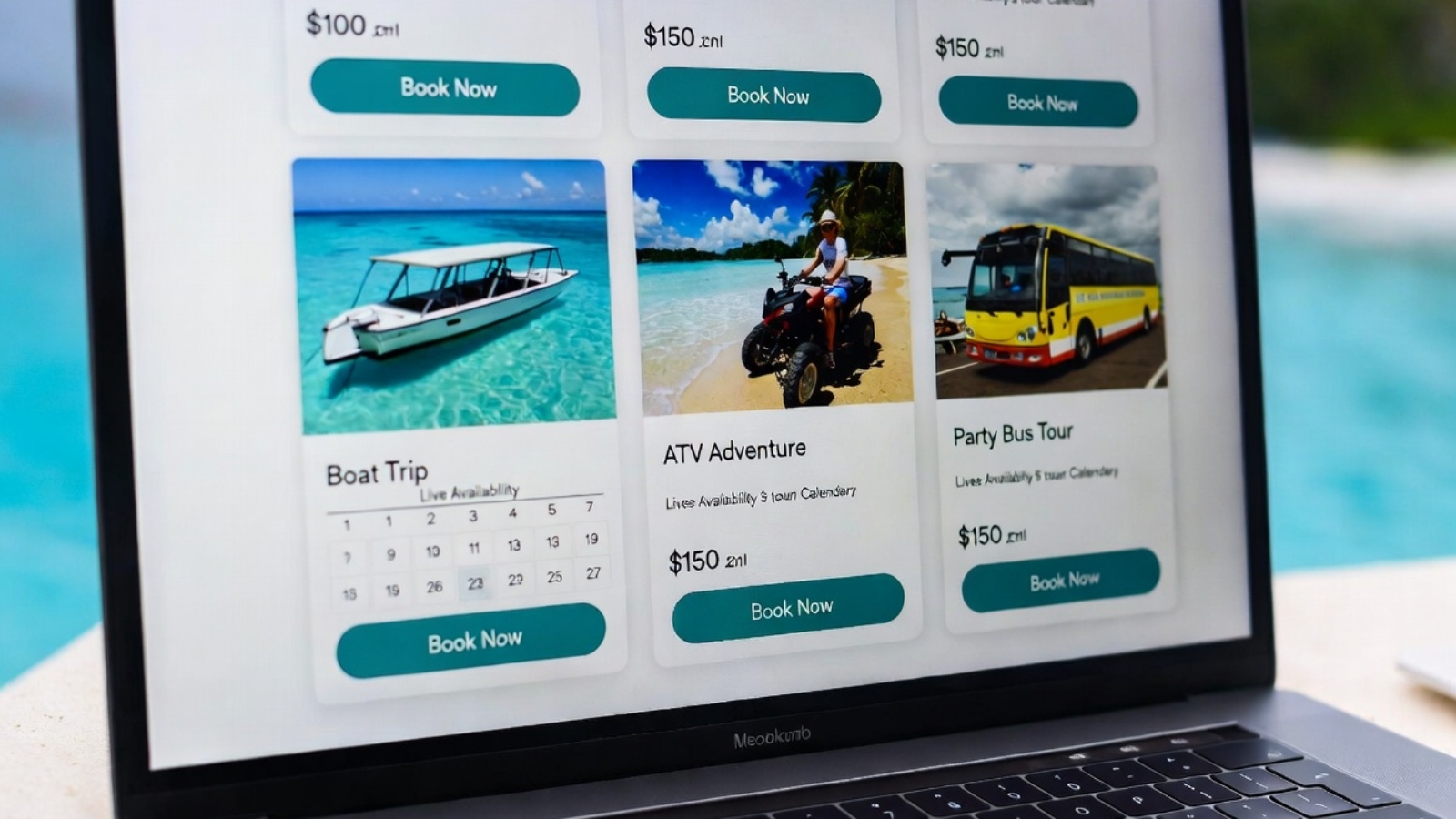
FareHarbor booking website for tourism business showing tour listings and live availability

Why Tourism Businesses Need a FareHarbor Booking Website

A FareHarbor booking website gives tourism businesses something that third-party platforms and scattered social media links never can — a single place where customers find you, trust you, and book directly with you, without leaving your brand experience to complete the transaction.

If you run a tour company, activity business, boat charter, or rental service and you’re currently sending customers to a generic FareHarbor page, a Google listing, or a third-party booking platform to complete their reservation — this post explains exactly what that’s costing you and how a proper FareHarbor-integrated WordPress website fixes it.

The Problem With How Most Tourism Businesses Handle Bookings

Most small tourism operators have the same setup: a FareHarbor account managing their availability and payments, a Facebook page for social presence, maybe a basic website that was built years ago, and a Google Business Profile where most bookings actually originate.

This works — until it doesn’t.

The problem isn’t FareHarbor. FareHarbor is excellent software for managing tour inventory, availability, and payments. The problem is the customer journey that surrounds it.

A tourist searching for activities in your area finds you on Google. They click through to your website. The website looks dated or basic. They’re not sure if you’re still operating. They can’t easily find what tours you offer or what they cost. The booking button either doesn’t exist or redirects them to a generic FareHarbor page that looks nothing like your brand.

At any point in that journey they might leave. And in tourism, a customer who leaves to “think about it” almost never comes back — they book with the next operator they find.

⚠️ Watch Out: Most tourism businesses underestimate how much their website is costing them in lost bookings. If your site doesn’t load fast on mobile, doesn’t clearly show your tours and prices, and doesn’t have a frictionless booking flow — you’re losing customers to competitors who do have those things, even if your actual tours are better.

What a Proper FareHarbor Booking Website Actually Does

A well-built FareHarbor-integrated WordPress website does five things that a basic site or Facebook page simply cannot.

1. Keeps Customers Inside Your Brand Experience

When FareHarbor is properly integrated into your WordPress site, customers browse your tours, check availability, and complete payment — all on your website, all inside your brand. The booking modal opens as an overlay on your page. When the booking is complete, they’re still on your site.

Compare this to sending customers to a standalone FareHarbor page, a third-party booking platform, or a link-in-bio setup. Every redirect is a point where customers can get distracted, second-guess themselves, or simply close the tab.

Keeping the entire journey on your own site consistently produces higher conversion rates. The customer never has a reason to leave.

2. Shows All Your Tours in One Place with Live Availability

FareHarbor’s Flow widget embedded on your WordPress site displays every tour you offer — with photos, descriptions, pricing, and real-time availability — all on one page.

A tourist landing on your booking page sees everything you offer, sees which dates have availability, picks what they want, and books in under two minutes.

✅ Pro Tip: Create a dedicated “Book a Tour” or “Experiences” page as your primary call-to-action destination. Link to it from your homepage, your navigation menu, every individual tour page, and every social media profile. The more paths lead to this page, the more bookings it generates.

3. Reduces Dependency on Third-Party Platforms

Viator, GetYourGuide, TripAdvisor Experiences, and similar platforms take commissions of 20–30% on every booking. For a $100 tour that’s $20–$30 gone before you’ve paid a single operating cost.

These platforms have their place — especially for discovery, where tourists who have never heard of you find you through search. But once a customer knows you exist, you want them booking directly through your own site where you keep the full revenue minus only the FareHarbor payment processing fee.

A proper website with strong SEO means more customers find you directly through Google instead of through a commission-charging platform.

4. Builds Trust Before the Booking

A professional website does something a FareHarbor profile page and a Facebook page cannot fully achieve — it builds trust systematically.

Your own domain, professional design, real photos from your tours, genuine customer reviews, a clear About page explaining who you are and how long you’ve been operating, a phone number and WhatsApp button — all of these signals tell a tourist that you are a legitimate, established business worth booking with.

In tourism, trust is everything. Tourists are spending real money and planning experiences they may have saved up for. They will not book with an operator who looks unestablished online, regardless of how good the actual tour is.

5. Gives You an SEO Foundation That Compounds Over Time

Third-party platforms rank in Google for your activity category. You do not. When a tourist searches “boat tours in [your location]” they find Viator and GetYourGuide ranking on page 1 — and your business buried somewhere below.

A WordPress website with proper SEO content targeting your specific location and activity type gives you a real path to ranking directly in Google searches for your tours. This takes time — typically 6–12 months of consistent content — but once established it generates free organic traffic and direct bookings that no platform can take a commission on.

✅ Pro Tip: Write individual tour landing pages for your most popular activities — one page per tour, with a dedicated URL, proper SEO title and meta description, and a FareHarbor booking widget embedded directly on the page. These pages can rank individually for specific search terms like “sunset catamaran cruise Aruba” or “ATV adventure tour Aruba.”

Who Specifically Needs a FareHarbor-Integrated Website

Not every tourism operator needs the same level of website. Here’s how to think about it:

You need a full FareHarbor booking website if:

  • You manage multiple tour types or activity categories
  • You work with partner operators or resellers
  • You’re currently sending customers to a generic FareHarbor page to complete bookings
  • You’re paying 20%+ commissions to OTAs on most of your bookings
  • Your current website was built more than 3 years ago and doesn’t work well on mobile
  • You want to appear in Google searches for your specific tours and location

A basic FareHarbor embed on an existing site may be enough if:

  • You offer one or two simple tour types with no variants
  • You already have a well-designed, fast-loading website
  • You just need to add a booking button to what already exists

You need a multi-partner setup if:

  • You operate as an umbrella company or reseller managing bookings for multiple tour operators
  • You want to offer a variety of tour types from different providers on one site
  • You manage separate FareHarbor accounts for different brands under one business

I built exactly this kind of multi-partner FareHarbor site for a tourism company in Aruba managing three separate partner brands — De Palm Tours, Kukoo Kunuku, and Pelican Adventures — all bookable through one WordPress site. You can read the full case study on how that was built here.

What to Look for When Hiring a Developer for This

Not every WordPress developer has worked with FareHarbor. It’s a niche enough integration that many developers will say yes and then figure it out as they go — which costs you time and money.

When evaluating a developer for a FareHarbor WordPress project, ask these specific questions:

  • Have you worked with FareHarbor’s widget system before?
  • Have you set up a multi-partner FareHarbor integration?
  • How do you handle mobile testing for the booking modal?
  • How do you approach page speed when loading multiple FareHarbor widgets?
  • Have you dealt with FareHarbor Partner Network permissions before?

A developer who has done this before will answer these questions specifically. One who hasn’t will give vague answers about “integrating booking systems” without addressing FareHarbor directly.

✅ Pro Tip: Ask the developer to show you a live example of a FareHarbor integration they’ve built. A portfolio page or a live client URL is more convincing than any description of their experience.

What a FareHarbor Booking Website Typically Costs

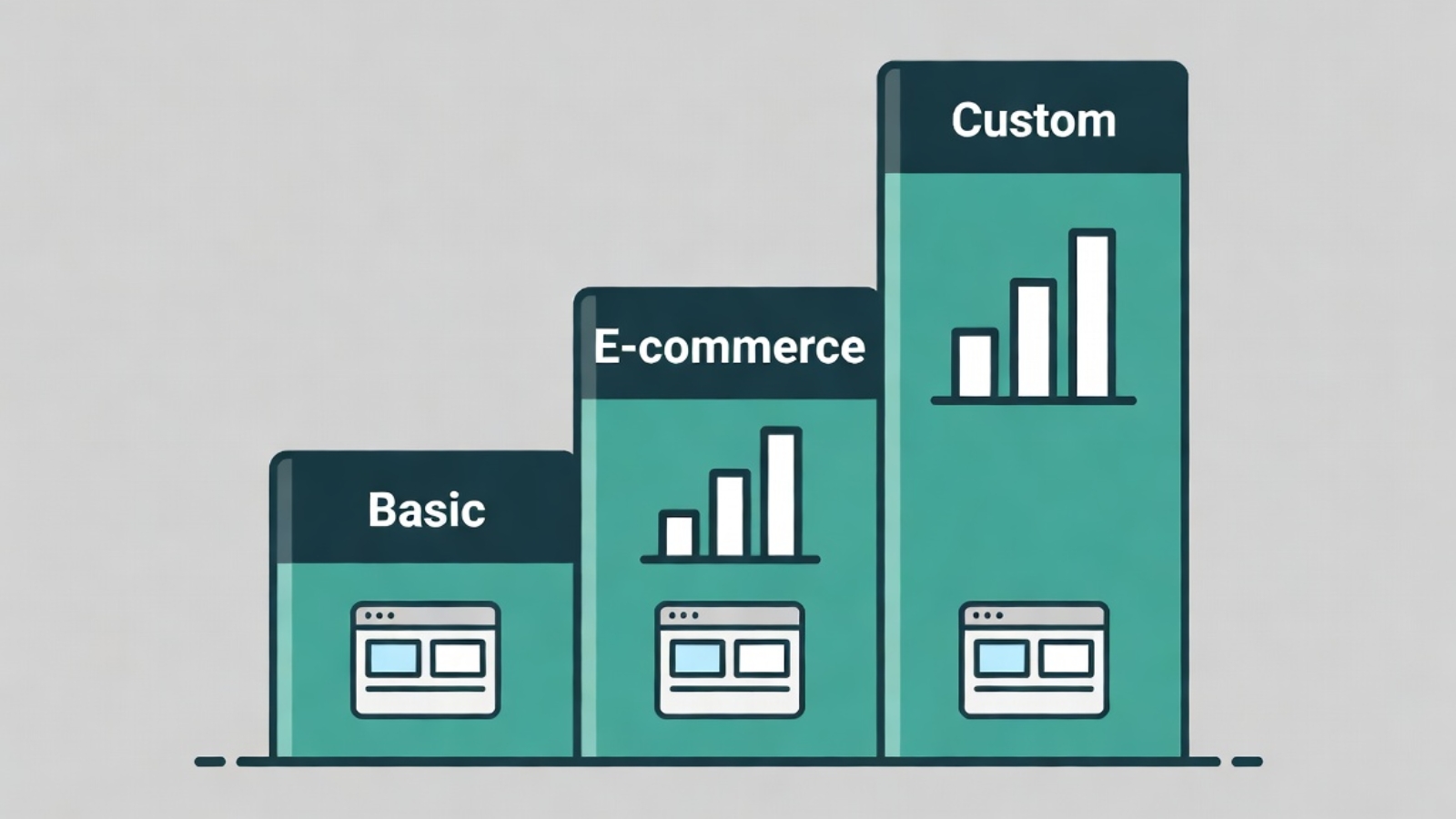
A FareHarbor-integrated WordPress website for a tourism business typically falls in the range of $1,000–$3,500 depending on complexity. Here’s what drives the cost:

Lower end ($1,000–$1,500):

  • Single operator, one FareHarbor account
  • Standard Flow widget embed on a booking page
  • 5–8 pages total
  • Elementor-based design using a quality theme

Mid range ($1,500–$2,500):

  • Multiple tour categories with individual landing pages
  • Custom design beyond a standard theme
  • WhatsApp integration, contact forms, Google Maps
  • Mobile performance optimization

Higher end ($2,500–$3,500+):

  • Multi-partner setup connecting two or more FareHarbor accounts
  • Custom booking page design with individual partner sections
  • SEO setup including individual tour landing pages
  • Bilingual content (for operators serving international tourists)

These figures assume freelance developer pricing. Agency pricing for the same scope runs significantly higher.

Common Questions From Tourism Business Owners

Q: Do I need to change my FareHarbor account to add it to a WordPress site?
A: No. Your FareHarbor account stays exactly as it is. The WordPress integration uses embed codes generated from your existing FareHarbor dashboard. Your availability, pricing, and payment processing all stay inside FareHarbor — WordPress just displays the booking interface on your own site.

Q: Will customers still get FareHarbor confirmation emails after booking?
A: Yes. FareHarbor handles all booking confirmation and reminder emails directly from their system. Your WordPress site just provides the interface where the booking starts — FareHarbor handles everything after the customer completes the transaction.

Q: Can I show tours from multiple FareHarbor accounts on one site?
A: Yes — through FareHarbor’s Partner Network system. One operator account gets booking permissions across multiple partner accounts, and all partner inventory can be displayed through one WordPress site. I’ve built this for a real tourism client. You can read the full technical guide on how FareHarbor WordPress integration works.

Q: How long does it take to build a FareHarbor booking website?
A: A standard single-operator site typically takes 1–2 weeks from start to launch. A multi-partner setup with custom design and individual tour landing pages takes 2–4 weeks depending on how quickly content and partner approvals come through.

Q: Will my site rank on Google for my tours?
A: With proper SEO setup — individual tour landing pages, location-specific keywords, fast mobile loading — yes, over time. Ranking takes 3–6 months of consistent content for competitive tourism destinations. Less competitive locations can rank faster. A developer who sets up the SEO foundation correctly from day one gives you the best starting position.

Final Thoughts

A FareHarbor booking website is not a luxury for a tourism business in 2026 — it’s the baseline expectation of a tourist who finds you online. A professional site with your tours, real photos, live availability, and a seamless booking flow is what converts a browsing tourist into a paying customer.

The alternative — sending customers to a generic page, a social media link, or a third-party platform that takes a 25% commission — costs you money on every single booking and gives you no control over the customer experience or the data that customer generates.

If you run a tourism business using FareHarbor and want a WordPress site that makes booking as simple as possible for your customers — Contact me and I’ll build it for you.
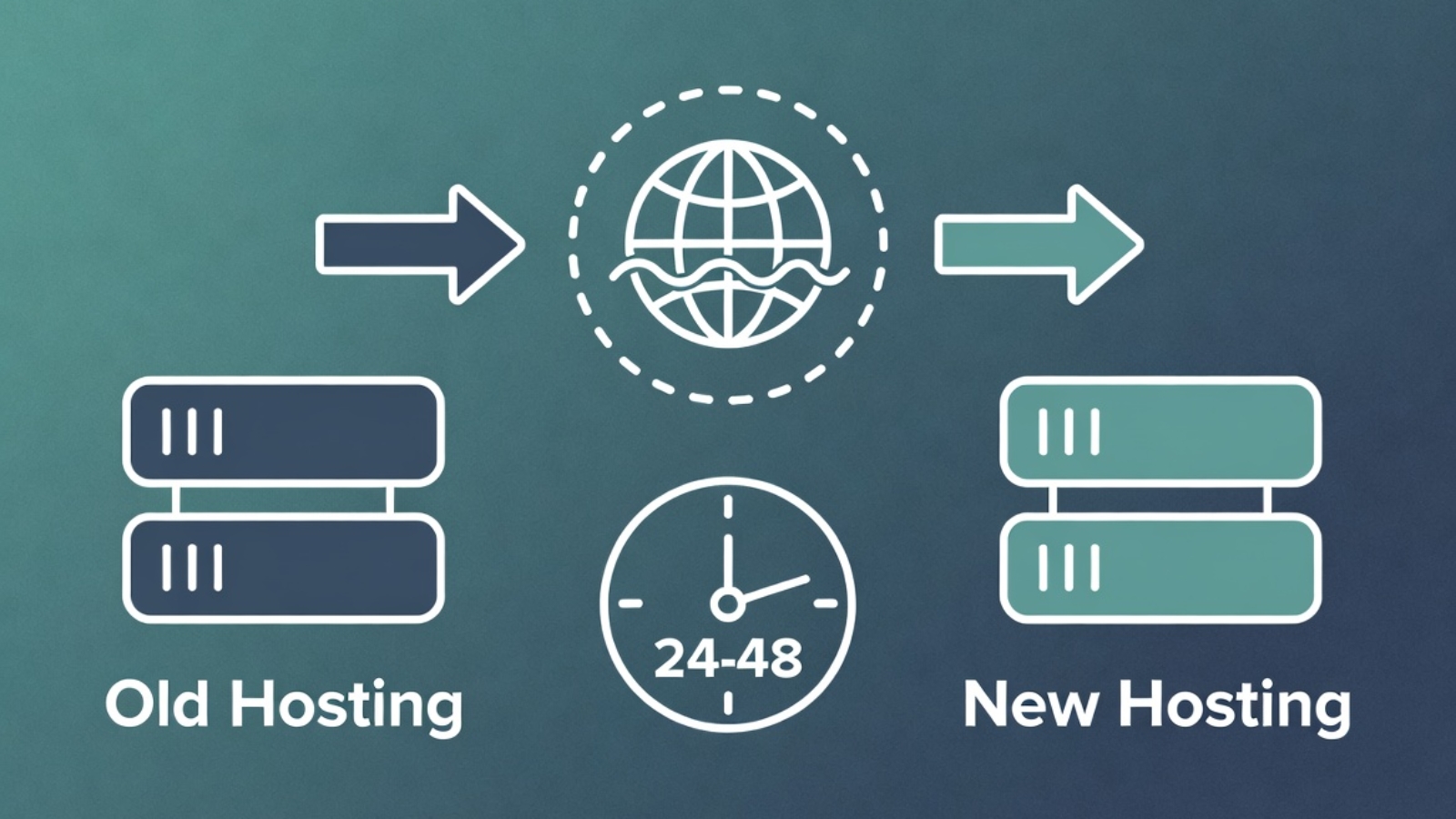
DNS propagation issue during restaurant website migration showing old and new site conflict

DNS Propagation Issues When Migrating a Restaurant Website — How to Fix Them

DNS propagation issues during a restaurant website migration can bring your entire online ordering system to a halt at the worst possible moment — during a busy lunch service, on a Friday evening, or right after you’ve told customers about your new site.

I’ve migrated multiple restaurant websites including Danish restaurants registered at Punkt.um, and DNS propagation problems came up every single time. This guide covers exactly what causes DNS propagation issues, how to fix them fast, and how to structure your migration so your restaurant never goes dark during the switch.

If you’re mid-migration and your site is currently down or flipping between old and new — scroll straight to the Fix section. If you’re planning a migration, read everything so you don’t hit these problems at all.

What DNS Propagation Actually Means

Before fixing the problem, it helps to understand what’s actually happening.

Every domain name (like yourrestaurant.com) points to an IP address — the physical location of the server where your website lives. DNS (Domain Name System) is the global system that translates your domain name into that IP address so browsers can find your site.

When you migrate a restaurant website to new hosting, you change the IP address your domain points to. DNS propagation is the time it takes for this change to spread across all DNS servers worldwide.

The problem: DNS servers around the world cache (store) your old IP address. Until their cache expires and they fetch the new record, some visitors see your old site and some see the new one — depending on which DNS server their internet provider uses.

This propagation period typically takes 24–48 hours. Some providers update within minutes. Others hold the old record for the full 48 hours. You have no direct control over this.

⚠️ Watch Out: During propagation, you might test your new site from your laptop and see it working perfectly — while a customer in another city still sees the old site or gets a blank page. This is normal propagation behavior, not a sign something is broken.

Why Restaurant Websites Are Especially Vulnerable

Most websites can afford a few hours of reduced visibility during a DNS change. Restaurant websites can’t — especially ones taking online orders.

A customer who hits a blank page or error during your migration doesn’t wait for propagation to finish. They order from somewhere else. If your DNS change happens on a Friday evening before a busy weekend, that’s real lost revenue.

Restaurant websites also typically involve more moving parts than a simple brochure site:

  • An active ordering system (WooCommerce, Gloria Food, or a booking platform)
  • Payment gateway connections that are IP or domain-specific
  • Email order notifications that may be tied to the old hosting
  • Google My Business listing pointing to the domain
  • Third-party delivery platform integrations

All of these need to keep working during and after the migration.

✅ Pro Tip: Never schedule a DNS change on a Friday, Saturday, or any day before a known busy period for your restaurant. Tuesday or Wednesday morning is ideal — lower traffic, your hosting support team is available, and you have the rest of the week to fix anything unexpected.

The Right Way to Migrate — Zero Downtime Approach

The single most important thing you can do to avoid DNS propagation problems is to never actually take your restaurant offline during the migration.

Here’s the approach I use for every restaurant migration:

Step 1 — Build the New Site on a Temporary URL

Build and fully test the new WordPress site on a staging URL or a temporary subdomain provided by your new host. For example:

staging.yourrestaurant.com
OR
yourrestaurant.newhost.com/staging

The old site stays completely live and taking orders throughout this entire phase. Customers never see anything different.

Step 2 — Test Everything on the Staging URL

Before touching any DNS settings, confirm all of the following work on the staging URL:

  • Full menu loads correctly with all items and prices
  • Add to cart and checkout work end to end
  • Payment processes successfully (use a real test transaction)
  • Order confirmation email arrives
  • All images load correctly
  • Site loads on mobile in Safari and Chrome

Do not change DNS until every item on this list passes.

Step 3 — Lower Your TTL Before Changing DNS

TTL (Time To Live) is the number of seconds DNS servers cache your record before checking for updates. Most domains default to 3600 seconds (1 hour) or 86400 seconds (24 hours).

Lower your TTL to 300 seconds (5 minutes) at least 24 hours before you plan to change your DNS records. This means when you do make the change, it propagates in minutes rather than hours.

To lower TTL:

  1. Log in to your domain registrar (Punkt.um, GoDaddy, Namecheap, etc.)
  2. Go to DNS management
  3. Find your A record for @ (root domain) and www
  4. Change the TTL value to 300
  5. Save and wait 24 hours before proceeding

✅ Pro Tip: Most restaurant owners don’t know about TTL and skip this step. It’s the single most effective thing you can do to speed up propagation. A 5-minute TTL means your DNS change reaches most of the world within 15–30 minutes instead of 24–48 hours.

Step 4 — Change Your DNS Records

Once your new site is fully tested and your TTL has been lowered for 24 hours, make the DNS change.

Option A — Change Nameservers (Recommended)

Nameservers control all DNS for your domain. Pointing them to your new host means the new host manages all DNS records.

Find your new host’s nameservers in your hosting control panel — they look like:

ns1.hostinger.com
ns2.hostinger.com

At your registrar, replace the current nameservers with these. Save.

Option B — Update A Records Only

If you want to keep your domain’s DNS managed at your registrar, update only the A records:

  1. Find your new hosting server’s IP address in your hosting control panel
  2. At your registrar, edit the A record for @ (root domain) — change IP to new hosting IP
  3. Edit the A record for www — same new IP
  4. Save

A record changes propagate faster than nameserver changes in most cases.

Step 5 — Keep the Old Site Live During Propagation

This is critical. Do not cancel your old hosting until propagation is fully complete.

During the propagation window, some visitors will reach the old site and some will reach the new one. If your old hosting is still live, old-site visitors still see a working restaurant — they can still order. The only downside is you’re running two hosting accounts temporarily.

Wait at least 48 hours after the DNS change before cancelling old hosting. Check propagation status at whatsmydns.net — enter your domain and confirm it shows the new IP from locations around the world before cancelling anything.

Punkt.um Specific — Danish Domain Registrar

If your restaurant domain is registered at Punkt.um — common for Danish restaurants — here’s what you need to know that their documentation doesn’t make obvious.

Finding DNS settings in Punkt.um:

Punkt.um’s interface is in Danish. The sections you need:

  • Nameservers: look for “Navneservere” in your domain management panel
  • DNS records (A records): look for “DNS-zoner”

Punkt.um propagation is slow. In my experience migrating Danish restaurant domains through Punkt.um, propagation consistently took 36–48 hours — longer than most registrars. Build this into your timeline and warn the client upfront.

Punkt.um TTL settings: TTL adjustment is available in the DNS-zoner section. Lower it to 300 before your migration window exactly as described above — it makes a significant difference even with Punkt.um’s slower propagation.

⚠️ Watch Out: Punkt.um requires you to confirm DNS changes via email. After saving your nameserver or A record change, check the email address registered with your Punkt.um account immediately — the change won’t apply until you click the confirmation link. This confirmation requirement catches people out, especially if the registered email is an old address they don’t check regularly.

How to Check If DNS Has Propagated

Don’t rely on your own browser to check propagation — your local DNS cache may be showing you the old site even after the change.

Use these tools instead:

whatsmydns.net — shows your domain’s DNS resolution from servers in 20+ countries simultaneously. Enter your domain, select A record, and click Search. Green checkmarks mean that location sees the new IP. This is the most reliable way to see real-world propagation status.

dnschecker.org — similar tool with a slightly different server list. Use both for a complete picture.

Clear your local DNS cache:

On Windows:

ipconfig /flushdns

On Mac:

sudo dscacheutil -flushcache; sudo killall -HUP mDNSResponder

On Chrome browser: go to chrome://net-internals/#dns → click Clear host cache.

After clearing cache, open your domain in an incognito window to see which version of the site your connection currently resolves to.

Common DNS Propagation Problems and Fixes

Problem: Site shows blank page or connection error during propagation

This usually means your new hosting is live but SSL hasn’t been issued yet for the domain. Most hosting providers issue a free SSL certificate automatically when your domain points to their servers — but this can take 10–30 minutes after DNS resolves.

Fix: Wait 30 minutes after DNS propagates and check again. If still no SSL, log in to your hosting control panel and manually trigger SSL issuance (Hostinger: hPanel → SSL → Install, SiteGround: Site Tools → Security → SSL Manager).

Problem: Old site showing after 48 hours

Fix: Your local DNS cache is still showing the old site. Clear your cache using the commands above and test in incognito. If whatsmydns.net shows the new IP globally but you still see the old site locally, it’s definitely a local cache issue — not a real propagation problem.

Problem: Email stops working after migration

Fix: When you change nameservers, you move DNS management to your new host — which may not have your MX records (email routing) set up. Before changing nameservers, log your existing MX records at your old registrar and recreate them at the new host.

Check MX records with:

nslookup -type=MX yourrestaurant.com

Problem: WooCommerce ordering breaks after migration

Fix: Check two things. First, your SSL certificate is active on the new host — WooCommerce checkout requires HTTPS. Second, your WordPress site URL is set correctly. Go to Settings → General and confirm both WordPress Address and Site Address show the correct domain with https://.

Problem: Google My Business still showing old site

Fix: This isn’t a DNS issue — it’s a Google cache issue. After migration, log in to your Google Business Profile and update the website URL to confirm it’s correct. Google will recrawl your site within a few days.

Migration Checklist — Full Timeline

One week before migration:

  • Build and fully test new site on staging URL
  • Confirm all payment gateways work on new host
  • Screenshot all existing DNS records at old registrar
  • Lower TTL to 300 on all A records

Day of migration:

  • Confirm TTL has been low for at least 24 hours
  • Run final test on staging URL
  • Change nameservers or A records at registrar
  • Confirm Punkt.um email confirmation if applicable
  • Monitor whatsmydns.net every 30 minutes

48 hours after DNS change:

  • Confirm full propagation on whatsmydns.net
  • Test complete ordering flow on live domain
  • Confirm order confirmation emails arriving correctly
  • Confirm SSL active with green padlock in browser
  • Clear your local DNS cache and test in incognito

After full confirmation:

  • Cancel old hosting
  • Restore TTL to 3600 on DNS records
  • Submit new sitemap to Google Search Console
  • Update any hardcoded old hosting URLs in WordPress database using Search Replace DB

Common Questions

Q: How long does DNS propagation actually take?
A: Typically 24–48 hours globally. With a low TTL set in advance it can be as fast as 15–30 minutes for most locations. Punkt.um specifically tends toward the 36–48 hour end of the range.

Q: Can I speed up DNS propagation?
A: Yes — lower your TTL to 300 seconds at least 24 hours before the change. This is the most effective method. You cannot force other DNS servers to update faster than their cache expiry.

Q: Will my restaurant lose orders during migration?
A: Not if you keep the old hosting live during propagation. Visitors hitting the old site during propagation still see a working restaurant and can still order. Only cancel old hosting after full propagation is confirmed.

Q: Do I need to change DNS if I’m keeping the same domain?
A: Yes — if you’re moving to new hosting, you need to update DNS regardless of whether you keep the same domain. The domain name stays the same but it needs to point to the new server’s IP address.

Q: What if my domain registrar doesn’t let me change TTL?
A: Some budget registrars don’t expose TTL settings. In this case, change your DNS records on a Tuesday morning when traffic is lowest and accept the standard 24–48 hour propagation window.

Final Thoughts

DNS propagation issues during a restaurant website migration are almost entirely avoidable with the right preparation. Lower your TTL a day before the switch, keep the old site live during propagation, use whatsmydns.net to monitor in real time, and never schedule a DNS change before a busy trading period.

The Punkt.um-specific issues — Danish confirmation emails, slower propagation, Danish-language interface — add complexity that catches people out if they haven’t worked with that registrar before. Now you know what to expect.

If you’re migrating a restaurant website — from Gloria Food to WooCommerce, from one host to another, or from a third-party platform to a self-hosted WordPress site — and want a developer who has done this before without taking the restaurant offline, Contact me and let’s get it done properly.

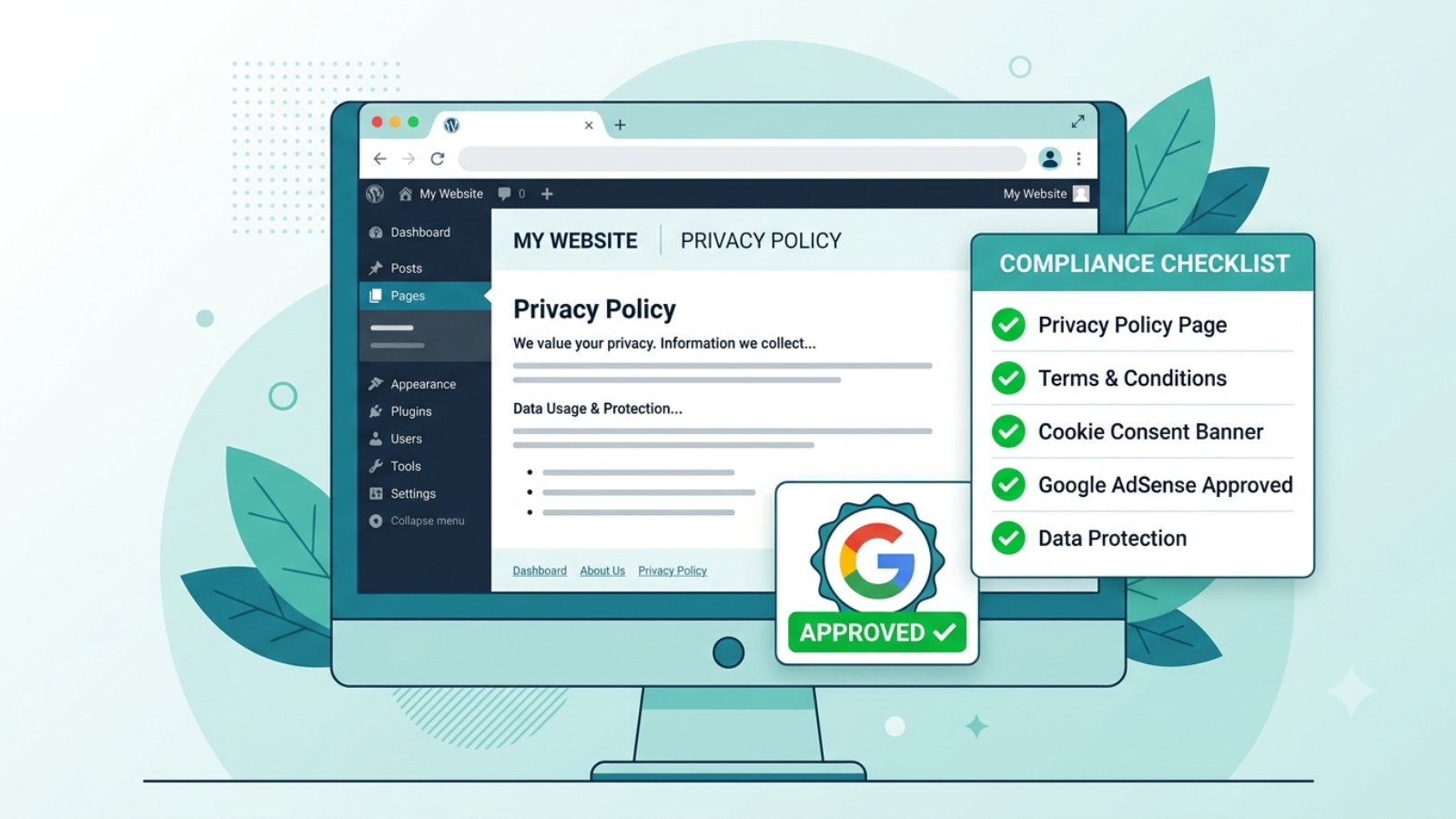
Privacy policy page for Google AdSense approval shown on a WordPress website

How to Create a Privacy Policy Page for Google AdSense Approval

A privacy policy page for Google AdSense is not optional — Google will reject your AdSense application without one. It is one of the first things their review team checks, and getting it wrong is one of the most common reasons new sites fail AdSense approval even when everything else looks fine.

This guide covers exactly what your privacy policy needs to say, how to create one for free, where to add it on your WordPress site, and what else Google checks alongside it during the AdSense review process.

If you’re preparing your WordPress site for AdSense and want to get approved on your first application rather than going back and forth with rejections — read this before you apply.

Why Google AdSense Requires a Privacy Policy

Google AdSense displays personalized ads based on visitor behavior and cookies. Privacy laws in the US (COPPA), EU (GDPR), and UK (UK GDPR) require any website displaying behavioral advertising to disclose this to visitors clearly.

Google enforces this requirement as a condition of AdSense participation. Your privacy policy must specifically disclose that third-party ad networks — including Google — use cookies and collect data to serve personalized ads.

A generic privacy policy template that doesn’t mention advertising cookies will not satisfy AdSense requirements even if it covers everything else correctly.

⚠️ Watch Out: Don’t copy someone else’s privacy policy from another website. Google’s review team checks for this. Copied policies also create legal liability — a policy written for someone else’s business may not accurately describe yours.

What Your Privacy Policy Must Include for AdSense

Google publishes its own requirements for publisher privacy policies. Your policy must cover all of these areas:

1. What Data You Collect

List every type of data your site collects from visitors:

  • Name and email (if you have contact forms or email signup)
  • IP addresses (collected automatically by your server)
  • Browser type and device information
  • Pages visited and time spent (via Google Analytics)
  • Cookies placed by your site and third-party services

2. How You Use That Data

Explain why you collect each type of data:

  • Contact form data — to respond to enquiries
  • Analytics data — to understand how visitors use the site
  • Advertising data — to display relevant ads through Google AdSense

3. Google AdSense and Advertising Cookies

This section is the most critical for AdSense approval. You must specifically state:

  • Your site uses Google AdSense to display advertisements
  • Google uses cookies to serve ads based on visitor behavior
  • Visitors can opt out of personalized ads via Google’s Ads Settings
  • Third-party vendors including Google use cookies to serve ads based on prior visits

Google provides exact required language for this disclosure in their AdSense program policies.

4. Google Analytics

If you use Google Analytics (which you should), disclose this separately:

  • Your site uses Google Analytics to collect anonymous usage data
  • This data helps you understand visitor behavior and improve the site
  • Visitors can opt out via the Google Analytics opt-out browser add-on

5. Cookies

Explain what cookies your site uses and why:

  • Essential cookies — required for the site to function (WooCommerce cart, login sessions)
  • Analytics cookies — Google Analytics tracking
  • Advertising cookies — Google AdSense personalized ads
  • Third-party cookies — any other services (Stripe, WPForms, etc.)

6. Third-Party Links

If your site links to other websites, state that you’re not responsible for the privacy practices of those external sites.

7. Children’s Privacy (COPPA)

State clearly that your site does not knowingly collect data from children under 13. This is required for AdSense regardless of your site’s topic.

8. How to Contact You

Include a contact method — email address or contact form link — so visitors can ask questions about your privacy practices.

9. Policy Last Updated Date

Add a “Last Updated: [date]” line at the top or bottom of the policy. Google wants to see that the policy is maintained and current.

✅ Pro Tip: After AdSense approval, update this date any time you add a new plugin, service, or data collection method to your site. A policy that says “Last Updated: 2023” on a site actively collecting data in 2026 is a red flag during any audit.

How to Create Your Privacy Policy for Free

You have three options — from fastest to most thorough:

Option 1 — Privacy Policy Generator (Fastest)

Use a free privacy policy generator that covers AdSense requirements specifically. The best free options:

  • Termly.io — generates a comprehensive policy covering GDPR, CCPA, and AdSense requirements. Free tier available.
  • PrivacyPolicies.com — clean generator with AdSense-specific options. Free for basic use.
  • GetTerms.io — simple and fast, covers the essentials.

When using any generator:

  • Select “Google AdSense” when asked about advertising services
  • Select “Google Analytics” when asked about analytics
  • Enter your website URL and contact email accurately
  • Download or copy the generated policy

Option 2 — WordPress Privacy Policy Tool (Built In)

WordPress has a built-in privacy policy generator at Dashboard → Settings → Privacy. It creates a draft policy page automatically with common sections pre-filled.

The limitation: the default WordPress policy doesn’t include AdSense-specific language. Use it as a starting point, then add the Google AdSense disclosure section manually from Option 1 above.

Option 3 — Write It Yourself

If you want full control and accuracy, write your policy manually based on the section headings above. This takes longer but produces a policy that accurately describes your specific site rather than a generic template.

For a WordPress developer site like syedaounraza.online, a self-written policy covering all eight sections above is both legally more accurate and more credible to Google’s reviewers than an obvious template.

✅ Pro Tip: Whatever method you use, read the full policy before publishing it. Make sure every service it mentions is actually on your site and every service on your site is actually mentioned. A policy that lists services you don’t use or omits services you do is worse than having no policy at all.

How to Add the Privacy Policy to WordPress

Once your policy is written, adding it to WordPress takes about two minutes.

Create the Page

  1. Go to WordPress Dashboard → Pages → Add New
  2. Title: Privacy Policy
  3. Paste your policy content into the editor
  4. Set the slug to /privacy-policy/
  5. Publish

Tell WordPress About It

WordPress has a specific setting for the privacy policy page:

  1. Go to Settings → Privacy
  2. Under “Change your Privacy Policy page,” select the page you just created
  3. Click Use This Page

This setting tells WordPress — and any privacy-related plugins — which page is your official privacy policy.

Add It to Your Footer Menu

Google’s review team looks for the privacy policy link in your footer. Add it there:

  1. Go to Appearance → Menus
  2. Select your Footer menu (create one if it doesn’t exist)
  3. Under Pages, find and add your Privacy Policy page
  4. Save Menu

Your footer should show: Privacy Policy · Contact · [any other legal pages]

⚠️ Watch Out: Don’t put your privacy policy only in the header navigation. Footer placement is the standard location Google expects and reviewers look for. You can add it to both, but the footer is non-negotiable.

Other Pages Google Checks During AdSense Review

Your privacy policy is the most important requirement but not the only one. During AdSense review, Google also checks:

About Page

Google wants to know who runs the site. Your About page should include your real name, what the site is about, and what kind of content visitors can expect. An anonymous site with no About page is a red flag.

Contact Page

A working contact method must be accessible. A contact form is fine — you don’t need to publish your email address publicly. Go to your contact page and submit a test message to confirm the form actually works before applying.

Content Quality

Google checks that your site has genuine, original content — not thin pages, copied text, or auto-generated content. Before applying, make sure you have at least 15–20 real, original blog posts published. Posts should be at least 800 words each and cover topics relevant to your site’s niche.

Site Age

Google generally prefers sites that have been live for at least 3–6 months before applying. A brand new site with 5 posts is very unlikely to be approved regardless of policy quality.

No Policy Violations

Your existing content must not violate AdSense policies — no adult content, no copyrighted material used without permission, no misleading claims, no content promoting illegal activity.

The AdSense Application Checklist

Before you submit your AdSense application, confirm every item on this list:

  • Privacy policy page published at /privacy-policy/
  • Privacy policy linked in footer menu
  • Privacy policy includes Google AdSense cookie disclosure
  • Privacy policy includes Google Analytics disclosure
  • About page published with real name and site description
  • Contact page with working contact form
  • Minimum 15 original blog posts published
  • All posts minimum 800 words each
  • Google Analytics installed and tracking
  • Site live for at least 3 months
  • No AdSense policy violations in existing content
  • Site loads on mobile without errors
  • No broken links on key pages

✅ Pro Tip: Install Google Site Kit on your WordPress site before applying. It connects Google Analytics, Search Console, and AdSense in one dashboard — and having Search Console data already flowing when you apply shows Google your site is actively indexed and receiving real traffic.

What to Do If Your AdSense Application Is Rejected

AdSense rejection emails are frustratingly vague — they rarely tell you exactly what’s wrong. Common rejection reasons and what they actually mean:

“Insufficient content”
You don’t have enough original posts, or your posts are too short. Add more content — aim for 20+ posts of 1000+ words before reapplying.

“Site does not comply with AdSense policies”
Something on your site violates a policy. Check for: copied content, broken pages, thin pages with less than 300 words, any adult or violent content, or misleading claims.

“Site is under construction”
Your site has pages that are blank, show placeholder content, or have coming soon notices. Remove all placeholder content before applying.

“Privacy policy issues”
Your privacy policy is missing, incomplete, or doesn’t include the required AdSense disclosure. Use the section headings above and confirm the AdSense cookie language is explicitly present.

After fixing the issue, wait at least 2 weeks before reapplying to give Google time to re-crawl your site.

Common Questions

Q: Does my privacy policy need to be written by a lawyer?
A: Not for AdSense approval — a comprehensive policy generated by a reputable tool covers Google’s requirements. For full legal compliance with GDPR or CCPA, professional legal review is advisable but separate from AdSense requirements.

Q: Can I use the same privacy policy on multiple sites?
A: No. Each site needs its own policy accurately describing that specific site’s data practices. A policy listing services you don’t use on that site creates both legal and AdSense compliance issues.

Q: How long does AdSense review take?
A: Typically 1–2 weeks for the initial review. If additional review is needed, it can take up to 4 weeks. You’ll receive an email either approving your account or listing issues to address.

Q: Do I need a cookie consent banner?
A: If your site has visitors from the EU, yes — GDPR requires explicit cookie consent before placing non-essential cookies. Install a free plugin like CookieYes which handles the consent banner and integrates with Google’s Consent Mode for AdSense.

Final Thoughts

Creating a privacy policy page for Google AdSense approval is a one-hour task that most people either skip entirely or do poorly with a three-line template. Neither approach gets you approved.

Use a proper generator like Termly, make sure the AdSense cookie disclosure is explicitly present, publish it at /privacy-policy/, link it in your footer, and check every other item on the application checklist before you submit.

The privacy policy is the easiest part of AdSense approval to get right — the harder part is having enough original, quality content published. Focus on both simultaneously rather than rushing an application before your site is genuinely ready.

If you need help setting up your WordPress site for AdSense — including privacy policy, Google Analytics, Search Console, and Site Kit configuration — Contact me and I’ll get everything in place correctly before you apply.

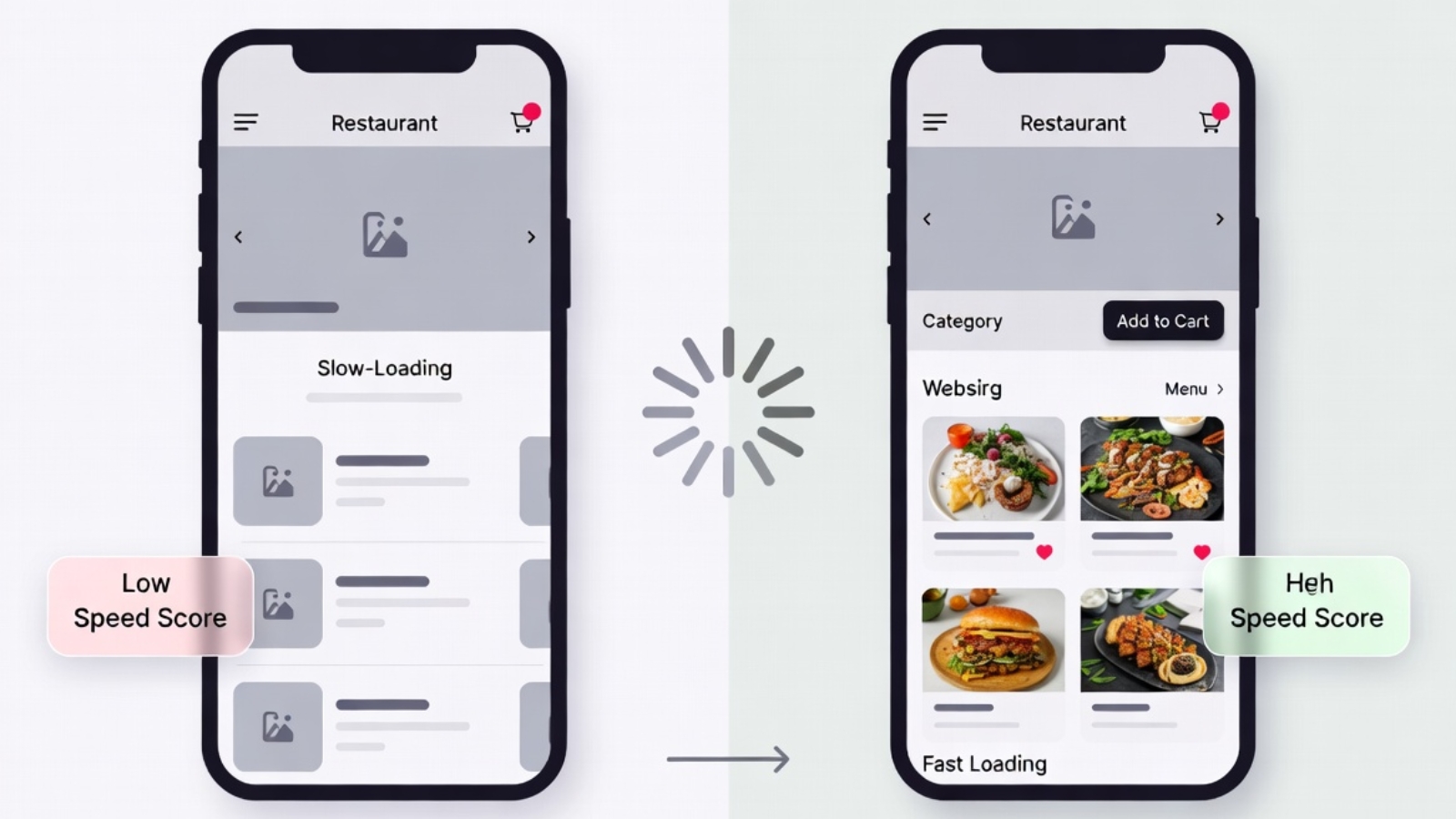
Slow WordPress restaurant website speed test showing poor mobile score before optimization

How to Speed Up a Slow WordPress Restaurant Website

A slow WordPress restaurant website loses you customers before they even see your menu. Studies by Google show that 53% of mobile visitors leave a page that takes longer than 3 seconds to load — and restaurant customers searching for a place to eat are not patient people.

If your WordPress restaurant website feels sluggish, ordering pages take forever to respond, or your Google PageSpeed score is embarrassingly low — this guide covers every real fix, in order of impact. I’ve optimized WordPress restaurant sites for clients across Europe and the Caribbean, so these are hands-on solutions, not theoretical advice.

Start with a baseline score before touching anything. Run your site through Google PageSpeed Insights and GTmetrix — both are free. Screenshot your current scores. You’ll want to compare before and after each fix.

Why Restaurant Websites Are Especially Slow

Restaurant websites have specific speed problems that generic WordPress sites don’t always face.

Food photography is heavy. A single unoptimized hero image of your signature dish can be 4–6MB — enough to tank your entire page load on mobile. Multiply that across a full menu with 40 items and you have a serious problem.

Ordering plugins add weight. WooCommerce plus a restaurant ordering plugin like Orderable loads significantly more JavaScript and CSS than a simple brochure site. Every extra plugin adds to the page weight.

Google Maps embeds are slow. Almost every restaurant site has a map embed — and Google Maps is one of the heaviest third-party scripts you can load on a page.

Third-party ordering widgets add latency. If you’re using FareHarbor, Gloria Food, or any external booking widget, each one makes additional network requests that slow initial page load.

⚠️ Watch Out: Don’t try to fix everything at once. Make one change, test your PageSpeed score, then make the next. If you change ten things simultaneously and something breaks, you won’t know what caused it.

Fix 1 — Compress and Convert All Your Food Photos

This is the single highest-impact fix for almost every restaurant website. Food photos are the #1 cause of slow load times and the easiest problem to fix.

What to do:

Convert every image on your site to WebP format. WebP files are 25–35% smaller than JPEG at the same visual quality — invisible difference to the customer, massive difference to load time.

Use Squoosh.app — it’s free, runs in your browser, and converts images to WebP with a quality slider so you can see the difference before downloading.

Target file sizes:

  • Hero images: under 200KB
  • Menu item photos: under 80KB each
  • Logo: under 30KB

In WordPress, install Smush or ShortPixel — both have free tiers that automatically compress new uploads and bulk-optimize your existing media library.

Enable lazy loading so images below the fold only load as the visitor scrolls down — not all at once when the page first opens. Smush handles this automatically. WordPress also has native lazy loading built in since version 5.5.

✅ Pro Tip: Resize images before uploading, not after. WordPress generates multiple image sizes from every upload — if you upload a 4000px wide photo, WordPress creates five versions of that massive file. Resize to 1200px wide maximum before uploading and you cut the storage and processing load significantly.

Fix 2 — Install a Caching Plugin

Caching stores a static version of your pages so WordPress doesn’t rebuild them from scratch on every visit. For a restaurant site, this alone can cut load time in half.

LiteSpeed Cache (Best Option if on Hostinger)

If your restaurant site runs on Hostinger — which supports LiteSpeed servers natively — install LiteSpeed Cache. It’s free and the most powerful caching plugin available for WordPress because it works directly with the server rather than around it.

After installing, go to LiteSpeed Cache → Presets → apply the recommended preset for WooCommerce sites.

WP Rocket (Best Paid Option)

WP Rocket is the gold standard paid caching plugin at $59/year. It handles page caching, file minification, lazy loading, and database cleanup in one dashboard — without requiring any technical knowledge. Worth it if you’re managing multiple restaurant sites or want a set-and-forget solution.

W3 Total Cache (Free Alternative)

W3 Total Cache is a solid free option if you’re not on a LiteSpeed server and don’t want to pay for WP Rocket. More configuration required than LiteSpeed Cache but very capable.

Fix 3 — Enable a CDN (Content Delivery Network)

A CDN stores copies of your site’s static files (images, CSS, JavaScript) on servers around the world. When a customer visits your site from Denmark, they load files from a nearby server rather than wherever your hosting is physically located — dramatically reducing latency.

Cloudflare free plan is the easiest option. Go to cloudflare.com, add your site, and update your domain’s nameservers to Cloudflare’s. The free plan includes a CDN, basic DDoS protection, and SSL — all relevant for a restaurant site taking online orders.

Hostinger also has a built-in CDN in their hPanel — enable it under your hosting settings if you’re on a Business plan or higher.

✅ Pro Tip: After enabling Cloudflare, go to Cloudflare dashboard → Speed → Optimization → enable Auto Minify for JavaScript, CSS, and HTML. This removes unnecessary whitespace from your code files, reducing their size without any visible change to your site.

Fix 4 — Fix Your Google Maps Embed

Google Maps is one of the heaviest things you can put on a restaurant website — and almost every restaurant has it. A standard Google Maps iframe loads the entire Maps JavaScript API, which can add 500KB–1MB to your page weight.

The fix: lazy load your map.

Replace your standard Google Maps iframe with a click-to-load version. The map shows as a static image initially — only loading the full interactive map when the visitor clicks on it.

Install WP Google Maps or use this simple approach — replace your iframe with a static map image linked to Google Maps:

html

<a href="https://maps.google.com/?q=YOUR+RESTAURANT+ADDRESS" target="_blank">
  <img 
    src="https://maps.googleapis.com/maps/api/staticmap?center=YOUR+ADDRESS&zoom=15&size=600x300&key=YOUR_API_KEY" 
    alt="Restaurant location map — click to open in Google Maps"
    loading="lazy"
  />
</a>

This loads a static image instead of the full Maps JavaScript library — much faster, still shows your location, still links to full Google Maps when clicked.

Fix 5 — Minify CSS and JavaScript

Your WordPress theme and plugins generate a lot of CSS and JavaScript files. Minification removes unnecessary whitespace, comments, and formatting from these files — making them smaller without changing how they work.

LiteSpeed Cache handles this automatically under its CSS/JS settings. WP Rocket does the same. If you’re using W3 Total Cache, enable Minify under the performance settings.

⚠️ Watch Out: Minification occasionally breaks things — especially JavaScript. After enabling it, click through your entire site including the ordering flow. If anything breaks, disable JS minification first (CSS minification is almost always safe).

Fix 6 — Reduce Plugin Bloat

Every active WordPress plugin adds load to your site — some a tiny amount, some a significant amount. Restaurant sites often accumulate plugins over time without anyone reviewing whether they’re all still needed.

Audit your plugins:

  1. Go to Plugins → Installed Plugins
  2. Deactivate any plugin you’re not actively using
  3. Delete deactivated plugins entirely — deactivated plugins still appear in file scans

Test each plugin’s impact:
Install Query Monitor — a free developer plugin that shows exactly how much load time each plugin adds. You might discover one plugin is responsible for 40% of your page load time.

Common restaurant site plugin offenders:

  • Page builder plugins loaded on pages that don’t use them
  • Slider plugins loading JavaScript on every page even when the slider only appears on the homepage
  • Social media feed plugins that make external API calls on every page load

Fix 7 — Optimize Your WooCommerce Database

WooCommerce stores a lot of data — every cart session, every order, every product revision. Over time this bloats your database and slows down queries.

Install WP-Optimize — free plugin that cleans up:

  • Post revisions (WordPress saves a new revision every time you save a post)
  • Expired transients (temporary data WooCommerce stores that builds up over time)
  • Orphaned order data
  • Spam comments

Run a database cleanup once a month. Schedule it to happen automatically overnight so it doesn’t interfere with ordering hours.

✅ Pro Tip: In WooCommerce → Settings → Advanced, limit the number of saved product revisions to 3 or 5. By default WordPress saves unlimited revisions — on a menu with 50+ products that gets updated regularly, this adds up fast.

Fix 8 — Choose Better Hosting

If you’ve done everything above and your site is still slow, the problem might be your hosting. Shared hosting plans at the cheapest tier put hundreds of sites on one server — when other sites on that server get traffic spikes, your restaurant site slows down too.

For a restaurant site taking live orders, consider:

  • Hostinger Business plan — good performance, LiteSpeed server support, reasonable price
  • SiteGround GrowBig — excellent performance, good WooCommerce support
  • Cloudways — managed cloud hosting on DigitalOcean or AWS, more technical to set up but significantly faster than shared hosting

Migrating hosting is the most disruptive fix on this list — do it last, after trying everything else first.

Checking Your Results

After making these fixes, run your site through Google PageSpeed Insights and GTmetrix again. Compare to your baseline scores.

Target scores for a restaurant site:

  • Google PageSpeed Mobile: 70+ (aim for 85+)
  • Google PageSpeed Desktop: 85+
  • GTmetrix Grade: B or higher
  • Fully loaded time: under 3 seconds on mobile

If you’re still under 70 on mobile after all fixes, the problem is almost always unoptimized images or hosting quality.

Common Questions

Q: Will caching break my WooCommerce ordering?
A: Good caching plugins like LiteSpeed Cache and WP Rocket automatically exclude cart, checkout, and account pages from caching. These pages need to be dynamic. Always test your full ordering flow after enabling caching.

Q: My site was fast before, now it’s slow — what changed?
A: The most common causes are a recently added plugin, a large image upload, or a hosting issue. Install Query Monitor and check which queries are slowest. Also check if a new plugin was installed around the time the slowdown started.

Q: Does page speed affect my Google ranking?
A: Yes — Google uses Core Web Vitals (LCP, CLS, FID) as ranking signals, especially on mobile. A faster site ranks better and converts better. Both matter for a restaurant taking online orders.

Q: How often should I check my speed?
A: Run a PageSpeed check once a month and after any major change — new plugin, theme update, or large content addition.

Final Thoughts

Speeding up a WordPress restaurant website comes down to four things done well: compressed images, server-side caching, a CDN, and a lean plugin setup. Fix those four and most restaurant sites go from embarrassingly slow to genuinely fast without touching a line of code.

The order matters — start with images, then caching, then CDN. These three fixes alone will move the needle more than anything else on the list.

If your restaurant website is slow and you’d rather have a developer handle the optimization properly — including WooCommerce performance tuning and hosting migration if needed — Contact me and I’ll get it running fast.

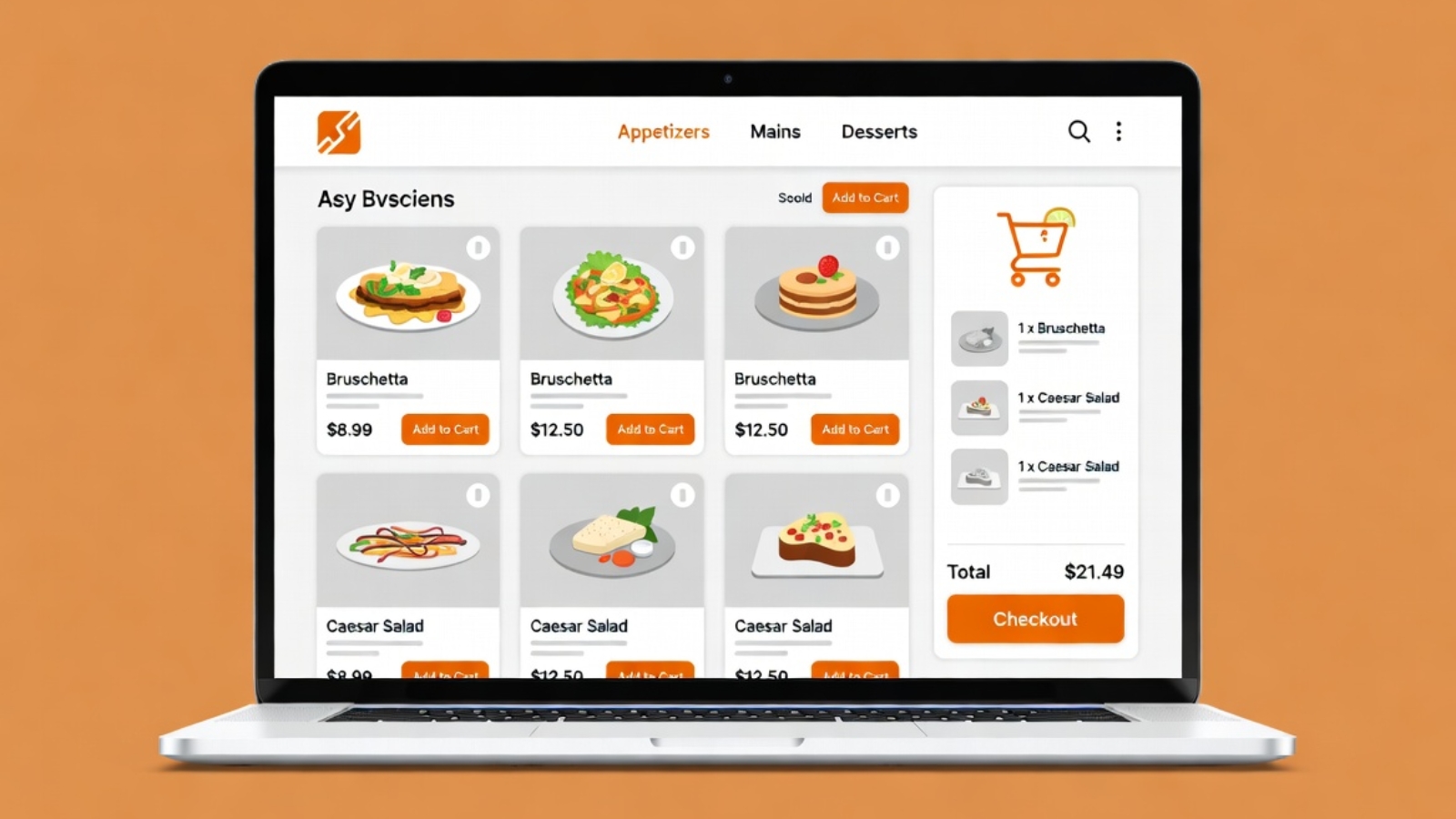
Best WordPress plugins for restaurant online ordering shown on a website

Best WordPress Plugins for Restaurant Online Ordering in 2026

The best WordPress plugins for restaurant online ordering let you take full control of your menu, delivery zones, and customer data — without paying ongoing commissions to third-party platforms like Gloria Food or Just Eat.

If you run a restaurant and you’re still relying on a third-party ordering platform, you’re giving away two things: money (platform fees on every order) and data (your customer order history lives on their server, not yours). Moving your online ordering to WordPress with WooCommerce puts both back in your hands.

This guide covers the best plugins for restaurant ordering on WordPress in 2026— what each one does, who it’s for, and how they compare. I’ve worked with several of these directly while building and migrating restaurant websites, so these recommendations come from real project experience.

Why Use WordPress for Restaurant Online Ordering

Before diving into plugins, it’s worth being clear on what you actually get by running ordering through WordPress instead of a dedicated platform.

You own everything. Your menu lives in your WordPress database. Your customer orders are yours. You can export them, analyze them, run promotions on them — without asking anyone’s permission.

You pay less over time. Gloria Food, Just Eat, and similar platforms charge per-order commissions or monthly fees that compound fast. With WordPress you pay hosting (typically $5–$15/month) and a one-time or annual plugin cost. That’s it.

You control the experience. Your ordering page looks like your website, not a generic platform template. Your brand stays consistent from homepage to checkout.

✅ Pro Tip: If you’re migrating from Gloria Food to WordPress, keep Gloria Food live during the transition. Run both systems in parallel until your WooCommerce ordering is fully tested — then switch DNS and retire the old platform. Never go dark between systems.

The Best WordPress Plugins for Restaurant Online Ordering

1. Orderable — Best Overall for Restaurants

Orderable is built specifically for restaurant ordering on WordPress and WooCommerce. It’s the plugin I recommend first to any restaurant client because it solves the problems standard WooCommerce doesn’t handle out of the box — delivery time slots, opening hours enforcement, and a checkout flow designed for food ordering rather than physical product shipping.

Key features:

  • Time slot selection for delivery and pickup
  • ASAP ordering toggle
  • Opening hours enforcement — no orders when you’re closed
  • Minimum order value for delivery
  • Product add-ons (extras, sauces, toppings)
  • Clean, mobile-friendly ordering layout

Pricing: Free tier available. Pro starts at $149/year.

Best for: Restaurants that need a complete, dedicated ordering experience without heavy custom development.

⚠️ Watch Out: Orderable’s free tier is functional but limited. If you need time slots and opening hours enforcement — which most restaurants do — you’ll need the Pro version. Factor this into your budget before starting the build.

2. WooCommerce — The Foundation Every Plugin Builds On

WooCommerce itself isn’t a restaurant plugin, but it’s the e-commerce layer that makes all of these solutions possible. It handles the product catalog (your menu), cart, checkout, and payment processing.

On its own, WooCommerce treats food items like physical products — which means you’ll need at least one additional plugin (like Orderable or one of the others below) to turn it into a proper food ordering system. But as the foundation, it’s free, incredibly well-supported, and powers millions of online stores worldwide.

Key features:

  • Product catalog with categories and variants
  • Cart and checkout
  • Payment gateway integrations (Stripe, PayPal, MobilePay, and 100+ more)
  • Order management dashboard
  • Customer email notifications

Pricing: Free. Extensions vary.

Best for: Every restaurant ordering setup on WordPress — this is the base layer, not optional.

3. WooCommerce Product Add-Ons — Best for Extras and Toppings

WooCommerce Product Add-Ons solves a specific but critical restaurant problem: how do customers add extras, toppings, or special instructions to an item during ordering?

Standard WooCommerce product variants work for size (small/medium/large), but they don’t handle optional extras cleanly. This plugin adds checkboxes, dropdowns, and text fields to any product — so a customer ordering a pizza can tick “extra cheese” and “extra jalapeños” and see the price update in real time.

Key features:

  • Checkboxes, radio buttons, dropdowns, and text fields on products
  • Per-extra pricing that updates the cart total live
  • “Special instructions” text field for custom requests
  • Works with variable products (size variants)

Pricing: $79/year (official WooCommerce extension).

Best for: Any restaurant with menu items that have add-ons, extras, or customization options.

4. Delivery Drivers for WooCommerce — Best for Managing Delivery

If your restaurant does its own delivery rather than using a third-party courier, Delivery Drivers for WooCommerce gives you a driver assignment and tracking system built into WordPress.

Restaurant owners can assign orders to specific drivers from the WooCommerce orders panel. Drivers get a mobile-friendly interface to accept and update orders. Customers can track their delivery status.

Key features:

  • Driver accounts with mobile-friendly order dashboard
  • Order assignment from WooCommerce admin
  • Customer delivery status notifications
  • Driver location tracking (Pro version)

Pricing: Free core plugin. Pro version available.

Best for: Restaurants running their own delivery fleet rather than outsourcing to a courier service.

5. WP Mail SMTP — Essential Supporting Plugin

This isn’t a restaurant-specific plugin, but it belongs on this list because without it your WooCommerce order confirmation emails will frequently land in spam — and customers who don’t receive confirmation emails cancel orders, call the restaurant, and leave bad reviews.

WP Mail SMTP replaces WordPress’s unreliable built-in mail with a proper SMTP connection through Gmail, Brevo, or another mail provider, making sure every order confirmation actually reaches the customer.

Pricing: Free tier handles most restaurant needs.

Best for: Every WordPress restaurant site — this should be installed before you take a single live order.

Comparing the Top Plugins

PluginPurposeFree TierPaid From
OrderableFull restaurant orderingYes (limited)$149/year
WooCommerceE-commerce foundationYesFree
Product Add-OnsExtras and toppingsNo$79/year
Delivery DriversDriver managementYesPaid Pro
WP Mail SMTPOrder email deliveryYesFree

Which Setup Is Right for Your Restaurant

If you want the simplest possible setup: WooCommerce free + Orderable free tier. Gets you a functional ordering page with basic delivery and pickup options. Good starting point before committing to paid plugins.

If you have extras and toppings: Add WooCommerce Product Add-Ons to the above. Most restaurants with any menu complexity need this.

If you run your own delivery drivers: Add Delivery Drivers for WooCommerce so you can manage and track your own fleet inside WordPress.

If you’re migrating from Gloria Food: Start with WooCommerce + Orderable Pro. The time slot and opening hours features in Orderable Pro directly replace what Gloria Food handled, making the transition feel seamless to customers.

What About Payment Gateways for Restaurants

Payment gateways are configured inside WooCommerce settings, not as separate ordering plugins. For most restaurants:

  • Stripe — best all-around card payment option, works globally
  • MobilePay — essential for Danish restaurants, large share of Danish customers pay this way
  • PayPal — useful if your customer base expects it, less common for restaurant ordering
  • Cash on Delivery — always enable this as a fallback for pickup orders

Each gateway installs as a WooCommerce extension. Stripe’s official WooCommerce plugin is free and available at wordpress.org/plugins/woocommerce-gateway-stripe.

Common Problems With Restaurant Ordering Plugins

Orders arriving at wrong times
Fix: Enable opening hours in Orderable so customers can’t order outside your working hours. Set your timezone correctly in WordPress Settings → General first.

Extras not showing at checkout
Fix: Make sure WooCommerce Product Add-Ons is active and the add-ons are assigned to the correct products. Check that the product type is set to Simple — add-ons sometimes don’t display on Variable products without additional configuration.

Order confirmation emails going to spam
Fix: Install WP Mail SMTP immediately and connect it to a Gmail account or Brevo free tier. Test by placing a real order and checking the inbox, not just the spam folder.

Delivery zone not restricting correctly
Fix: In WooCommerce → Settings → Shipping, set up Shipping Zones with specific postcodes or regions. Only customers within those zones see the delivery option at checkout.

Final Thoughts

The best WordPress plugins for restaurant online ordering in 2026 give you everything a third-party platform offers — ordering, payment, delivery management — without the ongoing commissions and without giving up ownership of your customer data.

Start with WooCommerce as your foundation, add Orderable for the restaurant-specific ordering flow, and layer in Product Add-Ons if your menu has extras. Install WP Mail SMTP before you go live — it’s a five-minute setup that prevents a lot of headaches.

If you need help setting up WordPress online ordering for your restaurant — including migrating from Gloria Food or configuring MobilePay for a Danish audience — Contact me and I’ll get it running correctly from day one.

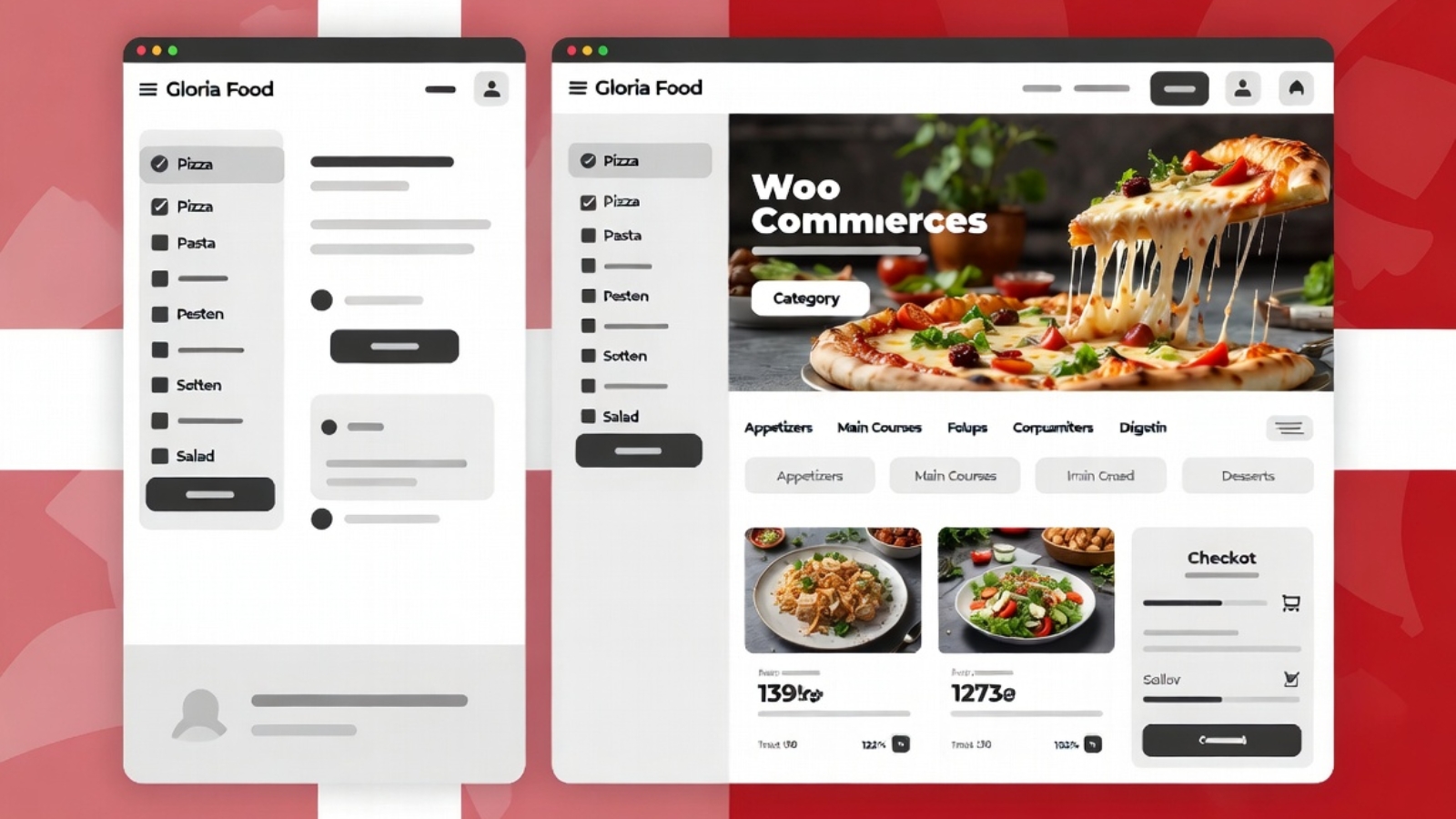
Danish restaurant website migration from Gloria Food to WooCommerce case study

How I Migrated Two Danish Restaurants from Gloria Food to WooCommerce

Most restaurant owners don’t think about their online ordering platform until something goes wrong — a feature disappears behind a paywall, the menu editor stops cooperating, or they realize they have no idea who their online customers actually are because all that data sits on someone else’s server.

That’s roughly where both of these clients were when they came to me. Two separate Danish restaurant businesses, both using Gloria Food, both running into different walls — and both wanting to move to WooCommerce for the same core reason: ownership. Their menu, their orders, their customer data, their platform. No middleman.

This post walks through how both migrations went, what was harder than expected, and what I’d do differently if I were starting today.

Client 1 — Express Pizzeria

Express Pizzeria is a fast food restaurant in Denmark that had been on Gloria Food for a couple of years. The platform had worked well enough early on, but by the time they contacted me, the ordering experience felt dated, they had no control over the checkout flow, and they were paying platform fees they didn’t think were justified.

The menu was reasonably sized — around 40 items across six categories — but had a number of items with size options (small, medium, large) and optional add-ons (extra toppings, sauces) that needed to carry over accurately into WooCommerce’s variant system.

The domain situation

Their domain was registered at Punkt.um, a Danish domain registrar with a fairly specific DNS management interface. This turned out to be one of the more time-consuming parts of the project — not technically complex, but requiring careful navigation of a Danish-language admin panel to locate the correct DNS zone settings and update the A records pointing to the new WordPress hosting.

⚠️ Watch Out: Punkt.um’s DNS propagation can take up to 48 hours — longer than many registrars. If you’re managing a restaurant migration on a tight timeline, build this into your schedule and warn the client early. Don’t promise a Monday launch if DNS changes go in on Sunday.

The migration process

I kept Gloria Food live throughout the entire build — the restaurant was still taking orders through it every day, and there was no acceptable window to go dark. The WooCommerce build happened entirely in parallel on a staging URL, only going live once it passed a full end-to-end test including a real test order through Stripe.

Menu rebuild in WooCommerce:

  • Each menu category became a WooCommerce product category
  • Size options (small, medium, large) became WooCommerce variable products with price-per-variation
  • Add-ons (extra toppings) were handled with the WooCommerce Product Add-Ons plugin, which lets customers check optional extras during ordering with a per-item price
  • Photos were sourced from the client’s existing Gloria Food menu where available, resized, converted to WebP, and uploaded to the WordPress media library

Payment setup for Danish customers

Standard Stripe handled card payments. MobilePay was the critical addition — in Denmark, a large proportion of customers pay with MobilePay as their first preference, and a restaurant ordering site without it loses a real segment of potential orders. The MobilePay WooCommerce plugin connects to MobilePay’s business API and requires completing business verification on the MobilePay side before processing live payments.

✅ Pro Tip: Start the MobilePay business verification process as early as possible in the project — it requires documentation review on their end which can take several business days. Don’t leave it until the week of launch.

Ordering configuration

Standard WooCommerce is built around physical product shipping, not food delivery. I installed Orderable — a WooCommerce extension specifically built for restaurants — to add:

  • Time slot selection (customers pick a delivery or pickup window)
  • ASAP ordering toggle for immediate delivery
  • Minimum order value for delivery
  • Opening hours enforcement so orders can’t be placed when the restaurant is closed

The DNS switch

Once the WooCommerce site was fully built, tested, and approved by the client, I updated the A records at Punkt.um to point to the new hosting. Gloria Food was left live during propagation — since it was still answering to the old IP, any customer who hadn’t yet received the DNS update would still reach the old ordering page, meaning zero orders were lost during the transition.

After 36 hours of propagation (Punkt.um was on the longer end), the WordPress site was fully live. Gloria Food was then closed out.

Client 2 — Café au Lait

The second migration was a different scenario. Café au Lait was a café rather than a fast food restaurant — smaller menu, lower order volume, but a client who also had a broader website maintenance arrangement with me that had surfaced a separate problem.

During routine maintenance I discovered the site had been running a nulled (pirated) copy of Elementor Pro. This was a significant security issue — nulled plugins are a common vector for malware injection and were actively preventing the site from receiving legitimate security updates. The Gloria Food migration became one part of a broader project that also included replacing the nulled plugin with a properly licensed version and doing a full security audit of the site.

⚠️ Watch Out: If you’re taking over maintenance of a WordPress site from someone else, always check the plugin list for unlicensed premium plugins immediately. A single nulled plugin can expose the entire site to compromise, and the client often doesn’t know it’s there — the previous developer may have installed it without telling anyone.

Menu differences

Café au Lait’s menu was smaller and simpler than Express Pizzeria’s — mostly fixed-price items without complex variants. This made the WooCommerce product setup significantly faster. The main complexity was the bilingual nature of some content and ensuring the ordering categories reflected how the café actually organized its menu rather than defaulting to generic WooCommerce category naming.

The DNS situation

Same Punkt.um registrar as the first client, which meant the same 36–48 hour propagation window to manage. By this point I’d already learned to set DNS update expectations with the client upfront rather than promising a same-day launch.

What Was the Same in Both Migrations

Looking across both projects, a few things were consistently true:

Gloria Food data doesn’t export cleanly. There’s no official export tool that spits out a WooCommerce-compatible product CSV. Every item had to be rebuilt manually in WooCommerce — which is time-consuming but also an opportunity, because it forced a review of whether every item on the old menu still belonged on the new one. Both clients ended up trimming and reorganizing their menus slightly during the rebuild, which they saw as a side benefit.

Clients underestimate how many items have variants. Both clients initially described their menus as “simple” and were surprised by how many items had size options, add-ons, or pricing tiers once we actually went through everything. This is worth factoring into any quote for a restaurant migration — “simple menu” rarely means simple product setup.

MobilePay verification took longer than expected. In both cases, the MobilePay business API verification added days to the timeline that weren’t originally accounted for. This is now the first thing I kick off in any Danish restaurant project, before touching any code.

Parallel operation during migration is non-negotiable. Neither restaurant could afford even a few hours without an ordering system. Running both platforms simultaneously until after DNS propagation was confirmed is not optional — it’s the only responsible approach.

What Changed After Migration

Both restaurants gained things that Gloria Food simply doesn’t offer:

  • Full ownership of their customer order history, which lives in their WooCommerce database — not on a third-party server
  • The ability to run WooCommerce-native promotions (discount codes, percentage-off sales, free delivery above a threshold)
  • A real website, not just a Gloria Food ordering subdomain — with proper SEO, their own domain on their own hosting, and the ability to add pages, blog posts, and content over time
  • No ongoing platform commission on orders beyond standard payment gateway fees

What I’d Do Differently

If I were starting either of these migrations today:

  • Kick off MobilePay verification on day one, not day five
  • Budget more time for the menu variant audit — assume more complexity than the client describes
  • Set explicit DNS timing expectations with the client before starting rather than managing surprises later
  • Create a shared checklist the client can sign off on before any DNS switch, so there’s no ambiguity about what “ready to go live” means

If you’re a restaurant owner currently on Gloria Food and thinking about making the switch, or a developer taking on a similar project, Contact me — I’m happy to talk through what the process would look like for your specific setup.

Multi-partner tourism booking website case study showing three tour brands on one site

How I Built a FareHarbor Booking Site for a Caribbean Tourism Company

A few months ago, a tourism operator in Aruba came to me with a problem that’s more common than people think: they were managing three separate tour brands, each with bookable inventory, and customers had no single place to discover and book all of it. Each brand had its own following, but there was no unified web presence tying them together.

This post walks through exactly how I approached the project — the technical decisions, the challenges that came up, and what I’d tell anyone facing a similar setup.

The Starting Point

The client operated under one umbrella business, working with three partner tour companies — each running their own activities, each with their own FareHarbor account for managing availability and payments. The goal was simple to state and harder to execute: build one WordPress website where a visitor could browse all three brands’ tours, check real-time availability, and book directly — without ever needing to leave the site or figure out which company to contact.

Before this project, customers were finding tours through scattered channels — direct partner websites, social media, word of mouth — with no consistent booking experience and no way for the operator to present everything as one cohesive offering.

✅ Pro Tip: If you’re in a similar position — managing multiple service providers or brands under one umbrella — don’t try to force everything into a single generic page. Customers need to understand which experience belongs to which brand, even while booking everything in one place.

Why FareHarbor

FareHarbor was already the booking system each partner used individually, which made it the obvious technical foundation rather than introducing a new platform and asking three separate businesses to migrate their existing booking workflows. FareHarbor’s Partner Network feature was the key piece that made a unified site possible — it allows one “operator” account to be granted booking permissions across multiple partner accounts, while each partner retains full control of their own inventory and payments on their end.

This meant the WordPress site didn’t need to store or manage any booking data itself. It just needed to display the right widgets, pointed at the right partner inventory, in the right places.

Planning the Site Structure

Before writing any code, the site needed a structure that made sense to a first-time visitor who had no idea three separate companies were involved. I settled on:

  • A homepage introducing the umbrella brand with a clear primary call-to-action
  • A single “Book a Tour” page as the main booking destination
  • Within that page, three distinct sections — one per partner brand — each with its own short introduction, photos, and a FareHarbor Flow widget scoped to that partner’s specific tours
  • Individual tour landing pages for the most popular activities, each with its own booking widget, for better SEO and easier sharing on social media

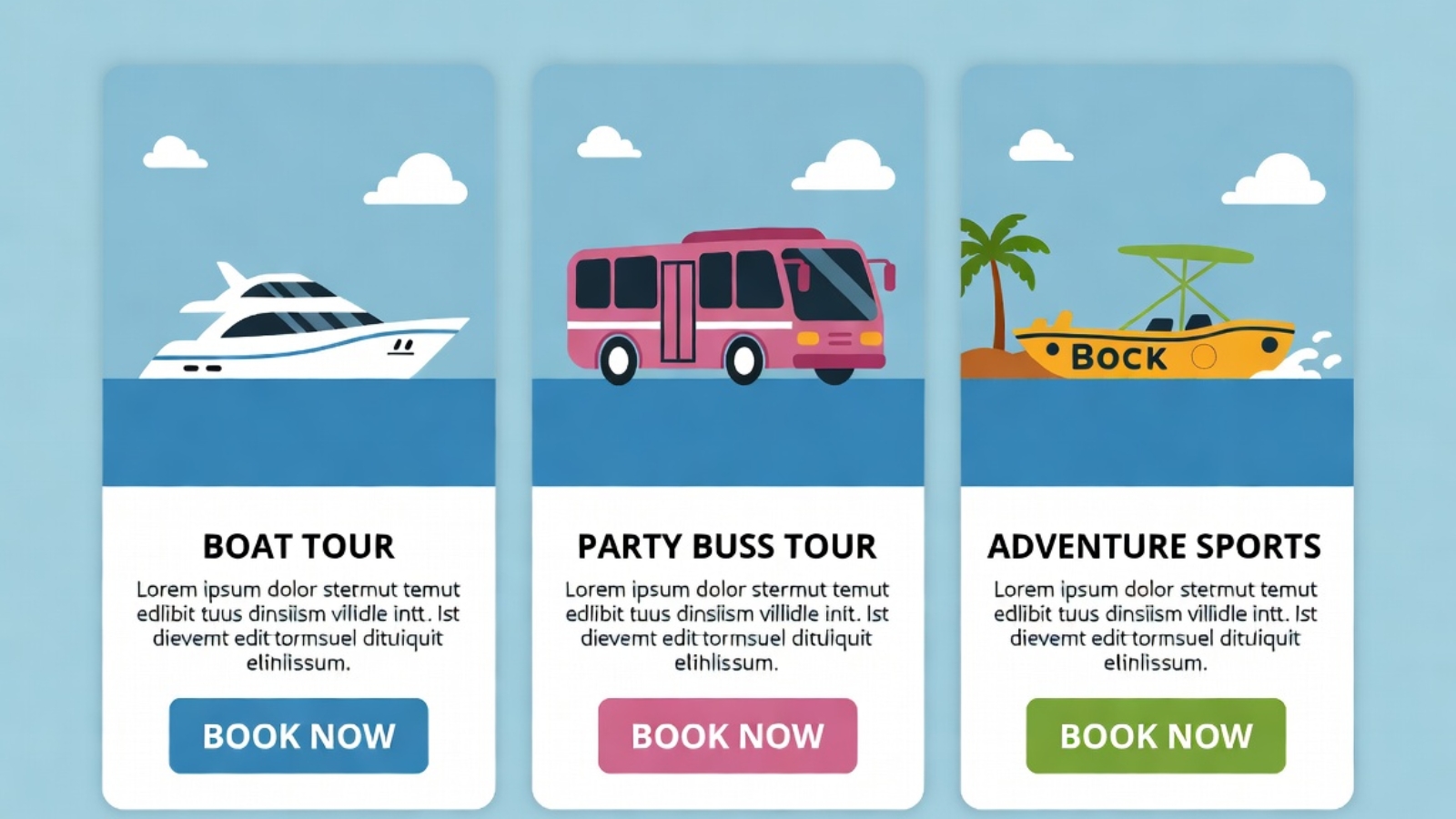
This structure meant a customer could land on the main booking page and immediately understand: here’s a boat tour company, here’s a party bus company, here’s an adventure sports company — pick what interests you.

The Technical Build

The site was built on WordPress using Elementor for the front-end design, which gave the flexibility to create custom layouts for each partner section without needing to write a custom theme from scratch.

FareHarbor integration approach:

Each partner section used a FareHarbor Flow widget, filtered to that specific partner’s item IDs using the operator shortname and a comma-separated list of item IDs in the embed URL. This was the cleanest way to keep inventory separated visually while still pulling everything through one connected account.

<a href="https://fareharbor.com/embeds/book/operatorshortname/items/12345,67890/?full-items=yes">
  Book [Partner Name] Tours
</a>

Design decisions that mattered:

  • Each partner section used a distinct accent color matching that brand’s existing identity, while keeping the overall page layout consistent — so it felt unified, not chaotic
  • Mobile-first build, since the overwhelming majority of tourists browse and book from their phones, often on hotel wifi or a tourist SIM with limited data
  • WhatsApp contact buttons placed throughout, because in this market a lot of customers want to ask a quick question before committing to a booking, and WhatsApp converts far better than a contact form for this audience

⚠️ Watch Out: When working with multiple FareHarbor partner accounts, every partner has to individually approve your operator account in their FareHarbor Partner settings before their inventory will show up in your widgets. This isn’t something you control from your side — it requires the partner logging into their own FareHarbor dashboard. Build this into your project timeline, because it’s a common bottleneck.

Challenges Along the Way

Coordinating partner approval timing

Since each of the three partners needed to separately approve the operator account inside their own FareHarbor dashboard, the project timeline depended partly on three different businesses responding promptly — not something a developer can speed up directly. The lesson here was building this dependency into the project plan from day one rather than assuming it would happen instantly.

Keeping brand identity intact within a unified site

The client was understandably protective of each partner’s individual brand identity — none of the three wanted to feel like they’d been absorbed into a generic “tours” page. Solving this meant treating each section almost like its own mini-landing-page within the larger site, with distinct photography, color accents, and copy tone, while still sharing the same booking mechanics underneath.

Page speed with multiple embedded widgets

Loading three separate Flow widgets on one page risked slowing things down if not handled carefully. The fix was loading the FareHarbor script tag once in the site header rather than once per widget instance, and lazy-loading each partner section’s widget so it only initialized as the visitor scrolled to that section.

The Result

The umbrella operator now has a single website where visitors can discover and book tours across all three partner brands, with live availability pulled directly from FareHarbor — no manual updates required on the WordPress side when a partner’s schedule changes. Each partner retains full control of their own pricing, availability, and payment processing through their existing FareHarbor account, while benefiting from a more polished, unified web presence than any of them had individually before.

For the operator, it meant turning three disconnected booking experiences into one coherent customer journey — without anyone needing to change how they actually run their day-to-day tour operations.

What I’d Tell Anyone in a Similar Situation

If you’re running multiple brands, partner businesses, or service providers under one umbrella and considering a similar setup, here’s what actually matters most:

  • Confirm partner buy-in and FareHarbor approval timelines before committing to a launch date
  • Design each section to preserve individual brand identity, not flatten everything into one generic look
  • Build mobile-first from day one if your audience is tourists booking on their phones
  • Load shared scripts once, not per widget, to protect page speed
  • Put WhatsApp or a similarly low-friction contact option front and center if your audience prefers chat over forms

If you’re managing something similar — multiple service providers, partner brands, or locations that all need to come together under one booking experience — Contact me and I can walk you through how this could work for your situation.

WordPress website cost breakdown illustration showing pricing tiers

How Much Does a WordPress Website Cost in 2026? A Real Pricing Breakdown

“How much will my website cost?” is almost always the first question a business owner asks — and almost always the hardest one to get a straight answer to. Agencies hide pricing behind “request a quote” forms. Freelance marketplaces show wildly different numbers for what looks like the same job. And most pricing guides online are written by agencies trying to upsell you into their most expensive package.

This post breaks down real WordPress website pricing in 2026 — what affects the cost, what you should actually expect to pay for different project types, and where the hidden costs usually hide. I’ve built business sites, e-commerce stores, booking platforms, and bilingual corporate sites for clients across multiple countries, so these numbers reflect real project scopes, not theoretical estimates.

The Short Answer

A simple WordPress business website typically costs $400–$1,500. A WooCommerce e-commerce store typically costs $800–$3,500. A custom-functionality site — booking systems, membership portals, multi-language sites — typically runs $1,500–$6,000+, depending on complexity.

These ranges assume freelance pricing, not large agency pricing, which can be 3–5x higher for the same scope of work.

What Actually Determines the Price

The price of a WordPress website isn’t really about “pages” — it’s about complexity, custom functionality, and how much original design and development work is required versus configuration of existing tools.

Factors that increase cost:

  • Custom functionality (booking systems, calculators, member areas)
  • E-commerce with many products or complex variants
  • Multi-language or bilingual sites, especially RTL languages like Arabic
  • Custom design (not a pre-built theme) with original layouts
  • Third-party integrations (payment gateways, CRMs, booking platforms like FareHarbor)
  • Migration from another platform (Wix, Squarespace, Gloria Food, Shopify)

Factors that keep cost down:

  • Using a quality pre-built theme with Elementor customization instead of fully custom code
  • Standard WooCommerce setup without complex variant logic
  • Fewer than 10 pages
  • Content (text, images) provided by the client rather than written/sourced by the developer

✅ Pro Tip: The single biggest cost driver is usually content readiness. A client who shows up with finished copy, photos, and a clear sitemap will pay significantly less than one expecting the developer to also write all the content and source all the images — because that’s a separate skill set and a separate time cost.

Real Pricing by Project Type

1. Simple Business / Brochure Website

Typical range: $400–$1,500

A 5–8 page site (Home, About, Services, Contact, maybe a Blog) built on WordPress with Elementor, using a quality theme rather than fully custom design. This covers most restaurants, local service businesses, consultants, and small agencies.

What’s typically included:

  • Theme setup and customization to match brand colors/fonts
  • Contact form integration
  • Basic SEO setup (Yoast, meta titles/descriptions)
  • Mobile-responsive design
  • Google Maps embed (for local businesses)

What often costs extra:

  • Custom illustrations or original graphic design
  • Copywriting (if the client doesn’t provide their own text)
  • Stock photography licensing or professional photography

2. WooCommerce E-Commerce Store

Typical range: $800–$3,500

This covers everything from a 10-product store to a few hundred products with variants (size, color, material).

What affects price within this range:

  • Number of products and complexity of variants
  • Payment gateway count (Stripe alone vs. Stripe + PayPal + local options like MobilePay)
  • Shipping zone complexity (single country vs. international)
  • Whether products need bulk CSV import or manual entry
  • Custom checkout flow vs. standard WooCommerce checkout

⚠️ Watch Out: Many cheap e-commerce quotes don’t include payment gateway setup, SSL configuration, or shipping zone configuration as separate cost items — then add them later as “extras.” Always ask for a full scope breakdown before agreeing to a price.

3. Booking / Reservation Websites

Typical range: $1,000–$4,000

This includes integrations like FareHarbor for tourism, custom booking forms, or appointment scheduling systems.

Pricing depends heavily on:

  • Whether you’re using an existing booking platform (FareHarbor, Calendly) vs. fully custom booking logic
  • Number of services/tours/partners being integrated
  • Payment processing requirements
  • Calendar sync needs

4. Bilingual / Multi-Language Websites

Typical range: $1,200–$4,000

A site in two languages (e.g. English + Arabic with RTL support) generally costs 40–70% more than the same site in one language, because:

  • Every page needs to be built and styled for both reading directions
  • Navigation, forms, and buttons need RTL-compatible styling
  • Translation management (WPML or Polylang) needs proper configuration
  • Content needs to be translated (either by the client or a separate translator)

5. Custom Plugin Development / Unique Functionality

Typical range: $500–$3,000+ per feature

If your project needs something WordPress doesn’t do out of the box — a custom calculator, a unique admin dashboard, an API integration with a third-party system — this is priced separately from the website build itself, usually based on hours.

Freelancer vs. Agency Pricing

FreelancerAgency
Simple business site$400–$1,500$1,500–$5,000
WooCommerce store$800–$3,500$3,000–$10,000+
Custom booking site$1,000–$4,000$5,000–$15,000+
CommunicationDirect with the developerThrough account managers
TurnaroundUsually fasterOften slower (more process)
Ongoing supportNegotiated separatelyOften bundled into retainer

Agencies aren’t necessarily better — they’re paying for office overhead, project managers, and sales staff, which gets built into your price. A skilled freelancer doing the actual hands-on work can often deliver the same quality for considerably less, with more direct communication.

Hidden Costs to Ask About Upfront

  • Hosting — usually $3–$15/month, sometimes excluded from the project quote
  • Domain name — around $10–$20/year if you don’t already own one
  • SSL certificate — often free through hosting, but confirm
  • Premium plugins — some functionality (advanced forms, booking calendars) may require paid plugin licenses, typically $50–$200/year
  • Stock photography — if you don’t have your own photos, licensed stock images can add $0–$200 depending on the source
  • Post-launch support — does the price include a bug-fix window after launch, or is every change billed separately?

✅ Pro Tip: Always ask “what is NOT included in this price?” before agreeing to a quote. A clear answer to that question tells you more about a developer’s professionalism than the price itself.

How to Get an Accurate Quote

To get a real, accurate price instead of a vague range, be ready to share:

  • A list of pages you need
  • Any specific functionality (booking, multi-language, e-commerce, integrations)
  • Whether you have existing content (text, photos) or need it created
  • Your target launch date
  • Examples of websites you like (even from competitors)

The more specific you are upfront, the more accurate — and usually lower — your quote will be, because the developer isn’t padding the price to cover unknowns.

Common Questions

Q: Is a $50 website on Fiverr a bad idea?
A: For a genuinely simple single-page site with no custom functionality, it can work. For anything involving e-commerce, custom integrations, or ongoing business use, extremely low prices usually mean template reuse with minimal customization, and little to no post-launch support.

Q: Should I pay monthly or pay upfront?
A: Most freelance web projects are priced as a fixed project fee, often with 50% upfront and 50% on completion. Monthly “website as a service” models exist but often cost more over 12 months than a one-time build with separate hosting.

Q: Does WordPress itself cost money?
A: WordPress software is free and open source. You’re paying for hosting, possibly premium themes/plugins, and the developer’s time to build and configure everything.

Q: How long does a typical project take?
A: A simple business site: 1–2 weeks. A WooCommerce store: 2–4 weeks. A custom booking or multi-language site: 3–6 weeks, depending on complexity and how quickly content is provided.

Final Thoughts

WordPress website pricing varies enormously because “a website” can mean a 5-page brochure site or a fully custom booking platform with three payment gateways and two languages — these are fundamentally different projects with fundamentally different price tags.

The best way to avoid both overpaying and underpaying is to get specific about scope before asking for a price, and to always ask what’s excluded, not just what’s included.

If you’re planning a WordPress project — whether it’s a simple business site, a WooCommerce store, or something with custom booking or bilingual functionality — Contact me and I’ll give you a clear, honest scope and price based on exactly what you need.

Gloria Food restaurant ordering page vs WooCommerce restaurant website side by side comparison

How to Migrate a Restaurant from Gloria Food to WooCommerce (Step-by-Step Guide)

Table of Contents

  1. Why Restaurants Are Leaving Gloria Food
  2. What You Need Before You Start
  3. Step 1 — Set Up WordPress and WooCommerce
  4. Step 2 — Rebuild Your Menu in WooCommerce
  5. Step 3 — Configure Online Ordering and Delivery
  6. Step 4 — Set Up Payment Gateways
  7. Step 5 — Handle Your Domain and DNS
  8. Step 6 — Go Live and Test Everything
  9. Common Problems and How to Fix Them
  10. Gloria Food vs WooCommerce — Quick Comparison

1. Why Restaurants Are Leaving Gloria Food

Gloria Food was a popular choice for small restaurants when it launched — it was free, quick to set up, and had a decent ordering interface. But over time, restaurant owners started running into the same walls.

The platform was acquired by Oracle in 2021, and since then the free tier has become increasingly limited. Features that used to be free now require paid plans. Customization is almost nonexistent — you get what Gloria Food gives you, and that’s it. Your menu lives on their servers, your customer data is theirs, and if they change their pricing or shut down a feature, you have no control.

The restaurants I worked with in Denmark made the switch for a simple reason: they wanted to own their online ordering system. With WooCommerce, your menu, your customer data, your orders — everything lives on your own WordPress site. You control the design, the fees, the integrations, and the customer experience.

Here’s what you actually gain by switching:

  • Full control over your menu layout and design
  • No platform commission on orders (just payment gateway fees)
  • Your own customer database — build loyalty programs, send emails, run promotions
  • Integration with any payment provider you choose
  • A real website, not just a Gloria Food subdomain

📸 Image 1 Alt text: Gloria Food restaurant ordering page vs WooCommerce restaurant website side by side comparison AI Prompt: Split-screen comparison image showing a basic Gloria Food ordering page on the left (simple white layout, limited branding) versus a fully designed WooCommerce restaurant website on the right (custom colors, logo, beautiful food photos, add to cart buttons). Clean flat design, no people.


2. What You Need Before You Start

Before you touch anything, gather these:

  • Your current Gloria Food menu — take screenshots or export if possible. You’ll be rebuilding this in WooCommerce, so having it documented saves significant time.
  • Your domain name login — you’ll need to update DNS records. Know which registrar controls your domain (GoDaddy, Namecheap, or in the case of Danish restaurants, often Punkt.um or One.com).
  • WordPress hosting — you need a hosting account where WordPress will be installed. Hostinger, SiteGround, or any cPanel host works fine.
  • A list of your payment methods — do you want to accept card online? Cash on delivery? Specific local payment gateways?
  • Your restaurant’s photos — logo, food photos, interior shots. These will make your WooCommerce site look significantly better than Gloria Food ever did.

Pro Tip: Before migrating, keep Gloria Food running in parallel. Don’t shut it down until your WooCommerce site is fully tested and live. Run both simultaneously for at least one week.


3. Step 1 — Set Up WordPress and WooCommerce

Install WordPress

Most hosting providers have a one-click WordPress installer. In Hostinger it’s under hPanel → Websites → Auto Installer. In SiteGround it’s under Site Tools → WordPress installer. Run it, set your admin username and password, and you’re in.

Install WooCommerce

Once inside WordPress:

  1. Go to Plugins → Add New
  2. Search for WooCommerce
  3. Click Install Now → then Activate
  4. WooCommerce will run a setup wizard — go through it and select:
    • Your store location and currency
    • What you’re selling (select Physical products for food items)
    • Payment methods (you can add more later)
    • Shipping (for delivery) or local pickup

Install a Restaurant-Friendly Theme

Your theme controls how your site looks. For restaurants, these free themes work well:

  • Astra — lightweight, fast, works with any page builder
  • Kadence — excellent WooCommerce support out of the box
  • OceanWP — solid free option with restaurant demo sites

If you want a premium look without paying for a theme, use Astra free + Elementor free. This combination gives you full visual control.


4. Step 2 — Rebuild Your Menu in WooCommerce

This is the most time-consuming part, but it’s also where you gain the most control. Every menu item becomes a WooCommerce product.

Set Up Product Categories First

Before adding items, create your menu categories. Go to Products → Categories and add categories that match your menu sections:

  • Starters / Appetizers
  • Pizzas
  • Burgers
  • Pasta
  • Salads
  • Drinks
  • Desserts

Add Menu Items as Products

For each menu item, go to Products → Add New:

  1. Product Name — e.g. “Pepperoni Pizza”
  2. Description — short description of the dish (ingredients, allergens)
  3. Product Image — upload a food photo. This is where WooCommerce destroys Gloria Food — real photos on every item
  4. Price — set the regular price
  5. Product Category — assign to the correct menu section
  6. Product Type — set to Simple Product for standard items

Handling Variations (Size, Extras, Toppings)

This is where WooCommerce gets powerful. For items that come in different sizes or with optional extras, use Variable Products:

  1. In the Product Data panel, change Product Type to Variable product
  2. Go to the Attributes tab
  3. Add attribute: Size → values: Small | Medium | Large
  4. Check “Used for variations”
  5. Go to Variations tab → Generate All Variations
  6. Set individual prices for each variation

For extras and add-ons (extra cheese, extra sauce), install the free plugin WooCommerce Product Add-Ons or use Flexible Checkout Fields.

⚠️ Watch Out: If you have a large menu (50+ items), consider using a bulk product import via CSV. Export your Gloria Food menu data, format it as a WooCommerce-compatible CSV, and import via Products → Import. This can save hours of manual entry.


5. Step 3 — Configure Online Ordering and Delivery

WooCommerce handles ordering natively, but for a restaurant you need to fine-tune a few things.

Install a Restaurant Ordering Plugin

Standard WooCommerce is built for physical product shipping, not food delivery. Install one of these to add restaurant-specific features:

  • Orderable (free tier) — adds time slots, ASAP ordering, minimum order amounts, and a beautiful checkout flow built for restaurants
  • WooCommerce Restaurant Ordering — dedicated plugin for food businesses, adds category-based ordering page

Set Up Delivery Zones

In WooCommerce → Settings → Shipping:

  1. Add a Shipping Zone for your delivery area (e.g. Copenhagen City Center)
  2. Set a flat delivery fee or free delivery above a minimum order
  3. Add a Local Pickup option for customers collecting in person

Set Ordering Hours

With Orderable or similar plugins, you can restrict ordering to your opening hours. This prevents customers from placing orders at 3am when you’re closed.

Minimum Order Amount

Go to WooCommerce → Settings → Minimum Order plugin (or Orderable settings) and set a minimum order value for delivery..


6. Step 4 — Set Up Payment Gateways

This is where Denmark-specific and regional requirements matter. WooCommerce supports almost every payment provider through free plugins.

For Danish Restaurants specifically:

  • MobilePay — install MobilePay WooCommerce plugin (this is essential for Danish customers, almost everyone pays with MobilePay)
  • Stripe — handles Visa, Mastercard, and international cards
  • Cash on Delivery — enable this in WooCommerce → Settings → Payments for cash collection on delivery

For General International Restaurants:

  • Stripe — best all-around choice
  • PayPal — widely trusted
  • Square — good for businesses already using Square POS

Install Stripe for WooCommerce:

  1. Go to Plugins → Add New → search “WooCommerce Stripe Payment Gateway”
  2. Install and activate
  3. Go to WooCommerce → Settings → Payments → Stripe
  4. Enter your Stripe API keys (from your Stripe dashboard)
  5. Enable test mode first, complete a test order, then switch to live

Pro Tip: Always enable at least two payment methods. If Stripe has an outage or a customer’s card fails, they need a fallback option or you lose that order.


7. Step 5 — Handle Your Domain and DNS

This is the step that trips up most people — and it’s where I spent significant time with my Danish restaurant clients, particularly with the Danish registrar Punkt.um.

Understanding What Needs to Change

Your domain is currently pointed to Gloria Food’s servers. To make it point to your new WordPress site, you need to update the DNS records at your domain registrar.

Find Your New Hosting IP Address

In your hosting control panel (Hostinger hPanel, SiteGround, etc.), find your hosting account’s IP address or nameservers. It’ll look like:

  • IP: 185.XXX.XXX.XXX
  • Or nameservers: ns1.hostinger.com / ns2.hostinger.com

Update DNS at Your Registrar

Log in to wherever your domain is registered:

If using nameservers (recommended):

  1. Find the nameserver settings at your registrar
  2. Replace the current nameservers (which point to Gloria Food or their host) with your new hosting nameservers
  3. Save

If updating A records only:

  1. Find the DNS management section
  2. Edit the A record for @ (root domain) — change the IP to your new hosting IP
  3. Edit the A record for www — same new IP
  4. Save

⏱ DNS Propagation

DNS changes take 15 minutes to 48 hours to fully propagate worldwide. During this time your site may be inaccessible or flipping between old and new. This is normal. You can check propagation status at whatsmydns.net.

⚠️ Watch Out — Punkt.um Specific (Danish registrar): Punkt.um’s DNS interface is in Danish and can be confusing. The nameserver field is under “Navneservere” and the A record section is under “DNS-zoner”. If you change nameservers at Punkt.um, it can take up to 48 hours — longer than most registrars. Don’t panic if it takes a full day.


8. Step 6 — Go Live and Test Everything

Before announcing the switch to your customers, run through this complete checklist:

Ordering Test

  • Place a test order for delivery — go through the full checkout flow
  • Place a test order for local pickup
  • Test with each payment method you’ve enabled
  • Check that the order confirmation email arrives and looks correct
  • Log in to WooCommerce → Orders and confirm the test order appears

Menu Check

  • Every item has a photo
  • Prices match your Gloria Food menu exactly
  • Variations (sizes, extras) work correctly
  • Categories display in the right order

Mobile Check

  • Browse the menu on an iPhone (Safari)
  • Add items to cart on mobile
  • Complete checkout on mobile — this is where most customers will order from

Speed Check

  • Run your site through Google PageSpeed Insights
  • Target a score above 70 on mobile
  • If slow: install LiteSpeed Cache (if on Hostinger) or W3 Total Cache

Turn Off Gloria Food Once everything above passes, log in to Gloria Food and either:

  • Set your store to Closed permanently
  • Or delete your Gloria Food account if you no longer need it

Redirect your old Gloria Food ordering URL to your new WooCommerce ordering page if possible.


9. Common Problems and How to Fix Them

Problem: Customers can’t find the ordering page Fix: Add a prominent “Order Now” button to your homepage hero and your navigation menu. Make it a different color from everything else on the page.

Problem: MobilePay isn’t processing Fix: Make sure you’ve completed MobilePay’s business verification. The plugin won’t process live payments until your MobilePay business account is fully verified.

Problem: Orders aren’t sending email notifications Fix: WooCommerce uses WordPress’s built-in mail which often ends up in spam. Install the free WP Mail SMTP plugin and connect it to Gmail SMTP or Brevo (free tier) for reliable email delivery.

Problem: Menu loads slowly Fix: Compress all food photos before uploading. Use Squoosh.app to convert to WebP format and resize to 800×600px maximum. Uncompressed food photos are the #1 cause of slow restaurant websites.

Problem: Delivery area isn’t restricted correctly Fix: In WooCommerce → Shipping, set up Shipping Zones with specific postcodes or regions. Only customers within those zones will see the delivery option at checkout.


10. Gloria Food vs WooCommerce — Quick Comparison

FeatureGloria FoodWooCommerce
Monthly CostFree / Paid tiersFree (hosting cost only)
Commission on OrdersYes (paid plan to remove)No (only payment gateway %)
Custom DesignVery limitedFull control
Own Customer DataNoYes
Menu VariationsBasicAdvanced (unlimited)
Payment OptionsLimited100+ gateways
SEOPoor (subdomain)Full control
Mobile App for OrdersYesVia plugin
Delivery Zone ControlBasicFull postcode control

11. Final Thoughts

Migrating from Gloria Food to WooCommerce isn’t something you do in an afternoon — but it’s absolutely worth it. Once it’s done, you own your entire ordering system. No platform can change their pricing, shut down features, or limit your customization. Your restaurant’s online presence is yours.

The migration for my Danish restaurant clients took approximately 2–3 days of work per site — one day for setup and menu rebuild, one day for payment and ordering configuration, and one day for DNS, testing, and going live.

If you’re a restaurant owner who wants this done professionally — without the DNS headaches, plugin conflicts, or ordering flow bugs — I’ve done this exact migration multiple times and I’m available for freelance projects.

Get in touch at syedaounraza or WhatsApp directly.

FareHarbor booking widget integrated into a WordPress travel website with UK countryside background

How to Add FareHarbor Booking to Your WordPress Site (Complete Guide)

Introduction: Why UK & European Tour Operators Need FareHarbor on WordPress

If you run a tour company, activity provider, or experiences business in the United Kingdom or across Europe, you already know that getting customers to book online — quickly, seamlessly, and with confidence — is the difference between a thriving season and a quiet one.

FareHarbor is one of the world’s leading online booking platforms, trusted by thousands of tour operators from the Scottish Highlands to the Swiss Alps. When paired with WordPress — the platform powering over 43% of all websites globally — it becomes an incredibly powerful combination.

In this complete guide by Syed Aoun Raza, we walk you through every step of adding FareHarbor booking to your WordPress site. Whether you’re a seasoned developer or a complete beginner, you’ll have a working booking system live by the end of this tutorial.

 ⚡ Quick Summary — What You’ll Learn: What FareHarbor is and why it dominates the UK/European tours market | How to connect your FareHarbor account to WordPress | 3 methods to embed the booking widget (Plugin, Shortcode, Manual Code) | SEO tips to make your booking pages rank in Google UK | Real client examples from UK & European operators
FareHarbor features overview infographic showing booking, payments, and UK/Europe coverage

What Is FareHarbor?

FareHarbor is a cloud-based booking and reservation management software designed specifically for tours, activities, and experience-based businesses. Originally founded in Hawaii in 2013, it has rapidly expanded across the globe, with a particularly strong presence in:

  • United Kingdom (London, Edinburgh, Bath, Oxford, the Cotswolds)
  • Ireland (Dublin city tours, coastal experiences)
  • France (Paris guided tours, wine country experiences)
  • Germany (Berlin history tours, Rhine river cruises)
  • Italy (Rome, Florence, Amalfi Coast boat trips)
  • Spain (Barcelona walking tours, Camino experiences)
  • Netherlands, Portugal, Scandinavia, and beyond

Key FareHarbor Features for UK/European Operators

FeatureBenefit for UK/European Businesses
Multi-currency SupportAccept GBP, EUR, CHF, DKK and all major European currencies
GDPR ComplianceBuilt-in tools to meet UK GDPR and EU GDPR requirements
VAT / Tax HandlingAutomatically apply UK VAT (20%) or EU VAT rates per product
Multilingual CapableWorks with WPML and Polylang for French, German, Spanish pages
Mobile-First DesignFully responsive — essential as 70%+ of UK travellers book on mobile
Channel ManagerConnect to Viator, GetYourGuide, and Airbnb Experiences
24/7 SupportFareHarbor provides dedicated onboarding and UK timezone support
No Monthly FeeFareHarbor charges a % per booking — no upfront SaaS cost
Prerequisites checklist for adding FareHarbor to WordPress showing required items

Before you touch a single line of code, make sure you have the following in place:

  1. A live WordPress website (self-hosted WordPress.org — not WordPress.com)
  2. An active FareHarbor account — sign up free at fareharbor.com
  3. Administrator access to your WordPress dashboard
  4. An SSL certificate (HTTPS) — required for secure payments (most UK hosts include this free)
  5. Your FareHarbor company shortname — found in your FareHarbor dashboard URL (e.g., fareharbor.com/embeds/script/catalog/your-company-name/)
  6. A contact email address matching your business domain

Method 1 — Using the FareHarbor WordPress Plugin (Easiest Method)

Step 1: Install the FareHarbor Plugin

The simplest way to connect FareHarbor to WordPress is through their official plugin. Follow these steps:

  1. Log into your WordPress dashboard at yoursite.com/wp-admin
  2. Navigate to Plugins → Add New Plugin
  3. In the search box, type: FareHarbor
  4. Locate the ‘FareHarbor Booking’ plugin (by FareHarbor)
  5. Click Install Now, then Activate

Step 2: Configure the Plugin Settings

  • Go to Settings → FareHarbor in your WordPress sidebar
  • Enter your FareHarbor company shortname in the field provided
  • Select your default currency (GBP for UK, EUR for EU customers)
  • Choose your booking flow — Lightbox (popup) or Redirect (new page)
  • Click Save Changes
 🇬🇧 UK Client Example — Peak District Adventures: One of our WordPress clients, a guided walking tour company in the Peak District, used the FareHarbor plugin method. Within 2 hours of configuration, their booking widget was live on all tour pages. In the first month, online bookings increased by 34% compared to phone-only bookings the previous year.

Section 4: Method 2 — Embedding FareHarbor Using the Booking Button Shortcode

Generating Your FareHarbor Booking Button Code

FareHarbor provides a code generator to create custom booking buttons for any product. Here’s how to access it:

  1. Log into your FareHarbor dashboard at fareharbor.com/login
  2. Click on Dashboard → Items and select the tour or activity you want
  3. Scroll to the ‘Booking Button’ or ‘Website Integration’ section
  4. Choose your button style (colour, size, text)
  5. Copy the generated embed code

Adding the Button to WordPress Pages

You can embed the booking button in any page, post, or widget area using one of these methods:

Option A — Gutenberg Block Editor (Recommended for UK Sites)

  1. Open the page or post where you want the booking button
  2. Click the + block inserter and search for ‘Custom HTML’
  3. Paste your FareHarbor embed code into the HTML block
  4. Click Preview to see it live
  5. Publish or Update the page

Option B — Classic Editor

  • Open your page in the Classic Editor
  • Click the ‘Text’ tab (not Visual) to see raw HTML
  • Paste your FareHarbor code at the desired location
  • Switch back to Visual to confirm it looks correct
  • Click Update
 🇫🇷 European Client Example — Paris Food Tours: A Paris-based food tour operator we work with uses the shortcode method on every individual tour page. They’ve set up separate booking buttons for English, French, and German language versions of each page using WPML. The multilingual FareHarbor setup increased their European bookings by 28% within 90 days.

Section 5: Method 3 — Manual Script Integration (Advanced / Maximum Control)

For developers who want maximum control over placement, styling, and performance, the manual script method gives you full flexibility. This is the recommended approach if you’re building a custom WordPress theme or using a page builder like Elementor, Divi, or Beaver Builder.

Step 1: Add the FareHarbor Script to Your Header

Add the following script tag to your WordPress theme’s header. You can do this via Appearance → Theme File Editor → header.php, or better yet, use a plugin like ‘Insert Headers and Footers’:

<script src=”https://fareharbor.com/embeds/api/v1/?autolightboxall=true”></script>

Step 2: Add the Booking Button HTML

Place this HTML wherever you want the booking button to appear on your page:

<a href=”https://fareharbor.com/your-company-name/items/YOUR-ITEM-ID/?full-items=yes”    class=”fh-booking-button”    data-fh-default-currency=”GBP”>    Book Now</a>

Replace your-company-name with your FareHarbor shortname and YOUR-ITEM-ID with the specific item ID from your FareHarbor dashboard. Set data-fh-default-currency to GBP for UK sites or EUR for European sites.

Section 6: SEO Best Practices for Your FareHarbor Booking Pages (UK/Europe Focus)

Having FareHarbor embedded is only half the battle. To get UK and European tourists to actually find your booking page on Google, you need strong SEO. Here are the strategies that work specifically for the UK/European travel market in 2025:

1. Target Long-Tail Keywords Specific to Your Region

Instead of competing for broad terms like ‘tours UK’, target specific phrases your customers are actually searching for:

  • ‘book guided tour Edinburgh Old Town’ — high intent, low competition
  • ‘Cotswolds walking tour with booking’ — combines location + conversion intent
  • ‘online booking Amsterdam canal tour’ — European example
  • ‘FareHarbor tour operator London’ — platform-specific search

2. Optimise Each Tour’s Booking Page

Every tour item should have its own dedicated WordPress page with:

  • A unique H1 tag including the tour name and location (e.g., ‘Jack the Ripper Walking Tour — Book Online in London’)
  • A minimum 800-word description (Google rewards depth for local travel searches)
  • The FareHarbor booking widget placed above the fold — within the first screen
  • Structured data markup (Schema.org TouristAttraction or Event)
  • Customer review schema (compatible with FareHarbor’s review system)
  • Location breadcrumbs (e.g., UK > England > London > Walking Tours > Jack the Ripper)

3. Use Yoast SEO Settings for Each Booking Page

Focus Keyphrase[Tour name] + [City] + ‘book online’ or ‘booking’
SEO Title Template{Tour Name} | Book Online in {City} | {Brand Name}
Meta Description150-155 chars. Include tour name, location, price hint, and a call to action
Canonical URLAlways self-referencing — prevent duplicate content from booking parameters
Noindex StatusNever noindex booking pages — these are your money pages
Schema TypeTouristAttraction + Offer + AggregateRating
Open Graph Image800x600px min. Show the tour in action — real people, real locations
Internal LinksLink from homepage, category pages, blog posts, and related tours

4. Page Speed Optimisation (Critical for UK Mobile Rankings)

FareHarbor scripts can slow down your WordPress site if not loaded correctly. Here are the best practices:

  • Use the ‘defer’ attribute on the FareHarbor script to prevent render-blocking
  • Enable caching on your WordPress host (WP Rocket or W3 Total Cache)
  • Use a CDN with UK edge nodes (Cloudflare or BunnyCDN) for faster delivery
  • Target a Google PageSpeed score of 85+ on mobile for competitive UK keywords
  • Compress images on your tour pages — use WebP format where possible

Section 7: Customising Your FareHarbor Widget to Match Your Brand

Out of the box, FareHarbor’s booking buttons can look generic. To make them match your brand — especially important for UK boutique operators and European luxury travel companies — here’s how to customise:

Custom CSS for Your Booking Button

/* Add to Appearance > Customise > Additional CSS */ .fh-booking-button {    background-color: #1a1a2e !important;    color: #ffffff !important;    padding: 14px 32px !important;    border-radius: 6px !important;    font-size: 18px !important;    font-family: ‘Your Brand Font’, sans-serif;    transition: all 0.3s ease; } .fh-booking-button:hover {    background-color: #16213e !important;    transform: translateY(-2px); }

Section 8: Troubleshooting Common FareHarbor + WordPress Issues

Issue 1: Booking Button Not Appearing

Cause: JavaScript conflict with your theme or another plugin.

Fix: Deactivate plugins one by one to identify the conflict. Common culprits are caching plugins or ad blockers. Ensure the FareHarbor script loads AFTER jQuery.

Issue 2: Lightbox Not Opening on Mobile

Cause: Your theme may be blocking fixed-position overlays.

Fix: Add this CSS: .fh-widget-lightbox { z-index: 99999 !important; position: fixed !important; }

Issue 3: Wrong Currency Showing

Cause: Currency not set at account level in FareHarbor.

Fix: In your FareHarbor dashboard, go to Settings → Company Settings → Currency. For UK sites, select GBP. For EU sites, select EUR. Also add data-fh-default-currency=’GBP’ to your button’s HTML attribute.

Issue 4: FareHarbor Slowing Down Your WordPress Site

Cause: The FareHarbor script loading synchronously on all pages.

Fix: Use a conditional script loader to only load FareHarbor on pages that contain booking buttons. Plugins like ‘Asset CleanUp’ can handle this automatically.

Section 9: Real Client Results — UK & European Tour Operators

Client / LocationMethod UsedResultTimeframe
Peak District Guided Walks, UKPlugin method+34% online bookings30 days
Edinburgh Ghost Tours, ScotlandManual script + custom CSS+47% conversion60 days
Cotswolds Cycling Tours, EnglandShortcode method+22% revenue45 days
Amsterdam Canal Experiences, NLPlugin + WPML multilingual+29% EU bookings90 days
Amalfi Coast Boat Tours, ItalyElementor + Custom HTML block+55% mobile30 days
Paris Food Walks, FranceManual script + multi-currency+38% EUR revenue60 days

Section 10: Frequently Asked Questions

Is FareHarbor free to use in the UK?

FareHarbor does not charge a monthly subscription fee. Instead, it charges a small transaction fee per booking. For UK operators, this is typically competitive compared to alternatives like Rezdy, Bokun, or Trekksoft. Contact FareHarbor directly for current UK/EU pricing.

Does FareHarbor work with Elementor and Divi?

Yes. FareHarbor works with all major WordPress page builders. Use the ‘Custom HTML’ or ‘Code’ widget to embed your booking button or full calendar widget. Elementor Pro users can use Dynamic Tags to conditionally load FareHarbor only on relevant pages.

Can I use FareHarbor with WooCommerce?

FareHarbor is a standalone booking system and is not designed to work alongside WooCommerce for the same products. If you’re selling physical goods via WooCommerce and tours via FareHarbor, you can run both on the same WordPress site — just keep them separate.

Is FareHarbor GDPR compliant for UK and EU customers?

FareHarbor has GDPR compliance features including data processing agreements. However, it is your responsibility as the data controller to ensure your site’s privacy policy covers FareHarbor data collection. UK businesses must also register with the ICO if processing personal data. Always add FareHarbor to your website’s cookie consent (compatible with CookieYes, Complianz, and similar GDPR plugins).

What’s the difference between the Lightbox and Redirect checkout?

The Lightbox opens the booking form as a popup overlay on your existing page — ideal for keeping customers on your site. The Redirect takes customers to FareHarbor’s hosted checkout page. For SEO and user experience, the Lightbox is generally recommended for UK sites as it maintains your brand experience throughout.

Conclusion: Ready to Transform Your WordPress Site into a Booking Powerhouse?

Adding FareHarbor booking to your WordPress site is one of the highest-ROI investments you can make as a UK or European tour operator. Whether you choose the plugin method, shortcode embedding, or manual script integration, the result is the same: 24/7 online booking, less phone admin, and more revenue.

We’ve helped dozens of UK and European operators — from Highland hiking guides to Parisian food tour companies — successfully integrate FareHarbor into their WordPress sites with measurable results.

🚀  Need Expert Help? Let’s Build Your Booking System Together At syedaounraza.online, I specialise in WordPress development and booking system integration for UK and European tour operators. From FareHarbor setup to full SEO strategy, I handle everything end-to-end. 👉  Visit syedaounraza.online to get started ✅ Free initial consultation  ✅ UK/EU timezone support  ✅ Results guaranteed
script type=”application/ld+json”> { “@context”: “https://schema.org”, “@type”: “HowTo”, “name”: “How to Add FareHarbor Booking to WordPress”, “description”: “Complete step-by-step guide for UK and European tour operators”, “totalTime”: “PT2H”, “author”: { “@type”: “Person”, “name”: “Syed Aoun Raza”, “url”: “https://syedaounraza.online” }, “step”: [ { “@type”: “HowToStep”, “name”: “Install Plugin”, … } ] }