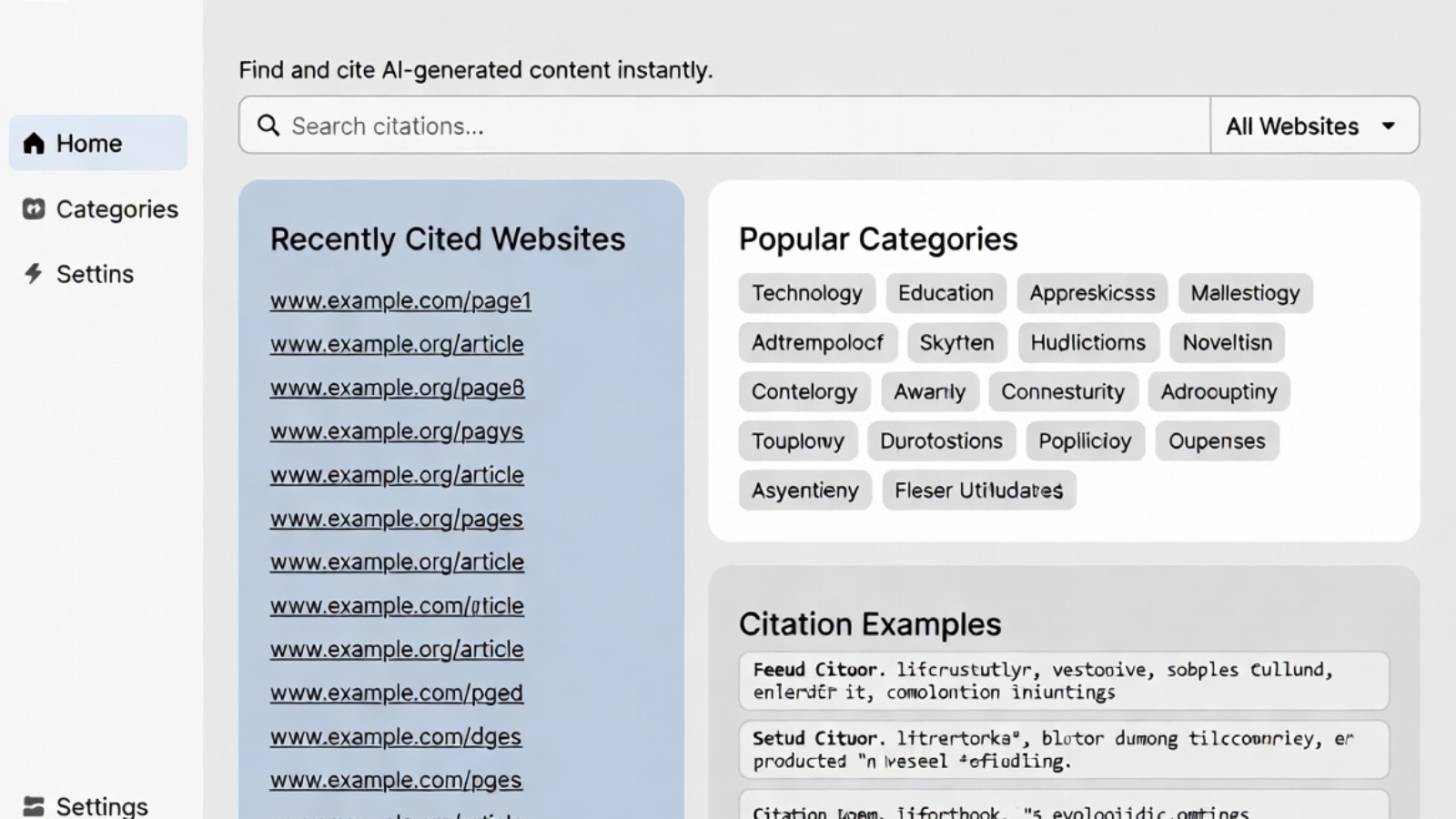
Business owner reviewing generic homepage copy on their laptop before rewriting it

Generic Homepage Copy Is Costing You Real Clients

Quick answer: Generic homepage copy — phrases like “we deliver high-quality solutions” — fails because it describes every competitor equally well and gives visitors no reason to choose you specifically. Replace vague claims with specific outcomes, named services, and real numbers. That single change often does more for conversions than any redesign.

Why “High-Quality Solutions” Doesn’t Work

Say this sentence out loud: “We deliver high-quality solutions tailored to your needs.” Now ask yourself — could a plumber, a law firm, and a software company all put that exact sentence on their homepage?

Yes, they could. That’s the problem.

A phrase that fits every business fits no business in particular. Visitors land on your homepage looking for one thing: proof that you understand their specific problem. Generic homepage copy gives them the opposite — a sentence so safe it says nothing at all.

I see this constantly when I take over a client’s existing site. The headline reads like it was written to avoid offending anyone, rather than to convince the right person to act. That approach protects nobody. It just makes your business forgettable.

What Makes Copy “Generic” in the First Place?

Generic homepage copy usually shares three traits, and once you spot them, you’ll see them everywhere.

First, it’s interchangeable. Swap your logo for a competitor’s, and the sentence still reads fine. That’s a red flag, not a compliment.

Second, it talks about the company, not the customer. “We are passionate about excellence” centers your feelings. It says nothing about the visitor’s problem or what happens after they hire you.

Third, it avoids specifics on purpose. Words like “quality,” “innovative,” and “tailored” sound positive but carry no measurable meaning. Nobody can picture what “quality solutions” actually delivers.

This isn’t just a copywriting nitpick — it’s a recognized usability problem. The Nielsen Norman Group, a leading UX research firm, has studied this exact pattern and found that internal, company-centered language and vague marketing terms are consistently harder for users to understand and act on than plain, specific, user-focused writing. In other words, the copy that feels safest to write is often the copy that costs you the most.

How Do You Know If Your Homepage Has This Problem?

Run a simple test on your own site. Read your headline and first paragraph, then ask three questions:

  1. Could a direct competitor use the exact same wording?
  2. Does it mention your customer’s problem, or only your company’s qualities?
  3. Could you replace any adjective with a number, a name, or a specific outcome?

If you answered “yes,” “only qualities,” and “yes” — you have generic homepage copy, and it’s likely costing you inquiries you never even see, because visitors leave before they scroll far enough to find your actual value.

What Should Replace It?

Specificity is the fix, and it’s simpler than most business owners expect. Compare these two versions side by side.

Generic: “We deliver high-quality solutions tailored to your needs.” Specific: “We rebuild slow WordPress sites for restaurants and turn them into fast, mobile-first ordering systems within two weeks.”

Notice what changed. The specific version names the industry, the problem (slow sites), the outcome (fast, mobile-first), and a timeframe. A visitor reading it instantly knows whether it applies to them — and that clarity is exactly what moves someone from browsing to booking a call.

You don’t need poetic language to write this way. You need three ingredients:

  • A named audience. “Restaurants,” “law firms,” or “e-commerce stores” beats “businesses” every time.
  • A concrete outcome. “Cuts checkout time in half” beats “improves your experience.”
  • A believable detail. A number, a timeframe, or a platform name makes the claim feel real instead of rehearsed.

Is This Just a Copywriting Problem, or a Design Problem Too?

Here’s where I’ll push back on the common advice: rewriting your headline alone won’t fix a broken homepage, and design alone won’t fix vague copy. They have to work together.

A specific, punchy headline buried below a slow-loading hero image still won’t convert well, because the visitor never sees it in time. Likewise, a beautifully designed homepage with generic copy just looks like an expensive brochure. If you want a full picture of what else might be quietly working against your conversions, our guide on building a website that converts covers the layout and speed side of this same problem.

Copy and design solve different halves of the same equation. Fixing only one rarely moves the needle as much as business owners hope.

Frequently Asked Questions

What’s wrong with saying “we deliver high-quality solutions”? It applies equally to almost any business, so it gives visitors no specific reason to choose you over a competitor. Specific language about your audience, method, and outcome performs better.

How do I make my homepage copy more specific without sounding boastful? Replace adjectives with facts. Instead of “we’re the best,” name what you actually do, for whom, and with what result — facts read as confident, not boastful.

Does generic homepage copy actually hurt SEO, or just conversions? Mainly conversions, though it can indirectly hurt SEO too, because vague pages tend to use fewer specific keywords that match what people actually search for.

Can I fix generic copy myself, or do I need a professional writer? Many business owners can fix the worst offenses themselves using the audience-outcome-detail method. A professional is worth it when you need the copy tested and tied into a broader redesign.

How long should a homepage headline be? Short enough to read in one glance, generally under 12 words, and specific enough to answer “what do you do, and for whom?” without extra scrolling.

Should every page on my site avoid generic language, or just the homepage? Every page benefits, but the homepage matters most because it’s usually the first thing a new visitor reads and decides on within seconds.

If your homepage still reads like it was written to avoid saying anything specific, that’s an easy fix — and often a cheap one. Message me on WhatsApp with your current homepage link, and I’ll tell you honestly what’s generic and what’s actually working. If you’re also weighing a bigger rebuild, the Website Cost Calculator gives you a realistic estimate first.

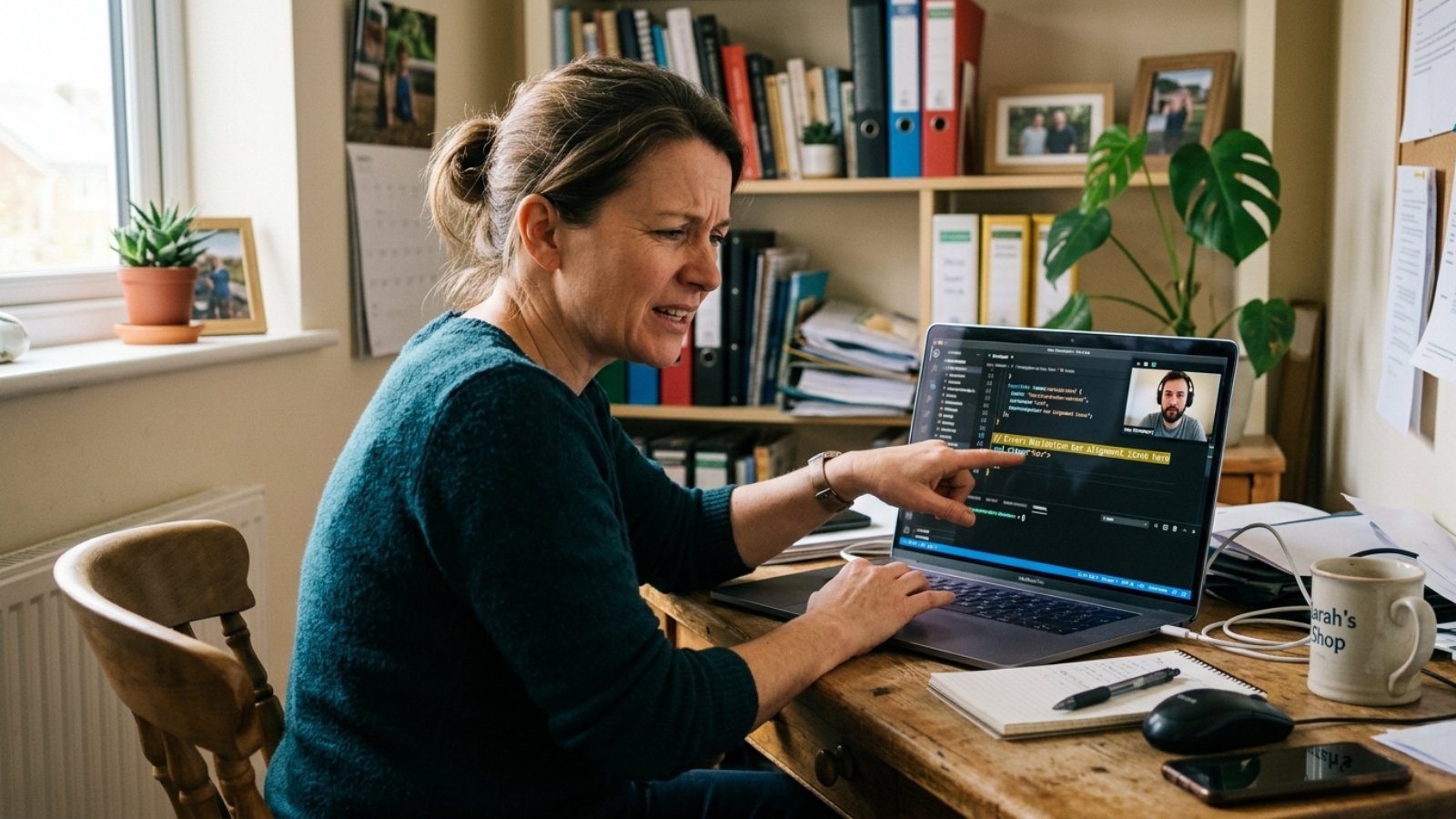
Freelance developer explaining the cost to hire a WordPress developer during a client video call

Cost to Hire a WordPress Developer in 2026

Quick answer: The cost to hire a WordPress developer in 2026 ranges from $20 to $250 per hour, depending on experience and location. Junior developers charge $20–$40/hr, mid-level developers $50–$100/hr, and senior specialists $100–$175/hr or more. Simple sites run $500–$2,000, while custom builds with e-commerce can reach $5,000–$20,000.

That’s a wide range, I know. But it’s wide for a reason, and understanding why will save you from either overpaying or hiring someone who can’t actually deliver.

Why Do WordPress Developer Rates Vary So Much?

Three things drive the price: experience level, geography, and project complexity. A developer in Karachi or Manila can quote a fraction of what a US-based agency charges for the exact same WooCommerce setup. That doesn’t automatically make one better than the other — it means you need to know what you’re actually paying for.

W3Techs tracks CMS usage across the top ten million websites, and WordPress consistently comes out as the most widely used platform on the internet by a large margin. That popularity is exactly why the developer market is so fragmented. Millions of people call themselves “WordPress developers,” but their skill levels sit on completely different ends of the spectrum.

How Much Does a WordPress Developer Cost Per Hour?

Here’s a realistic breakdown based on current market data:

  • Junior (0–2 years): $20–$40/hr — theme installation, minor edits, plugin setup
  • Mid-level (2–5 years): $50–$100/hr — custom themes, WooCommerce stores, performance work
  • Senior (5+ years): $100–$175/hr — custom plugins, complex integrations, architecture decisions
  • Agency/white-label teams: $120–$250/hr — design, dev, QA, and project management bundled together

goLance’s 2026 data puts the mid-level average around $73 per hour, with senior developers averaging closer to $128 per hour. That matches what I typically see when clients compare quotes before reaching out to me.

For comparison, if you hired a full-time in-house WordPress developer in the US instead of going freelance, you’d be looking at roughly $84,500 a year in salary alone — before benefits, equipment, or payroll taxes. That’s part of why so many small businesses in the US, UK, and EU now prefer hiring freelancers project-by-project instead.

What Does a WordPress Project Actually Cost?

Hourly rates only tell half the story. Most clients care more about the total project number. Here’s what typical builds run in 2026:

  • Simple brochure site (5–10 pages): $500–$2,000
  • Custom-designed theme: $2,000–$8,000
  • WooCommerce store (standard): $1,500–$6,000
  • Custom WooCommerce build with integrations: $5,000–$20,000
  • Ongoing maintenance retainer: $150–$500/month

These numbers move based on how much custom functionality you need. A five-page site with a contact form is a different job than a booking platform that syncs with a third-party reservation system.

[INSERT: a real client detail, number, or story here — e.g. what a recent project of Aoun’s actually cost and why]

If you want a rough number for your specific project before talking to anyone, run it through the Free Website Cost Calculator first. It takes two minutes and gives you a realistic starting range.

Should You Hire Hourly or Fixed-Price?

This trips up almost every first-time client. Here’s the short version.

Choose hourly when your scope might change — ongoing feature requests, exploratory work, or a project where you’re not 100% sure what you need yet. Choose fixed-price when you already know exactly what you want and when you need it delivered. Fixed-price protects your budget. Hourly protects your flexibility. You can’t have both, so pick based on how defined your project actually is.

Freelancer, Agency, or Dedicated Developer — Which Fits Your Budget?

Freelancers are usually the cheapest option, and for a single business site, that’s often the right call. You get direct access to the person doing the work, with no account manager sitting between you and your project.

Agencies cost more because you’re paying for a full team — designer, developer, QA tester, project manager. That overhead makes sense for larger, business-critical builds where a single point of failure would be risky.

There’s also a middle path: hiring one experienced full-stack freelancer who covers WordPress, WooCommerce, and integrations like Wix Velo or Flutter, without the agency markup. That’s usually the sweet spot for small businesses that need production-grade work but don’t have agency-sized budgets. If you’re weighing WordPress against a hosted alternative for your store, my WooCommerce vs Shopify 2026 comparison breaks down the cost difference in more detail.

The Mistake That Costs Clients the Most Money

Here’s something a 30-second Google search won’t tell you: the cheapest hourly rate is rarely the cheapest total cost.

A senior developer charging $120/hr who finishes your site in 15 hours costs $1,800. A junior developer charging $30/hr who takes 80 hours to get the same result — because of revisions, missed requirements, or a lack of experience with your specific use case — costs $2,400. The junior developer looked cheaper on paper. They weren’t.

Ask any WordPress developer for examples of similar work before you commit, not just a rate. Portfolio quality tells you more about your final cost than the number on their quote.

Frequently Asked Questions

Is it cheaper to hire a WordPress developer from Pakistan or India than the US?
Yes, generally. Developers based in South Asia often charge 40–60% less than US or UK-based freelancers for comparable WordPress work, mainly due to cost-of-living differences rather than skill gaps.

How much does a small business WordPress website cost in 2026?
A simple 5–10 page business website typically costs $500–$2,000 when built by a freelance developer, depending on design complexity and whether custom functionality is needed.

Do I need to pay extra for WordPress hosting and plugins?
Yes. Developer fees usually cover the build itself, not ongoing hosting, premium plugin licenses, or domain renewal, so budget those separately.

Is hourly or fixed-price better for a WordPress project?
Fixed-price works better for well-defined, standalone projects. Hourly works better when your scope is likely to change or you need ongoing, flexible support.

How long does it take to build a WordPress website?
A simple site usually takes 1–3 weeks. A custom WooCommerce store with integrations can take 4–8 weeks depending on complexity and how quickly feedback is turned around.

Can I negotiate WordPress developer rates?
Often, yes — especially for longer engagements or ongoing retainer work. Developers frequently offer reduced rates in exchange for consistent, recurring project flow.

Ready to Get a Real Quote?

Rate charts only get you so far. Every project has its own quirks — the plugins you already depend on, the integrations you need, the timeline you’re working against. If you want an honest, specific number instead of another range, message me on WhatsApp and tell me what you’re building. I’ll give you a straight answer, not a sales pitch

AEO, GEO & AI Search Optimization 2026: The Complete Guide for Modern Websites

AEO, GEO & AI Search Optimization 2026: The Complete Guide for Modern Websites

Search is changing fast in 2026. Traditional Google results are now joined by AI overviews, ChatGPT-style answers, Perplexity, and generative engines. If your website only focuses on old-school SEO, you risk losing visibility.

This guide covers AEO (Answer Engine Optimization), GEO (Generative Engine Optimization), and AI-powered search strategies. As a freelance WordPress, Wix, and Flutter developer who builds conversion-ready sites, I implement these techniques for clients to stay ahead.

What Are AEO, GEO, and AI Search?

  • AEO: Optimizing for direct answers in featured snippets, voice search, and AI summaries.
  • GEO: Optimizing content so AI models (like those in ChatGPT, Gemini, Claude) cite or summarize your site favorably.
  • AI Search: The shift where users ask conversational questions and get synthesized responses.

Why It Matters in 2026 AI search now handles a growing percentage of queries. Websites that adapt see sustained or increased traffic, while others decline.

Key Strategies for AEO + GEO Success

1. Create Authoritative, Structured Content

  • Use clear headings, lists, tables, and schema markup.
  • Answer questions directly in the first 100-200 words.
  • Include data, stats, and original insights (like my real client case studies).

2. Optimize for Conversational Queries Target long-tail questions: “How much does Flutter app development cost in 2026?” instead of just “Flutter cost”.

3. Build Topical Authority Cluster content around core topics (e.g., web development services, booking systems, e-commerce).

4. Technical Optimizations

  • Fast loading (Core Web Vitals) — see my guide.
  • Proper schema (FAQ, HowTo, Article).
  • Clean, crawlable site structure.

5. Content Format for AI Engines

  • Use clear, factual language.
  • Include comparisons, pros/cons, step-by-step guides.
  • Add unique experiences and case studies.

Real Implementation Examples from My Work On tourism booking sites, I optimize pages with structured data for “Aruba tour booking” queries so AI summaries highlight the client’s site. For restaurant clients, menu and ordering pages are formatted to appear in generative answers.

Tools & Tactics for 2026

  • Google Search Console + Analytics.
  • AI tools for research (not generation).
  • Schema validators.
  • Monitor AI search appearances.

Common Mistakes to Avoid

  • Thin or AI-generated-only content.
  • Ignoring mobile and voice search.
  • Over-optimizing keywords at the expense of readability.

Action Plan to Implement Today

  1. Audit your top pages for question-answering potential.
  2. Add schema and structured sections.
  3. Create 1-2 in-depth guides per month.
  4. Track performance and iterate.

Conclusion AEO, GEO, and AI search optimization are no longer optional in 2026. By creating helpful, structured, experience-backed content and technically strong websites, you can thrive in both traditional and generative search.

Need help optimizing your site for the new search landscape? Contact me for a website audit or development project. I build fast, SEO-ready sites on WordPress, Wix Studio, and more.

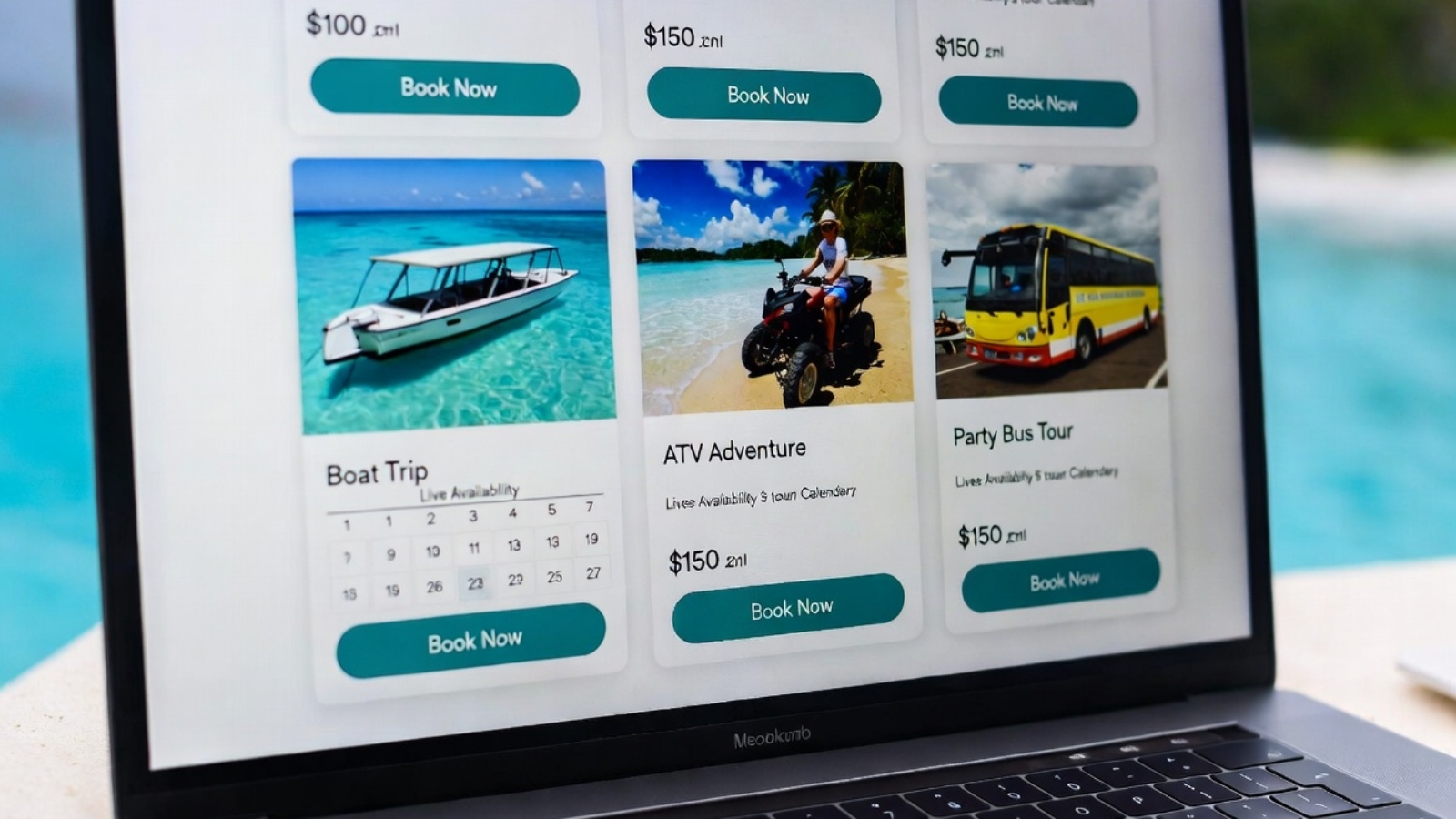
FareHarbor booking website for tourism business showing tour listings and live availability

Why Tourism Businesses Need a FareHarbor Booking Website

A FareHarbor booking website gives tourism businesses something that third-party platforms and scattered social media links never can — a single place where customers find you, trust you, and book directly with you, without leaving your brand experience to complete the transaction.

If you run a tour company, activity business, boat charter, or rental service and you’re currently sending customers to a generic FareHarbor page, a Google listing, or a third-party booking platform to complete their reservation — this post explains exactly what that’s costing you and how a proper FareHarbor-integrated WordPress website fixes it.

The Problem With How Most Tourism Businesses Handle Bookings

Most small tourism operators have the same setup: a FareHarbor account managing their availability and payments, a Facebook page for social presence, maybe a basic website that was built years ago, and a Google Business Profile where most bookings actually originate.

This works — until it doesn’t.

The problem isn’t FareHarbor. FareHarbor is excellent software for managing tour inventory, availability, and payments. The problem is the customer journey that surrounds it.

A tourist searching for activities in your area finds you on Google. They click through to your website. The website looks dated or basic. They’re not sure if you’re still operating. They can’t easily find what tours you offer or what they cost. The booking button either doesn’t exist or redirects them to a generic FareHarbor page that looks nothing like your brand.

At any point in that journey they might leave. And in tourism, a customer who leaves to “think about it” almost never comes back — they book with the next operator they find.

⚠️ Watch Out: Most tourism businesses underestimate how much their website is costing them in lost bookings. If your site doesn’t load fast on mobile, doesn’t clearly show your tours and prices, and doesn’t have a frictionless booking flow — you’re losing customers to competitors who do have those things, even if your actual tours are better.

What a Proper FareHarbor Booking Website Actually Does

A well-built FareHarbor-integrated WordPress website does five things that a basic site or Facebook page simply cannot.

1. Keeps Customers Inside Your Brand Experience

When FareHarbor is properly integrated into your WordPress site, customers browse your tours, check availability, and complete payment — all on your website, all inside your brand. The booking modal opens as an overlay on your page. When the booking is complete, they’re still on your site.

Compare this to sending customers to a standalone FareHarbor page, a third-party booking platform, or a link-in-bio setup. Every redirect is a point where customers can get distracted, second-guess themselves, or simply close the tab.

Keeping the entire journey on your own site consistently produces higher conversion rates. The customer never has a reason to leave.

2. Shows All Your Tours in One Place with Live Availability

FareHarbor’s Flow widget embedded on your WordPress site displays every tour you offer — with photos, descriptions, pricing, and real-time availability — all on one page.

A tourist landing on your booking page sees everything you offer, sees which dates have availability, picks what they want, and books in under two minutes.

✅ Pro Tip: Create a dedicated “Book a Tour” or “Experiences” page as your primary call-to-action destination. Link to it from your homepage, your navigation menu, every individual tour page, and every social media profile. The more paths lead to this page, the more bookings it generates.

3. Reduces Dependency on Third-Party Platforms

Viator, GetYourGuide, TripAdvisor Experiences, and similar platforms take commissions of 20–30% on every booking. For a $100 tour that’s $20–$30 gone before you’ve paid a single operating cost.

These platforms have their place — especially for discovery, where tourists who have never heard of you find you through search. But once a customer knows you exist, you want them booking directly through your own site where you keep the full revenue minus only the FareHarbor payment processing fee.

A proper website with strong SEO means more customers find you directly through Google instead of through a commission-charging platform.

4. Builds Trust Before the Booking

A professional website does something a FareHarbor profile page and a Facebook page cannot fully achieve — it builds trust systematically.

Your own domain, professional design, real photos from your tours, genuine customer reviews, a clear About page explaining who you are and how long you’ve been operating, a phone number and WhatsApp button — all of these signals tell a tourist that you are a legitimate, established business worth booking with.

In tourism, trust is everything. Tourists are spending real money and planning experiences they may have saved up for. They will not book with an operator who looks unestablished online, regardless of how good the actual tour is.

5. Gives You an SEO Foundation That Compounds Over Time

Third-party platforms rank in Google for your activity category. You do not. When a tourist searches “boat tours in [your location]” they find Viator and GetYourGuide ranking on page 1 — and your business buried somewhere below.

A WordPress website with proper SEO content targeting your specific location and activity type gives you a real path to ranking directly in Google searches for your tours. This takes time — typically 6–12 months of consistent content — but once established it generates free organic traffic and direct bookings that no platform can take a commission on.

✅ Pro Tip: Write individual tour landing pages for your most popular activities — one page per tour, with a dedicated URL, proper SEO title and meta description, and a FareHarbor booking widget embedded directly on the page. These pages can rank individually for specific search terms like “sunset catamaran cruise Aruba” or “ATV adventure tour Aruba.”

Who Specifically Needs a FareHarbor-Integrated Website

Not every tourism operator needs the same level of website. Here’s how to think about it:

You need a full FareHarbor booking website if:

  • You manage multiple tour types or activity categories
  • You work with partner operators or resellers
  • You’re currently sending customers to a generic FareHarbor page to complete bookings
  • You’re paying 20%+ commissions to OTAs on most of your bookings
  • Your current website was built more than 3 years ago and doesn’t work well on mobile
  • You want to appear in Google searches for your specific tours and location

A basic FareHarbor embed on an existing site may be enough if:

  • You offer one or two simple tour types with no variants
  • You already have a well-designed, fast-loading website
  • You just need to add a booking button to what already exists

You need a multi-partner setup if:

  • You operate as an umbrella company or reseller managing bookings for multiple tour operators
  • You want to offer a variety of tour types from different providers on one site
  • You manage separate FareHarbor accounts for different brands under one business

I built exactly this kind of multi-partner FareHarbor site for a tourism company in Aruba managing three separate partner brands — De Palm Tours, Kukoo Kunuku, and Pelican Adventures — all bookable through one WordPress site. You can read the full case study on how that was built here.

What to Look for When Hiring a Developer for This

Not every WordPress developer has worked with FareHarbor. It’s a niche enough integration that many developers will say yes and then figure it out as they go — which costs you time and money.

When evaluating a developer for a FareHarbor WordPress project, ask these specific questions:

  • Have you worked with FareHarbor’s widget system before?
  • Have you set up a multi-partner FareHarbor integration?
  • How do you handle mobile testing for the booking modal?
  • How do you approach page speed when loading multiple FareHarbor widgets?
  • Have you dealt with FareHarbor Partner Network permissions before?

A developer who has done this before will answer these questions specifically. One who hasn’t will give vague answers about “integrating booking systems” without addressing FareHarbor directly.

✅ Pro Tip: Ask the developer to show you a live example of a FareHarbor integration they’ve built. A portfolio page or a live client URL is more convincing than any description of their experience.

What a FareHarbor Booking Website Typically Costs

A FareHarbor-integrated WordPress website for a tourism business typically falls in the range of $1,000–$3,500 depending on complexity. Here’s what drives the cost:

Lower end ($1,000–$1,500):

  • Single operator, one FareHarbor account
  • Standard Flow widget embed on a booking page
  • 5–8 pages total
  • Elementor-based design using a quality theme

Mid range ($1,500–$2,500):

  • Multiple tour categories with individual landing pages
  • Custom design beyond a standard theme
  • WhatsApp integration, contact forms, Google Maps
  • Mobile performance optimization

Higher end ($2,500–$3,500+):

  • Multi-partner setup connecting two or more FareHarbor accounts
  • Custom booking page design with individual partner sections
  • SEO setup including individual tour landing pages
  • Bilingual content (for operators serving international tourists)

These figures assume freelance developer pricing. Agency pricing for the same scope runs significantly higher.

Common Questions From Tourism Business Owners

Q: Do I need to change my FareHarbor account to add it to a WordPress site?
A: No. Your FareHarbor account stays exactly as it is. The WordPress integration uses embed codes generated from your existing FareHarbor dashboard. Your availability, pricing, and payment processing all stay inside FareHarbor — WordPress just displays the booking interface on your own site.

Q: Will customers still get FareHarbor confirmation emails after booking?
A: Yes. FareHarbor handles all booking confirmation and reminder emails directly from their system. Your WordPress site just provides the interface where the booking starts — FareHarbor handles everything after the customer completes the transaction.

Q: Can I show tours from multiple FareHarbor accounts on one site?
A: Yes — through FareHarbor’s Partner Network system. One operator account gets booking permissions across multiple partner accounts, and all partner inventory can be displayed through one WordPress site. I’ve built this for a real tourism client. You can read the full technical guide on how FareHarbor WordPress integration works.

Q: How long does it take to build a FareHarbor booking website?
A: A standard single-operator site typically takes 1–2 weeks from start to launch. A multi-partner setup with custom design and individual tour landing pages takes 2–4 weeks depending on how quickly content and partner approvals come through.

Q: Will my site rank on Google for my tours?
A: With proper SEO setup — individual tour landing pages, location-specific keywords, fast mobile loading — yes, over time. Ranking takes 3–6 months of consistent content for competitive tourism destinations. Less competitive locations can rank faster. A developer who sets up the SEO foundation correctly from day one gives you the best starting position.

Final Thoughts

A FareHarbor booking website is not a luxury for a tourism business in 2026 — it’s the baseline expectation of a tourist who finds you online. A professional site with your tours, real photos, live availability, and a seamless booking flow is what converts a browsing tourist into a paying customer.

The alternative — sending customers to a generic page, a social media link, or a third-party platform that takes a 25% commission — costs you money on every single booking and gives you no control over the customer experience or the data that customer generates.

If you run a tourism business using FareHarbor and want a WordPress site that makes booking as simple as possible for your customers — Contact me and I’ll build it for you.

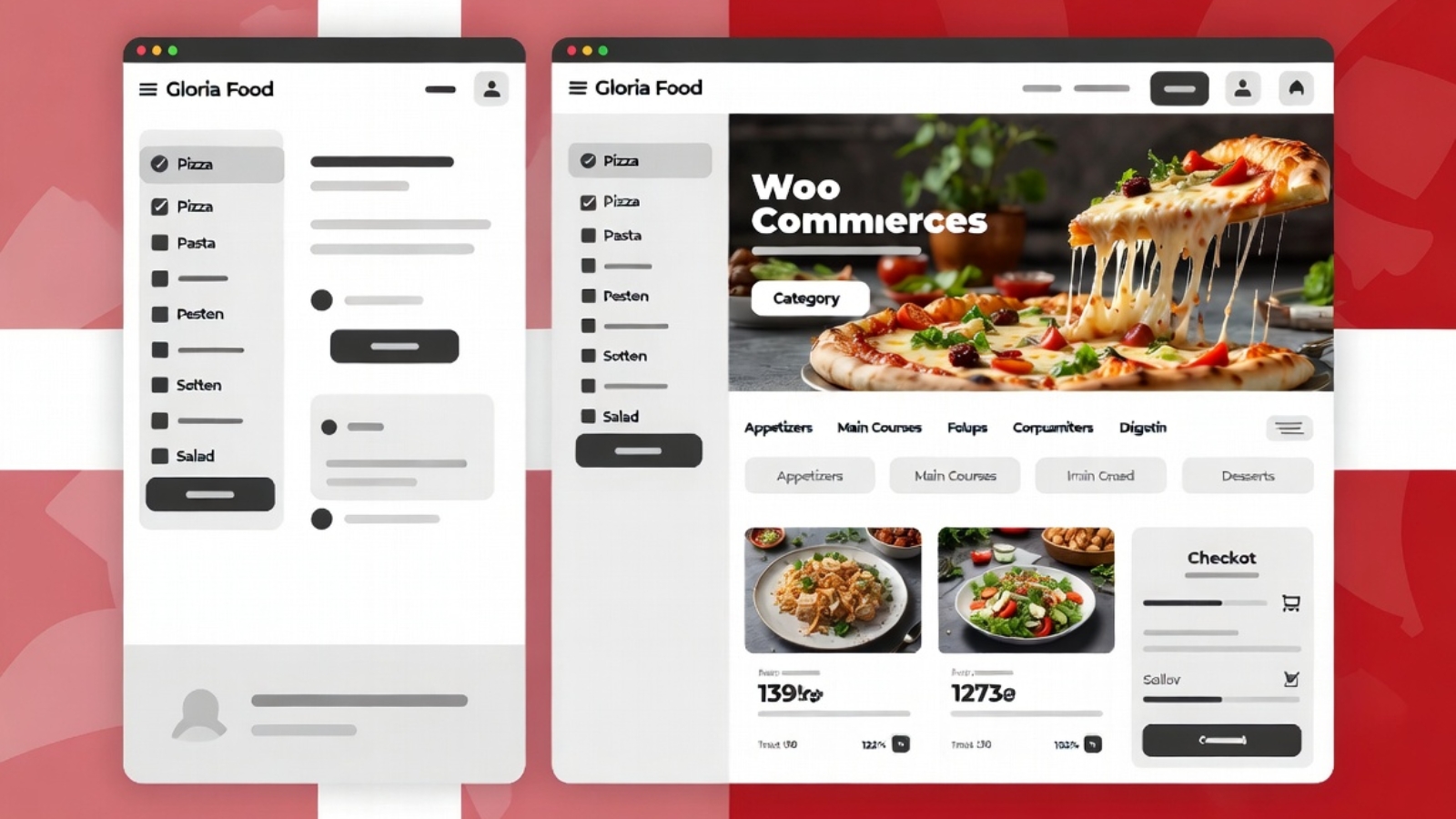
Danish restaurant website migration from Gloria Food to WooCommerce case study

How I Migrated Two Danish Restaurants from Gloria Food to WooCommerce

Most restaurant owners don’t think about their online ordering platform until something goes wrong — a feature disappears behind a paywall, the menu editor stops cooperating, or they realize they have no idea who their online customers actually are because all that data sits on someone else’s server.

That’s roughly where both of these clients were when they came to me. Two separate Danish restaurant businesses, both using Gloria Food, both running into different walls — and both wanting to move to WooCommerce for the same core reason: ownership. Their menu, their orders, their customer data, their platform. No middleman.

This post walks through how both migrations went, what was harder than expected, and what I’d do differently if I were starting today.

Client 1 — Express Pizzeria

Express Pizzeria is a fast food restaurant in Denmark that had been on Gloria Food for a couple of years. The platform had worked well enough early on, but by the time they contacted me, the ordering experience felt dated, they had no control over the checkout flow, and they were paying platform fees they didn’t think were justified.

The menu was reasonably sized — around 40 items across six categories — but had a number of items with size options (small, medium, large) and optional add-ons (extra toppings, sauces) that needed to carry over accurately into WooCommerce’s variant system.

The domain situation

Their domain was registered at Punkt.um, a Danish domain registrar with a fairly specific DNS management interface. This turned out to be one of the more time-consuming parts of the project — not technically complex, but requiring careful navigation of a Danish-language admin panel to locate the correct DNS zone settings and update the A records pointing to the new WordPress hosting.

⚠️ Watch Out: Punkt.um’s DNS propagation can take up to 48 hours — longer than many registrars. If you’re managing a restaurant migration on a tight timeline, build this into your schedule and warn the client early. Don’t promise a Monday launch if DNS changes go in on Sunday.

The migration process

I kept Gloria Food live throughout the entire build — the restaurant was still taking orders through it every day, and there was no acceptable window to go dark. The WooCommerce build happened entirely in parallel on a staging URL, only going live once it passed a full end-to-end test including a real test order through Stripe.

Menu rebuild in WooCommerce:

  • Each menu category became a WooCommerce product category
  • Size options (small, medium, large) became WooCommerce variable products with price-per-variation
  • Add-ons (extra toppings) were handled with the WooCommerce Product Add-Ons plugin, which lets customers check optional extras during ordering with a per-item price
  • Photos were sourced from the client’s existing Gloria Food menu where available, resized, converted to WebP, and uploaded to the WordPress media library

Payment setup for Danish customers

Standard Stripe handled card payments. MobilePay was the critical addition — in Denmark, a large proportion of customers pay with MobilePay as their first preference, and a restaurant ordering site without it loses a real segment of potential orders. The MobilePay WooCommerce plugin connects to MobilePay’s business API and requires completing business verification on the MobilePay side before processing live payments.

✅ Pro Tip: Start the MobilePay business verification process as early as possible in the project — it requires documentation review on their end which can take several business days. Don’t leave it until the week of launch.

Ordering configuration

Standard WooCommerce is built around physical product shipping, not food delivery. I installed Orderable — a WooCommerce extension specifically built for restaurants — to add:

  • Time slot selection (customers pick a delivery or pickup window)
  • ASAP ordering toggle for immediate delivery
  • Minimum order value for delivery
  • Opening hours enforcement so orders can’t be placed when the restaurant is closed

The DNS switch

Once the WooCommerce site was fully built, tested, and approved by the client, I updated the A records at Punkt.um to point to the new hosting. Gloria Food was left live during propagation — since it was still answering to the old IP, any customer who hadn’t yet received the DNS update would still reach the old ordering page, meaning zero orders were lost during the transition.

After 36 hours of propagation (Punkt.um was on the longer end), the WordPress site was fully live. Gloria Food was then closed out.

Client 2 — Café au Lait

The second migration was a different scenario. Café au Lait was a café rather than a fast food restaurant — smaller menu, lower order volume, but a client who also had a broader website maintenance arrangement with me that had surfaced a separate problem.

During routine maintenance I discovered the site had been running a nulled (pirated) copy of Elementor Pro. This was a significant security issue — nulled plugins are a common vector for malware injection and were actively preventing the site from receiving legitimate security updates. The Gloria Food migration became one part of a broader project that also included replacing the nulled plugin with a properly licensed version and doing a full security audit of the site.

⚠️ Watch Out: If you’re taking over maintenance of a WordPress site from someone else, always check the plugin list for unlicensed premium plugins immediately. A single nulled plugin can expose the entire site to compromise, and the client often doesn’t know it’s there — the previous developer may have installed it without telling anyone.

Menu differences

Café au Lait’s menu was smaller and simpler than Express Pizzeria’s — mostly fixed-price items without complex variants. This made the WooCommerce product setup significantly faster. The main complexity was the bilingual nature of some content and ensuring the ordering categories reflected how the café actually organized its menu rather than defaulting to generic WooCommerce category naming.

The DNS situation

Same Punkt.um registrar as the first client, which meant the same 36–48 hour propagation window to manage. By this point I’d already learned to set DNS update expectations with the client upfront rather than promising a same-day launch.

What Was the Same in Both Migrations

Looking across both projects, a few things were consistently true:

Gloria Food data doesn’t export cleanly. There’s no official export tool that spits out a WooCommerce-compatible product CSV. Every item had to be rebuilt manually in WooCommerce — which is time-consuming but also an opportunity, because it forced a review of whether every item on the old menu still belonged on the new one. Both clients ended up trimming and reorganizing their menus slightly during the rebuild, which they saw as a side benefit.

Clients underestimate how many items have variants. Both clients initially described their menus as “simple” and were surprised by how many items had size options, add-ons, or pricing tiers once we actually went through everything. This is worth factoring into any quote for a restaurant migration — “simple menu” rarely means simple product setup.

MobilePay verification took longer than expected. In both cases, the MobilePay business API verification added days to the timeline that weren’t originally accounted for. This is now the first thing I kick off in any Danish restaurant project, before touching any code.

Parallel operation during migration is non-negotiable. Neither restaurant could afford even a few hours without an ordering system. Running both platforms simultaneously until after DNS propagation was confirmed is not optional — it’s the only responsible approach.

What Changed After Migration

Both restaurants gained things that Gloria Food simply doesn’t offer:

  • Full ownership of their customer order history, which lives in their WooCommerce database — not on a third-party server
  • The ability to run WooCommerce-native promotions (discount codes, percentage-off sales, free delivery above a threshold)
  • A real website, not just a Gloria Food ordering subdomain — with proper SEO, their own domain on their own hosting, and the ability to add pages, blog posts, and content over time
  • No ongoing platform commission on orders beyond standard payment gateway fees

What I’d Do Differently

If I were starting either of these migrations today:

  • Kick off MobilePay verification on day one, not day five
  • Budget more time for the menu variant audit — assume more complexity than the client describes
  • Set explicit DNS timing expectations with the client before starting rather than managing surprises later
  • Create a shared checklist the client can sign off on before any DNS switch, so there’s no ambiguity about what “ready to go live” means

If you’re a restaurant owner currently on Gloria Food and thinking about making the switch, or a developer taking on a similar project, Contact me — I’m happy to talk through what the process would look like for your specific setup.