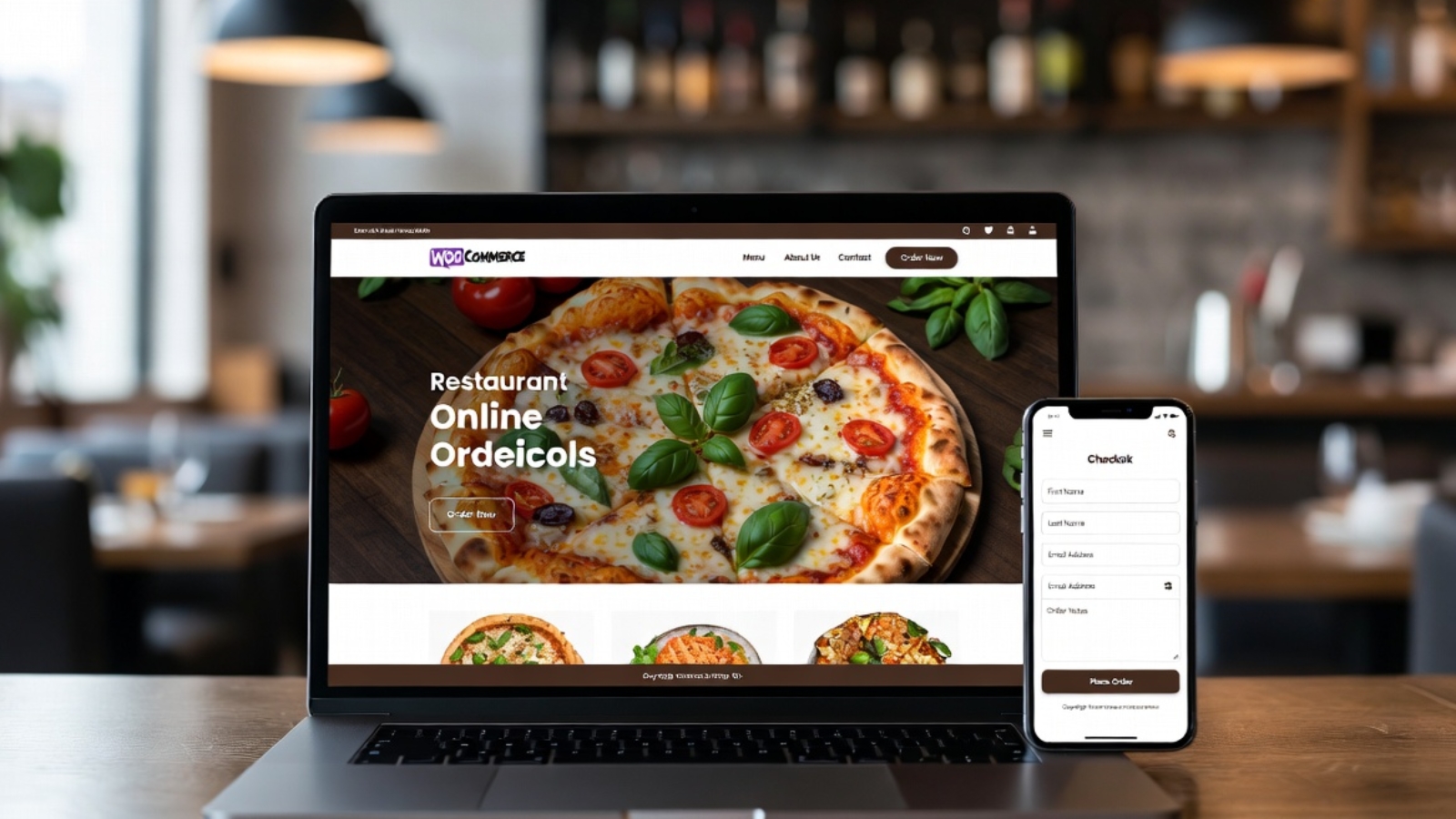

DNS propagation issue during restaurant website migration showing old and new site conflict

DNS Propagation Issues When Migrating a Restaurant Website — How to Fix Them

DNS propagation issues during a restaurant website migration can bring your entire online ordering system to a halt at the worst possible moment — during a busy lunch service, on a Friday evening, or right after you’ve told customers about your new site.

I’ve migrated multiple restaurant websites including Danish restaurants registered at Punkt.um, and DNS propagation problems came up every single time. This guide covers exactly what causes DNS propagation issues, how to fix them fast, and how to structure your migration so your restaurant never goes dark during the switch.

If you’re mid-migration and your site is currently down or flipping between old and new — scroll straight to the Fix section. If you’re planning a migration, read everything so you don’t hit these problems at all.

What DNS Propagation Actually Means

Before fixing the problem, it helps to understand what’s actually happening.

Every domain name (like yourrestaurant.com) points to an IP address — the physical location of the server where your website lives. DNS (Domain Name System) is the global system that translates your domain name into that IP address so browsers can find your site.

When you migrate a restaurant website to new hosting, you change the IP address your domain points to. DNS propagation is the time it takes for this change to spread across all DNS servers worldwide.

The problem: DNS servers around the world cache (store) your old IP address. Until their cache expires and they fetch the new record, some visitors see your old site and some see the new one — depending on which DNS server their internet provider uses.

This propagation period typically takes 24–48 hours. Some providers update within minutes. Others hold the old record for the full 48 hours. You have no direct control over this.

⚠️ Watch Out: During propagation, you might test your new site from your laptop and see it working perfectly — while a customer in another city still sees the old site or gets a blank page. This is normal propagation behavior, not a sign something is broken.

Why Restaurant Websites Are Especially Vulnerable

Most websites can afford a few hours of reduced visibility during a DNS change. Restaurant websites can’t — especially ones taking online orders.

A customer who hits a blank page or error during your migration doesn’t wait for propagation to finish. They order from somewhere else. If your DNS change happens on a Friday evening before a busy weekend, that’s real lost revenue.

Restaurant websites also typically involve more moving parts than a simple brochure site:

  • An active ordering system (WooCommerce, Gloria Food, or a booking platform)
  • Payment gateway connections that are IP or domain-specific
  • Email order notifications that may be tied to the old hosting
  • Google My Business listing pointing to the domain
  • Third-party delivery platform integrations

All of these need to keep working during and after the migration.

✅ Pro Tip: Never schedule a DNS change on a Friday, Saturday, or any day before a known busy period for your restaurant. Tuesday or Wednesday morning is ideal — lower traffic, your hosting support team is available, and you have the rest of the week to fix anything unexpected.

The Right Way to Migrate — Zero Downtime Approach

The single most important thing you can do to avoid DNS propagation problems is to never actually take your restaurant offline during the migration.

Here’s the approach I use for every restaurant migration:

Step 1 — Build the New Site on a Temporary URL

Build and fully test the new WordPress site on a staging URL or a temporary subdomain provided by your new host. For example:

staging.yourrestaurant.com
OR
yourrestaurant.newhost.com/staging

The old site stays completely live and taking orders throughout this entire phase. Customers never see anything different.

Step 2 — Test Everything on the Staging URL

Before touching any DNS settings, confirm all of the following work on the staging URL:

  • Full menu loads correctly with all items and prices
  • Add to cart and checkout work end to end
  • Payment processes successfully (use a real test transaction)
  • Order confirmation email arrives
  • All images load correctly
  • Site loads on mobile in Safari and Chrome

Do not change DNS until every item on this list passes.

Step 3 — Lower Your TTL Before Changing DNS

TTL (Time To Live) is the number of seconds DNS servers cache your record before checking for updates. Most domains default to 3600 seconds (1 hour) or 86400 seconds (24 hours).

Lower your TTL to 300 seconds (5 minutes) at least 24 hours before you plan to change your DNS records. This means when you do make the change, it propagates in minutes rather than hours.

To lower TTL:

  1. Log in to your domain registrar (Punkt.um, GoDaddy, Namecheap, etc.)
  2. Go to DNS management
  3. Find your A record for @ (root domain) and www
  4. Change the TTL value to 300
  5. Save and wait 24 hours before proceeding

✅ Pro Tip: Most restaurant owners don’t know about TTL and skip this step. It’s the single most effective thing you can do to speed up propagation. A 5-minute TTL means your DNS change reaches most of the world within 15–30 minutes instead of 24–48 hours.

Step 4 — Change Your DNS Records

Once your new site is fully tested and your TTL has been lowered for 24 hours, make the DNS change.

Option A — Change Nameservers (Recommended)

Nameservers control all DNS for your domain. Pointing them to your new host means the new host manages all DNS records.

Find your new host’s nameservers in your hosting control panel — they look like:

ns1.hostinger.com
ns2.hostinger.com

At your registrar, replace the current nameservers with these. Save.

Option B — Update A Records Only

If you want to keep your domain’s DNS managed at your registrar, update only the A records:

  1. Find your new hosting server’s IP address in your hosting control panel
  2. At your registrar, edit the A record for @ (root domain) — change IP to new hosting IP
  3. Edit the A record for www — same new IP
  4. Save

A record changes propagate faster than nameserver changes in most cases.

Step 5 — Keep the Old Site Live During Propagation

This is critical. Do not cancel your old hosting until propagation is fully complete.

During the propagation window, some visitors will reach the old site and some will reach the new one. If your old hosting is still live, old-site visitors still see a working restaurant — they can still order. The only downside is you’re running two hosting accounts temporarily.

Wait at least 48 hours after the DNS change before cancelling old hosting. Check propagation status at whatsmydns.net — enter your domain and confirm it shows the new IP from locations around the world before cancelling anything.

Punkt.um Specific — Danish Domain Registrar

If your restaurant domain is registered at Punkt.um — common for Danish restaurants — here’s what you need to know that their documentation doesn’t make obvious.

Finding DNS settings in Punkt.um:

Punkt.um’s interface is in Danish. The sections you need:

  • Nameservers: look for “Navneservere” in your domain management panel
  • DNS records (A records): look for “DNS-zoner”

Punkt.um propagation is slow. In my experience migrating Danish restaurant domains through Punkt.um, propagation consistently took 36–48 hours — longer than most registrars. Build this into your timeline and warn the client upfront.

Punkt.um TTL settings: TTL adjustment is available in the DNS-zoner section. Lower it to 300 before your migration window exactly as described above — it makes a significant difference even with Punkt.um’s slower propagation.

⚠️ Watch Out: Punkt.um requires you to confirm DNS changes via email. After saving your nameserver or A record change, check the email address registered with your Punkt.um account immediately — the change won’t apply until you click the confirmation link. This confirmation requirement catches people out, especially if the registered email is an old address they don’t check regularly.

How to Check If DNS Has Propagated

Don’t rely on your own browser to check propagation — your local DNS cache may be showing you the old site even after the change.

Use these tools instead:

whatsmydns.net — shows your domain’s DNS resolution from servers in 20+ countries simultaneously. Enter your domain, select A record, and click Search. Green checkmarks mean that location sees the new IP. This is the most reliable way to see real-world propagation status.

dnschecker.org — similar tool with a slightly different server list. Use both for a complete picture.

Clear your local DNS cache:

On Windows:

ipconfig /flushdns

On Mac:

sudo dscacheutil -flushcache; sudo killall -HUP mDNSResponder

On Chrome browser: go to chrome://net-internals/#dns → click Clear host cache.

After clearing cache, open your domain in an incognito window to see which version of the site your connection currently resolves to.

Common DNS Propagation Problems and Fixes

Problem: Site shows blank page or connection error during propagation

This usually means your new hosting is live but SSL hasn’t been issued yet for the domain. Most hosting providers issue a free SSL certificate automatically when your domain points to their servers — but this can take 10–30 minutes after DNS resolves.

Fix: Wait 30 minutes after DNS propagates and check again. If still no SSL, log in to your hosting control panel and manually trigger SSL issuance (Hostinger: hPanel → SSL → Install, SiteGround: Site Tools → Security → SSL Manager).

Problem: Old site showing after 48 hours

Fix: Your local DNS cache is still showing the old site. Clear your cache using the commands above and test in incognito. If whatsmydns.net shows the new IP globally but you still see the old site locally, it’s definitely a local cache issue — not a real propagation problem.

Problem: Email stops working after migration

Fix: When you change nameservers, you move DNS management to your new host — which may not have your MX records (email routing) set up. Before changing nameservers, log your existing MX records at your old registrar and recreate them at the new host.

Check MX records with:

nslookup -type=MX yourrestaurant.com

Problem: WooCommerce ordering breaks after migration

Fix: Check two things. First, your SSL certificate is active on the new host — WooCommerce checkout requires HTTPS. Second, your WordPress site URL is set correctly. Go to Settings → General and confirm both WordPress Address and Site Address show the correct domain with https://.

Problem: Google My Business still showing old site

Fix: This isn’t a DNS issue — it’s a Google cache issue. After migration, log in to your Google Business Profile and update the website URL to confirm it’s correct. Google will recrawl your site within a few days.

Migration Checklist — Full Timeline

One week before migration:

  • Build and fully test new site on staging URL
  • Confirm all payment gateways work on new host
  • Screenshot all existing DNS records at old registrar
  • Lower TTL to 300 on all A records

Day of migration:

  • Confirm TTL has been low for at least 24 hours
  • Run final test on staging URL
  • Change nameservers or A records at registrar
  • Confirm Punkt.um email confirmation if applicable
  • Monitor whatsmydns.net every 30 minutes

48 hours after DNS change:

  • Confirm full propagation on whatsmydns.net
  • Test complete ordering flow on live domain
  • Confirm order confirmation emails arriving correctly
  • Confirm SSL active with green padlock in browser
  • Clear your local DNS cache and test in incognito

After full confirmation:

  • Cancel old hosting
  • Restore TTL to 3600 on DNS records
  • Submit new sitemap to Google Search Console
  • Update any hardcoded old hosting URLs in WordPress database using Search Replace DB

Common Questions

Q: How long does DNS propagation actually take?
A: Typically 24–48 hours globally. With a low TTL set in advance it can be as fast as 15–30 minutes for most locations. Punkt.um specifically tends toward the 36–48 hour end of the range.

Q: Can I speed up DNS propagation?
A: Yes — lower your TTL to 300 seconds at least 24 hours before the change. This is the most effective method. You cannot force other DNS servers to update faster than their cache expiry.

Q: Will my restaurant lose orders during migration?
A: Not if you keep the old hosting live during propagation. Visitors hitting the old site during propagation still see a working restaurant and can still order. Only cancel old hosting after full propagation is confirmed.

Q: Do I need to change DNS if I’m keeping the same domain?
A: Yes — if you’re moving to new hosting, you need to update DNS regardless of whether you keep the same domain. The domain name stays the same but it needs to point to the new server’s IP address.

Q: What if my domain registrar doesn’t let me change TTL?
A: Some budget registrars don’t expose TTL settings. In this case, change your DNS records on a Tuesday morning when traffic is lowest and accept the standard 24–48 hour propagation window.

Final Thoughts

DNS propagation issues during a restaurant website migration are almost entirely avoidable with the right preparation. Lower your TTL a day before the switch, keep the old site live during propagation, use whatsmydns.net to monitor in real time, and never schedule a DNS change before a busy trading period.

The Punkt.um-specific issues — Danish confirmation emails, slower propagation, Danish-language interface — add complexity that catches people out if they haven’t worked with that registrar before. Now you know what to expect.

If you’re migrating a restaurant website — from Gloria Food to WooCommerce, from one host to another, or from a third-party platform to a self-hosted WordPress site — and want a developer who has done this before without taking the restaurant offline, Contact me and let’s get it done properly.

Privacy policy page for Google AdSense approval shown on a WordPress website

How to Create a Privacy Policy Page for Google AdSense Approval

A privacy policy page for Google AdSense is not optional — Google will reject your AdSense application without one. It is one of the first things their review team checks, and getting it wrong is one of the most common reasons new sites fail AdSense approval even when everything else looks fine.

This guide covers exactly what your privacy policy needs to say, how to create one for free, where to add it on your WordPress site, and what else Google checks alongside it during the AdSense review process.

If you’re preparing your WordPress site for AdSense and want to get approved on your first application rather than going back and forth with rejections — read this before you apply.

Why Google AdSense Requires a Privacy Policy

Google AdSense displays personalized ads based on visitor behavior and cookies. Privacy laws in the US (COPPA), EU (GDPR), and UK (UK GDPR) require any website displaying behavioral advertising to disclose this to visitors clearly.

Google enforces this requirement as a condition of AdSense participation. Your privacy policy must specifically disclose that third-party ad networks — including Google — use cookies and collect data to serve personalized ads.

A generic privacy policy template that doesn’t mention advertising cookies will not satisfy AdSense requirements even if it covers everything else correctly.

⚠️ Watch Out: Don’t copy someone else’s privacy policy from another website. Google’s review team checks for this. Copied policies also create legal liability — a policy written for someone else’s business may not accurately describe yours.

What Your Privacy Policy Must Include for AdSense

Google publishes its own requirements for publisher privacy policies. Your policy must cover all of these areas:

1. What Data You Collect

List every type of data your site collects from visitors:

  • Name and email (if you have contact forms or email signup)
  • IP addresses (collected automatically by your server)
  • Browser type and device information
  • Pages visited and time spent (via Google Analytics)
  • Cookies placed by your site and third-party services

2. How You Use That Data

Explain why you collect each type of data:

  • Contact form data — to respond to enquiries
  • Analytics data — to understand how visitors use the site
  • Advertising data — to display relevant ads through Google AdSense

3. Google AdSense and Advertising Cookies

This section is the most critical for AdSense approval. You must specifically state:

  • Your site uses Google AdSense to display advertisements
  • Google uses cookies to serve ads based on visitor behavior
  • Visitors can opt out of personalized ads via Google’s Ads Settings
  • Third-party vendors including Google use cookies to serve ads based on prior visits

Google provides exact required language for this disclosure in their AdSense program policies.

4. Google Analytics

If you use Google Analytics (which you should), disclose this separately:

  • Your site uses Google Analytics to collect anonymous usage data
  • This data helps you understand visitor behavior and improve the site
  • Visitors can opt out via the Google Analytics opt-out browser add-on

5. Cookies

Explain what cookies your site uses and why:

  • Essential cookies — required for the site to function (WooCommerce cart, login sessions)
  • Analytics cookies — Google Analytics tracking
  • Advertising cookies — Google AdSense personalized ads
  • Third-party cookies — any other services (Stripe, WPForms, etc.)

6. Third-Party Links

If your site links to other websites, state that you’re not responsible for the privacy practices of those external sites.

7. Children’s Privacy (COPPA)

State clearly that your site does not knowingly collect data from children under 13. This is required for AdSense regardless of your site’s topic.

8. How to Contact You

Include a contact method — email address or contact form link — so visitors can ask questions about your privacy practices.

9. Policy Last Updated Date

Add a “Last Updated: [date]” line at the top or bottom of the policy. Google wants to see that the policy is maintained and current.

✅ Pro Tip: After AdSense approval, update this date any time you add a new plugin, service, or data collection method to your site. A policy that says “Last Updated: 2023” on a site actively collecting data in 2026 is a red flag during any audit.

How to Create Your Privacy Policy for Free

You have three options — from fastest to most thorough:

Option 1 — Privacy Policy Generator (Fastest)

Use a free privacy policy generator that covers AdSense requirements specifically. The best free options:

  • Termly.io — generates a comprehensive policy covering GDPR, CCPA, and AdSense requirements. Free tier available.
  • PrivacyPolicies.com — clean generator with AdSense-specific options. Free for basic use.
  • GetTerms.io — simple and fast, covers the essentials.

When using any generator:

  • Select “Google AdSense” when asked about advertising services
  • Select “Google Analytics” when asked about analytics
  • Enter your website URL and contact email accurately
  • Download or copy the generated policy

Option 2 — WordPress Privacy Policy Tool (Built In)

WordPress has a built-in privacy policy generator at Dashboard → Settings → Privacy. It creates a draft policy page automatically with common sections pre-filled.

The limitation: the default WordPress policy doesn’t include AdSense-specific language. Use it as a starting point, then add the Google AdSense disclosure section manually from Option 1 above.

Option 3 — Write It Yourself

If you want full control and accuracy, write your policy manually based on the section headings above. This takes longer but produces a policy that accurately describes your specific site rather than a generic template.

For a WordPress developer site like syedaounraza.online, a self-written policy covering all eight sections above is both legally more accurate and more credible to Google’s reviewers than an obvious template.

✅ Pro Tip: Whatever method you use, read the full policy before publishing it. Make sure every service it mentions is actually on your site and every service on your site is actually mentioned. A policy that lists services you don’t use or omits services you do is worse than having no policy at all.

How to Add the Privacy Policy to WordPress

Once your policy is written, adding it to WordPress takes about two minutes.

Create the Page

  1. Go to WordPress Dashboard → Pages → Add New
  2. Title: Privacy Policy
  3. Paste your policy content into the editor
  4. Set the slug to /privacy-policy/
  5. Publish

Tell WordPress About It

WordPress has a specific setting for the privacy policy page:

  1. Go to Settings → Privacy
  2. Under “Change your Privacy Policy page,” select the page you just created
  3. Click Use This Page

This setting tells WordPress — and any privacy-related plugins — which page is your official privacy policy.

Add It to Your Footer Menu

Google’s review team looks for the privacy policy link in your footer. Add it there:

  1. Go to Appearance → Menus
  2. Select your Footer menu (create one if it doesn’t exist)
  3. Under Pages, find and add your Privacy Policy page
  4. Save Menu

Your footer should show: Privacy Policy · Contact · [any other legal pages]

⚠️ Watch Out: Don’t put your privacy policy only in the header navigation. Footer placement is the standard location Google expects and reviewers look for. You can add it to both, but the footer is non-negotiable.

Other Pages Google Checks During AdSense Review

Your privacy policy is the most important requirement but not the only one. During AdSense review, Google also checks:

About Page

Google wants to know who runs the site. Your About page should include your real name, what the site is about, and what kind of content visitors can expect. An anonymous site with no About page is a red flag.

Contact Page

A working contact method must be accessible. A contact form is fine — you don’t need to publish your email address publicly. Go to your contact page and submit a test message to confirm the form actually works before applying.

Content Quality

Google checks that your site has genuine, original content — not thin pages, copied text, or auto-generated content. Before applying, make sure you have at least 15–20 real, original blog posts published. Posts should be at least 800 words each and cover topics relevant to your site’s niche.

Site Age

Google generally prefers sites that have been live for at least 3–6 months before applying. A brand new site with 5 posts is very unlikely to be approved regardless of policy quality.

No Policy Violations

Your existing content must not violate AdSense policies — no adult content, no copyrighted material used without permission, no misleading claims, no content promoting illegal activity.

The AdSense Application Checklist

Before you submit your AdSense application, confirm every item on this list:

  • Privacy policy page published at /privacy-policy/
  • Privacy policy linked in footer menu
  • Privacy policy includes Google AdSense cookie disclosure
  • Privacy policy includes Google Analytics disclosure
  • About page published with real name and site description
  • Contact page with working contact form
  • Minimum 15 original blog posts published
  • All posts minimum 800 words each
  • Google Analytics installed and tracking
  • Site live for at least 3 months
  • No AdSense policy violations in existing content
  • Site loads on mobile without errors
  • No broken links on key pages

✅ Pro Tip: Install Google Site Kit on your WordPress site before applying. It connects Google Analytics, Search Console, and AdSense in one dashboard — and having Search Console data already flowing when you apply shows Google your site is actively indexed and receiving real traffic.

What to Do If Your AdSense Application Is Rejected

AdSense rejection emails are frustratingly vague — they rarely tell you exactly what’s wrong. Common rejection reasons and what they actually mean:

“Insufficient content”
You don’t have enough original posts, or your posts are too short. Add more content — aim for 20+ posts of 1000+ words before reapplying.

“Site does not comply with AdSense policies”
Something on your site violates a policy. Check for: copied content, broken pages, thin pages with less than 300 words, any adult or violent content, or misleading claims.

“Site is under construction”
Your site has pages that are blank, show placeholder content, or have coming soon notices. Remove all placeholder content before applying.

“Privacy policy issues”
Your privacy policy is missing, incomplete, or doesn’t include the required AdSense disclosure. Use the section headings above and confirm the AdSense cookie language is explicitly present.

After fixing the issue, wait at least 2 weeks before reapplying to give Google time to re-crawl your site.

Common Questions

Q: Does my privacy policy need to be written by a lawyer?
A: Not for AdSense approval — a comprehensive policy generated by a reputable tool covers Google’s requirements. For full legal compliance with GDPR or CCPA, professional legal review is advisable but separate from AdSense requirements.

Q: Can I use the same privacy policy on multiple sites?
A: No. Each site needs its own policy accurately describing that specific site’s data practices. A policy listing services you don’t use on that site creates both legal and AdSense compliance issues.

Q: How long does AdSense review take?
A: Typically 1–2 weeks for the initial review. If additional review is needed, it can take up to 4 weeks. You’ll receive an email either approving your account or listing issues to address.

Q: Do I need a cookie consent banner?
A: If your site has visitors from the EU, yes — GDPR requires explicit cookie consent before placing non-essential cookies. Install a free plugin like CookieYes which handles the consent banner and integrates with Google’s Consent Mode for AdSense.

Final Thoughts

Creating a privacy policy page for Google AdSense approval is a one-hour task that most people either skip entirely or do poorly with a three-line template. Neither approach gets you approved.

Use a proper generator like Termly, make sure the AdSense cookie disclosure is explicitly present, publish it at /privacy-policy/, link it in your footer, and check every other item on the application checklist before you submit.

The privacy policy is the easiest part of AdSense approval to get right — the harder part is having enough original, quality content published. Focus on both simultaneously rather than rushing an application before your site is genuinely ready.

If you need help setting up your WordPress site for AdSense — including privacy policy, Google Analytics, Search Console, and Site Kit configuration — Contact me and I’ll get everything in place correctly before you apply.

Best WordPress plugins for restaurant online ordering shown on a website

Best WordPress Plugins for Restaurant Online Ordering in 2026

The best WordPress plugins for restaurant online ordering let you take full control of your menu, delivery zones, and customer data — without paying ongoing commissions to third-party platforms like Gloria Food or Just Eat.

If you run a restaurant and you’re still relying on a third-party ordering platform, you’re giving away two things: money (platform fees on every order) and data (your customer order history lives on their server, not yours). Moving your online ordering to WordPress with WooCommerce puts both back in your hands.

This guide covers the best plugins for restaurant ordering on WordPress in 2026— what each one does, who it’s for, and how they compare. I’ve worked with several of these directly while building and migrating restaurant websites, so these recommendations come from real project experience.

Why Use WordPress for Restaurant Online Ordering

Before diving into plugins, it’s worth being clear on what you actually get by running ordering through WordPress instead of a dedicated platform.

You own everything. Your menu lives in your WordPress database. Your customer orders are yours. You can export them, analyze them, run promotions on them — without asking anyone’s permission.

You pay less over time. Gloria Food, Just Eat, and similar platforms charge per-order commissions or monthly fees that compound fast. With WordPress you pay hosting (typically $5–$15/month) and a one-time or annual plugin cost. That’s it.

You control the experience. Your ordering page looks like your website, not a generic platform template. Your brand stays consistent from homepage to checkout.

✅ Pro Tip: If you’re migrating from Gloria Food to WordPress, keep Gloria Food live during the transition. Run both systems in parallel until your WooCommerce ordering is fully tested — then switch DNS and retire the old platform. Never go dark between systems.

The Best WordPress Plugins for Restaurant Online Ordering

1. Orderable — Best Overall for Restaurants

Orderable is built specifically for restaurant ordering on WordPress and WooCommerce. It’s the plugin I recommend first to any restaurant client because it solves the problems standard WooCommerce doesn’t handle out of the box — delivery time slots, opening hours enforcement, and a checkout flow designed for food ordering rather than physical product shipping.

Key features:

  • Time slot selection for delivery and pickup
  • ASAP ordering toggle
  • Opening hours enforcement — no orders when you’re closed
  • Minimum order value for delivery
  • Product add-ons (extras, sauces, toppings)
  • Clean, mobile-friendly ordering layout

Pricing: Free tier available. Pro starts at $149/year.

Best for: Restaurants that need a complete, dedicated ordering experience without heavy custom development.

⚠️ Watch Out: Orderable’s free tier is functional but limited. If you need time slots and opening hours enforcement — which most restaurants do — you’ll need the Pro version. Factor this into your budget before starting the build.

2. WooCommerce — The Foundation Every Plugin Builds On

WooCommerce itself isn’t a restaurant plugin, but it’s the e-commerce layer that makes all of these solutions possible. It handles the product catalog (your menu), cart, checkout, and payment processing.

On its own, WooCommerce treats food items like physical products — which means you’ll need at least one additional plugin (like Orderable or one of the others below) to turn it into a proper food ordering system. But as the foundation, it’s free, incredibly well-supported, and powers millions of online stores worldwide.

Key features:

  • Product catalog with categories and variants
  • Cart and checkout
  • Payment gateway integrations (Stripe, PayPal, MobilePay, and 100+ more)
  • Order management dashboard
  • Customer email notifications

Pricing: Free. Extensions vary.

Best for: Every restaurant ordering setup on WordPress — this is the base layer, not optional.

3. WooCommerce Product Add-Ons — Best for Extras and Toppings

WooCommerce Product Add-Ons solves a specific but critical restaurant problem: how do customers add extras, toppings, or special instructions to an item during ordering?

Standard WooCommerce product variants work for size (small/medium/large), but they don’t handle optional extras cleanly. This plugin adds checkboxes, dropdowns, and text fields to any product — so a customer ordering a pizza can tick “extra cheese” and “extra jalapeños” and see the price update in real time.

Key features:

  • Checkboxes, radio buttons, dropdowns, and text fields on products
  • Per-extra pricing that updates the cart total live
  • “Special instructions” text field for custom requests
  • Works with variable products (size variants)

Pricing: $79/year (official WooCommerce extension).

Best for: Any restaurant with menu items that have add-ons, extras, or customization options.

4. Delivery Drivers for WooCommerce — Best for Managing Delivery

If your restaurant does its own delivery rather than using a third-party courier, Delivery Drivers for WooCommerce gives you a driver assignment and tracking system built into WordPress.

Restaurant owners can assign orders to specific drivers from the WooCommerce orders panel. Drivers get a mobile-friendly interface to accept and update orders. Customers can track their delivery status.

Key features:

  • Driver accounts with mobile-friendly order dashboard
  • Order assignment from WooCommerce admin
  • Customer delivery status notifications
  • Driver location tracking (Pro version)

Pricing: Free core plugin. Pro version available.

Best for: Restaurants running their own delivery fleet rather than outsourcing to a courier service.

5. WP Mail SMTP — Essential Supporting Plugin

This isn’t a restaurant-specific plugin, but it belongs on this list because without it your WooCommerce order confirmation emails will frequently land in spam — and customers who don’t receive confirmation emails cancel orders, call the restaurant, and leave bad reviews.

WP Mail SMTP replaces WordPress’s unreliable built-in mail with a proper SMTP connection through Gmail, Brevo, or another mail provider, making sure every order confirmation actually reaches the customer.

Pricing: Free tier handles most restaurant needs.

Best for: Every WordPress restaurant site — this should be installed before you take a single live order.

Comparing the Top Plugins

PluginPurposeFree TierPaid From
OrderableFull restaurant orderingYes (limited)$149/year
WooCommerceE-commerce foundationYesFree
Product Add-OnsExtras and toppingsNo$79/year
Delivery DriversDriver managementYesPaid Pro
WP Mail SMTPOrder email deliveryYesFree

Which Setup Is Right for Your Restaurant

If you want the simplest possible setup: WooCommerce free + Orderable free tier. Gets you a functional ordering page with basic delivery and pickup options. Good starting point before committing to paid plugins.

If you have extras and toppings: Add WooCommerce Product Add-Ons to the above. Most restaurants with any menu complexity need this.

If you run your own delivery drivers: Add Delivery Drivers for WooCommerce so you can manage and track your own fleet inside WordPress.

If you’re migrating from Gloria Food: Start with WooCommerce + Orderable Pro. The time slot and opening hours features in Orderable Pro directly replace what Gloria Food handled, making the transition feel seamless to customers.

What About Payment Gateways for Restaurants

Payment gateways are configured inside WooCommerce settings, not as separate ordering plugins. For most restaurants:

  • Stripe — best all-around card payment option, works globally
  • MobilePay — essential for Danish restaurants, large share of Danish customers pay this way
  • PayPal — useful if your customer base expects it, less common for restaurant ordering
  • Cash on Delivery — always enable this as a fallback for pickup orders

Each gateway installs as a WooCommerce extension. Stripe’s official WooCommerce plugin is free and available at wordpress.org/plugins/woocommerce-gateway-stripe.

Common Problems With Restaurant Ordering Plugins

Orders arriving at wrong times
Fix: Enable opening hours in Orderable so customers can’t order outside your working hours. Set your timezone correctly in WordPress Settings → General first.

Extras not showing at checkout
Fix: Make sure WooCommerce Product Add-Ons is active and the add-ons are assigned to the correct products. Check that the product type is set to Simple — add-ons sometimes don’t display on Variable products without additional configuration.

Order confirmation emails going to spam
Fix: Install WP Mail SMTP immediately and connect it to a Gmail account or Brevo free tier. Test by placing a real order and checking the inbox, not just the spam folder.

Delivery zone not restricting correctly
Fix: In WooCommerce → Settings → Shipping, set up Shipping Zones with specific postcodes or regions. Only customers within those zones see the delivery option at checkout.

Final Thoughts

The best WordPress plugins for restaurant online ordering in 2026 give you everything a third-party platform offers — ordering, payment, delivery management — without the ongoing commissions and without giving up ownership of your customer data.

Start with WooCommerce as your foundation, add Orderable for the restaurant-specific ordering flow, and layer in Product Add-Ons if your menu has extras. Install WP Mail SMTP before you go live — it’s a five-minute setup that prevents a lot of headaches.

If you need help setting up WordPress online ordering for your restaurant — including migrating from Gloria Food or configuring MobilePay for a Danish audience — Contact me and I’ll get it running correctly from day one.

Multi-partner tourism booking website case study showing three tour brands on one site

How I Built a FareHarbor Booking Site for a Caribbean Tourism Company

A few months ago, a tourism operator in Aruba came to me with a problem that’s more common than people think: they were managing three separate tour brands, each with bookable inventory, and customers had no single place to discover and book all of it. Each brand had its own following, but there was no unified web presence tying them together.

This post walks through exactly how I approached the project — the technical decisions, the challenges that came up, and what I’d tell anyone facing a similar setup.

The Starting Point

The client operated under one umbrella business, working with three partner tour companies — each running their own activities, each with their own FareHarbor account for managing availability and payments. The goal was simple to state and harder to execute: build one WordPress website where a visitor could browse all three brands’ tours, check real-time availability, and book directly — without ever needing to leave the site or figure out which company to contact.

Before this project, customers were finding tours through scattered channels — direct partner websites, social media, word of mouth — with no consistent booking experience and no way for the operator to present everything as one cohesive offering.

✅ Pro Tip: If you’re in a similar position — managing multiple service providers or brands under one umbrella — don’t try to force everything into a single generic page. Customers need to understand which experience belongs to which brand, even while booking everything in one place.

Why FareHarbor

FareHarbor was already the booking system each partner used individually, which made it the obvious technical foundation rather than introducing a new platform and asking three separate businesses to migrate their existing booking workflows. FareHarbor’s Partner Network feature was the key piece that made a unified site possible — it allows one “operator” account to be granted booking permissions across multiple partner accounts, while each partner retains full control of their own inventory and payments on their end.

This meant the WordPress site didn’t need to store or manage any booking data itself. It just needed to display the right widgets, pointed at the right partner inventory, in the right places.

Planning the Site Structure

Before writing any code, the site needed a structure that made sense to a first-time visitor who had no idea three separate companies were involved. I settled on:

  • A homepage introducing the umbrella brand with a clear primary call-to-action
  • A single “Book a Tour” page as the main booking destination
  • Within that page, three distinct sections — one per partner brand — each with its own short introduction, photos, and a FareHarbor Flow widget scoped to that partner’s specific tours
  • Individual tour landing pages for the most popular activities, each with its own booking widget, for better SEO and easier sharing on social media

This structure meant a customer could land on the main booking page and immediately understand: here’s a boat tour company, here’s a party bus company, here’s an adventure sports company — pick what interests you.

The Technical Build

The site was built on WordPress using Elementor for the front-end design, which gave the flexibility to create custom layouts for each partner section without needing to write a custom theme from scratch.

FareHarbor integration approach:

Each partner section used a FareHarbor Flow widget, filtered to that specific partner’s item IDs using the operator shortname and a comma-separated list of item IDs in the embed URL. This was the cleanest way to keep inventory separated visually while still pulling everything through one connected account.

<a href="https://fareharbor.com/embeds/book/operatorshortname/items/12345,67890/?full-items=yes">
  Book [Partner Name] Tours
</a>

Design decisions that mattered:

  • Each partner section used a distinct accent color matching that brand’s existing identity, while keeping the overall page layout consistent — so it felt unified, not chaotic
  • Mobile-first build, since the overwhelming majority of tourists browse and book from their phones, often on hotel wifi or a tourist SIM with limited data
  • WhatsApp contact buttons placed throughout, because in this market a lot of customers want to ask a quick question before committing to a booking, and WhatsApp converts far better than a contact form for this audience

⚠️ Watch Out: When working with multiple FareHarbor partner accounts, every partner has to individually approve your operator account in their FareHarbor Partner settings before their inventory will show up in your widgets. This isn’t something you control from your side — it requires the partner logging into their own FareHarbor dashboard. Build this into your project timeline, because it’s a common bottleneck.

Challenges Along the Way

Coordinating partner approval timing

Since each of the three partners needed to separately approve the operator account inside their own FareHarbor dashboard, the project timeline depended partly on three different businesses responding promptly — not something a developer can speed up directly. The lesson here was building this dependency into the project plan from day one rather than assuming it would happen instantly.

Keeping brand identity intact within a unified site

The client was understandably protective of each partner’s individual brand identity — none of the three wanted to feel like they’d been absorbed into a generic “tours” page. Solving this meant treating each section almost like its own mini-landing-page within the larger site, with distinct photography, color accents, and copy tone, while still sharing the same booking mechanics underneath.

Page speed with multiple embedded widgets

Loading three separate Flow widgets on one page risked slowing things down if not handled carefully. The fix was loading the FareHarbor script tag once in the site header rather than once per widget instance, and lazy-loading each partner section’s widget so it only initialized as the visitor scrolled to that section.

The Result

The umbrella operator now has a single website where visitors can discover and book tours across all three partner brands, with live availability pulled directly from FareHarbor — no manual updates required on the WordPress side when a partner’s schedule changes. Each partner retains full control of their own pricing, availability, and payment processing through their existing FareHarbor account, while benefiting from a more polished, unified web presence than any of them had individually before.

For the operator, it meant turning three disconnected booking experiences into one coherent customer journey — without anyone needing to change how they actually run their day-to-day tour operations.

What I’d Tell Anyone in a Similar Situation

If you’re running multiple brands, partner businesses, or service providers under one umbrella and considering a similar setup, here’s what actually matters most:

  • Confirm partner buy-in and FareHarbor approval timelines before committing to a launch date
  • Design each section to preserve individual brand identity, not flatten everything into one generic look
  • Build mobile-first from day one if your audience is tourists booking on their phones
  • Load shared scripts once, not per widget, to protect page speed
  • Put WhatsApp or a similarly low-friction contact option front and center if your audience prefers chat over forms

If you’re managing something similar — multiple service providers, partner brands, or locations that all need to come together under one booking experience — Contact me and I can walk you through how this could work for your situation.