
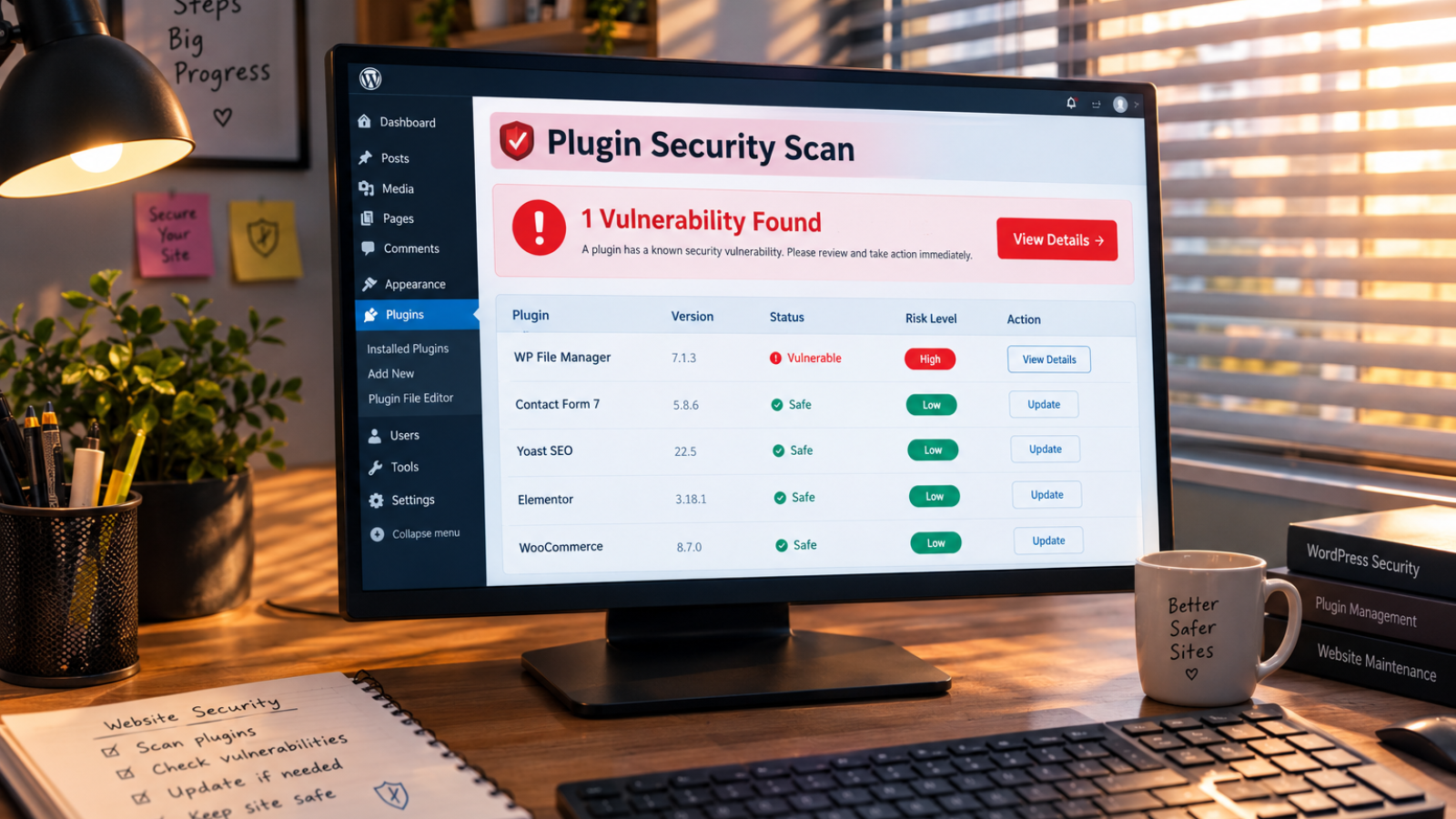
A WordPress security checklist for small business owners in 2026 needs to cover more than “install a firewall plugin.” Given that plugins account for 91% of newly discovered vulnerabilities, the real priorities are reducing plugin count, enforcing strong logins with MFA, keeping backups offsite, and layering protection beyond a single security plugin.
Most WordPress security guides read like they were written in 2018 and never updated. They tell you to change your login URL and install a firewall plugin, then call it done. That advice isn’t wrong, exactly. It’s just dangerously incomplete for what’s actually happening on WordPress right now.
Here’s the checklist I actually walk small business clients through, based on current data, not outdated assumptions.
Why Is WordPress Security a Bigger Concern in 2026?
The numbers this year are genuinely alarming, and I say that as someone who works with WordPress every day, not as a scare tactic. According to Patchstack’s official State of WordPress Security in 2026 whitepaper, 11,334 new vulnerabilities were discovered across the WordPress ecosystem in 2025, a 42% increase over the previous year.
Here’s the detail that matters most for small business owners: 91% of those vulnerabilities were found in plugins, not WordPress core itself. Only six vulnerabilities were reported in core, and all were low risk. That tells you exactly where your real exposure sits — in the plugins you’ve installed, not the platform underneath them.
Worse, nearly half of those vulnerabilities had no patch available when they were publicly disclosed. That means “just keep everything updated” isn’t a complete strategy anymore, even though it’s still essential.
What’s the First Thing You Should Actually Check?
Start with your plugin count, not your firewall settings. Every plugin you install expands your attack surface, whether you use it daily or forgot about it months ago. That’s why my first move on any client audit is a plugin audit: I remove anything inactive, outdated, or duplicating a feature another plugin already handles.
This is the piece most checklists skip entirely. They assume more security plugins mean more protection. In reality, every additional plugin — security tools included — is one more piece of code that could itself become the next vulnerability.
How Should You Handle Logins and Passwords?
Weak logins remain one of the most common entry points, because attackers don’t need a sophisticated exploit if your password is guessable. The Cybersecurity and Infrastructure Security Agency (CISA) recommends multi-factor authentication for exactly this reason — a texted code, an authenticator app, or a security key makes a stolen password far less useful on its own.
For WordPress specifically, I set up three things on every client site: multi-factor authentication for admin accounts, a renamed login URL to reduce automated bot scanning, and a hard limit on failed login attempts. None of these are technically difficult, but skipping them is one of the most common mistakes I see on inherited sites.
Are Updates Really Enough Anymore?
Updates still matter enormously, but they’re no longer sufficient on their own. According to CISA’s official guidance on business software, enabling automatic updates is one of the simplest ways to close known security gaps before attackers exploit them.
However, Patchstack’s data shows a real gap here: with 46% of vulnerabilities having no patch when disclosed, and high-impact vulnerabilities sometimes exploited within just five hours of becoming public, waiting for an update to arrive isn’t always fast enough. That’s why updates need to sit alongside monitoring and backups, not replace them.
What Does “Layered Security” Actually Mean for WordPress?
This is the point most generic checklists get wrong, and it’s the one I push back on hardest with clients. A single security plugin isn’t a complete defense, even a well-reviewed one. Traditional web application firewalls have been shown to block only a fraction of WordPress-specific attack patterns, because attackers constantly adapt their methods faster than generic firewall rules update.
Here’s what I actually set up instead of relying on one tool:
- A reputable security plugin for baseline monitoring and malware scanning
- Server-level or host-level firewall protection, layered on top rather than instead of a plugin
- Automated offsite backups, stored separately from your hosting account, tested at least monthly
- A minimal, actively-maintained plugin list, reviewed quarterly
None of these alone stops everything. Together, they close most of the gaps that a single tool leaves open.
The Priority Order I’d Actually Recommend
If you’re overwhelmed by where to start, here’s how I’d sequence it for a typical small business site:
- Today: Enable multi-factor authentication and change any default or weak admin passwords
- This week: Audit and remove unused plugins, and confirm automated backups are actually running
- This month: Set up server-level firewall protection alongside your security plugin, and review user account permissions
- Ongoing: Review plugin updates weekly rather than monthly, given how quickly high-severity vulnerabilities get exploited
Doing these in the wrong order wastes time. Fixing plugin bloat before locking down logins, for example, leaves your biggest entry point wide open while you tidy up a smaller risk.
[INSERT: a real client example here — e.g., a specific site you audited or cleaned up, what the actual vulnerability was, and what fixing it looked like]
Common Security Mistakes I See Constantly
- Relying on one security plugin and assuming it covers everything. No single tool blocks every attack pattern.
- Storing backups on the same host as the live site. If the host is compromised, your backup goes down with it.
- Ignoring “inactive” plugins. A deactivated plugin can still carry a vulnerability if it’s not fully removed.
- Treating security as a one-time setup. Given how fast new vulnerabilities appear, this needs ongoing attention, not a single afternoon of fixes.
If you’re evaluating whether to hire someone for this instead of doing it yourself, I’ve written more broadly about what to look for in how to hire a freelance WordPress developer, including the security-specific questions worth asking before you commit.
Should You Handle This Yourself or Get It Checked Professionally?
Basic hardening — MFA, updates, backups — is genuinely doable yourself with a free afternoon. Where I see business owners get stuck is diagnosing whether a site’s already compromised, or untangling which plugin is causing conflicts with a new security setup. If you’re not sure where your site currently stands, run it through my free WordPress security checker before deciding whether you need professional help.
If a full security audit and hardening project makes more sense for your setup, my website cost calculator gives you a realistic starting estimate before you reach out to anyone.
Frequently Asked Questions
What is the most important WordPress security measure for small businesses?
Multi-factor authentication on admin accounts is one of the highest-impact, lowest-effort measures, since it stops most credential-based attacks even if a password is compromised.
Are WordPress plugins a bigger security risk than WordPress core?
Yes, significantly. Patchstack’s 2026 data shows 91% of newly discovered vulnerabilities were found in plugins, compared to only six low-risk vulnerabilities in WordPress core itself.
Is a security plugin enough to protect a WordPress site?
Not on its own. A single security plugin provides useful monitoring and scanning, but layering it with server-level firewall protection and offsite backups closes gaps that one tool alone leaves open.
How often should WordPress plugins be updated?
Weekly reviews are safer than monthly ones in 2026, since high-severity vulnerabilities have been exploited within hours of public disclosure in some cases.
Do small businesses really get targeted by WordPress attacks?
Yes. Most attacks are automated and scan for common WordPress fingerprints rather than targeting specific businesses, meaning any WordPress site, regardless of size, is a potential target.
Should backups be stored on the same hosting account as the website?
No. Backups should be stored offsite, separate from the live hosting account, so a compromised host doesn’t also take down your recovery option.
Not Sure Where Your Site Currently Stands?
If you want a professional set of eyes on your site’s actual security posture, message me on WhatsApp and I’ll walk through it with you honestly. Start the conversation here.