DNS propagation issues during a restaurant website migration can bring your entire online ordering system to a halt at the worst possible moment — during a busy lunch service, on a Friday evening, or right after you’ve told customers about your new site.
I’ve migrated multiple restaurant websites including Danish restaurants registered at Punkt.um, and DNS propagation problems came up every single time. This guide covers exactly what causes DNS propagation issues, how to fix them fast, and how to structure your migration so your restaurant never goes dark during the switch.
If you’re mid-migration and your site is currently down or flipping between old and new — scroll straight to the Fix section. If you’re planning a migration, read everything so you don’t hit these problems at all.
What DNS Propagation Actually Means
Before fixing the problem, it helps to understand what’s actually happening.
Every domain name (like yourrestaurant.com) points to an IP address — the physical location of the server where your website lives. DNS (Domain Name System) is the global system that translates your domain name into that IP address so browsers can find your site.
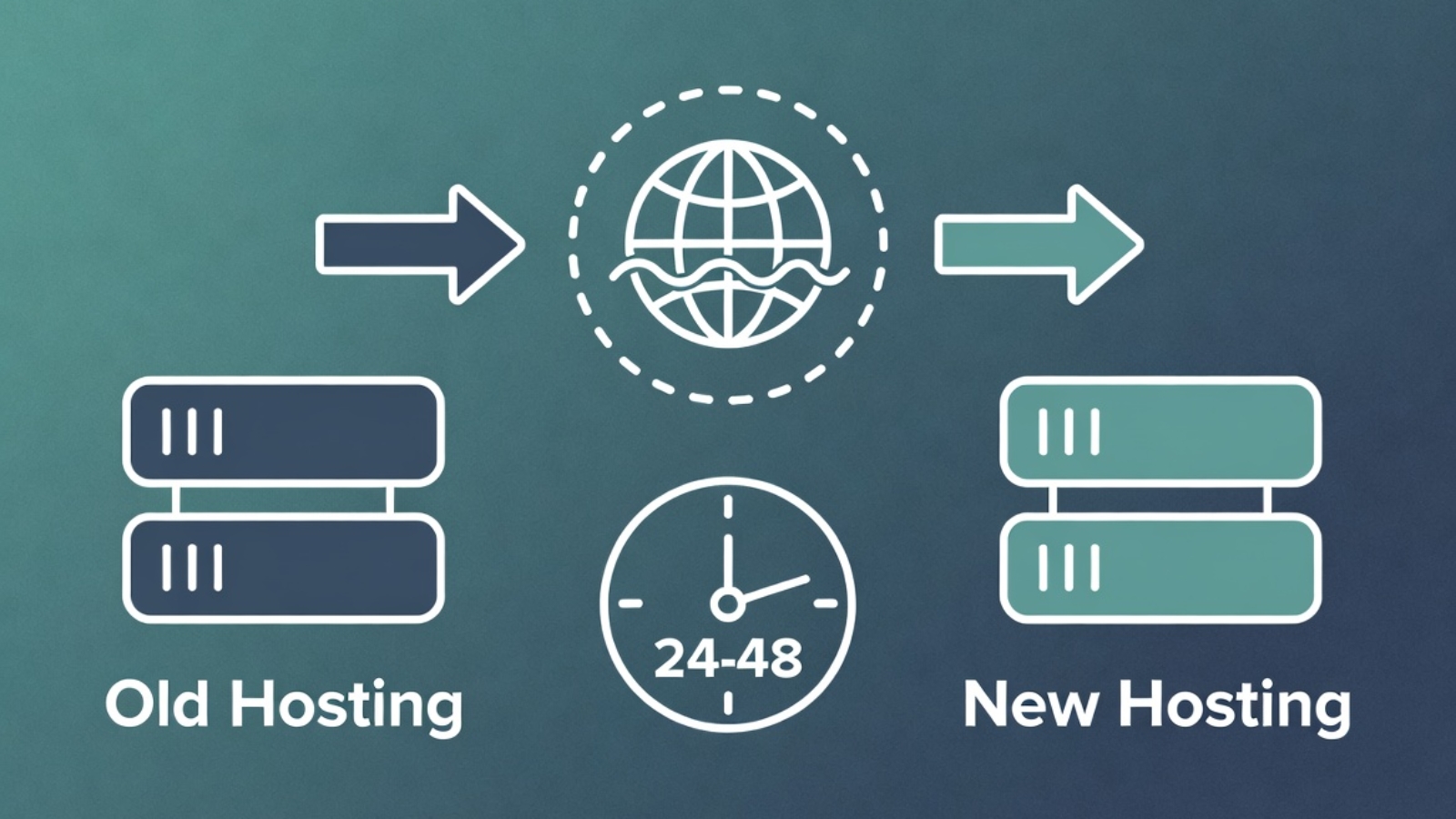
When you migrate a restaurant website to new hosting, you change the IP address your domain points to. DNS propagation is the time it takes for this change to spread across all DNS servers worldwide.
The problem: DNS servers around the world cache (store) your old IP address. Until their cache expires and they fetch the new record, some visitors see your old site and some see the new one — depending on which DNS server their internet provider uses.
This propagation period typically takes 24–48 hours. Some providers update within minutes. Others hold the old record for the full 48 hours. You have no direct control over this.
⚠️ Watch Out: During propagation, you might test your new site from your laptop and see it working perfectly — while a customer in another city still sees the old site or gets a blank page. This is normal propagation behavior, not a sign something is broken.
Why Restaurant Websites Are Especially Vulnerable
Most websites can afford a few hours of reduced visibility during a DNS change. Restaurant websites can’t — especially ones taking online orders.
A customer who hits a blank page or error during your migration doesn’t wait for propagation to finish. They order from somewhere else. If your DNS change happens on a Friday evening before a busy weekend, that’s real lost revenue.
Restaurant websites also typically involve more moving parts than a simple brochure site:
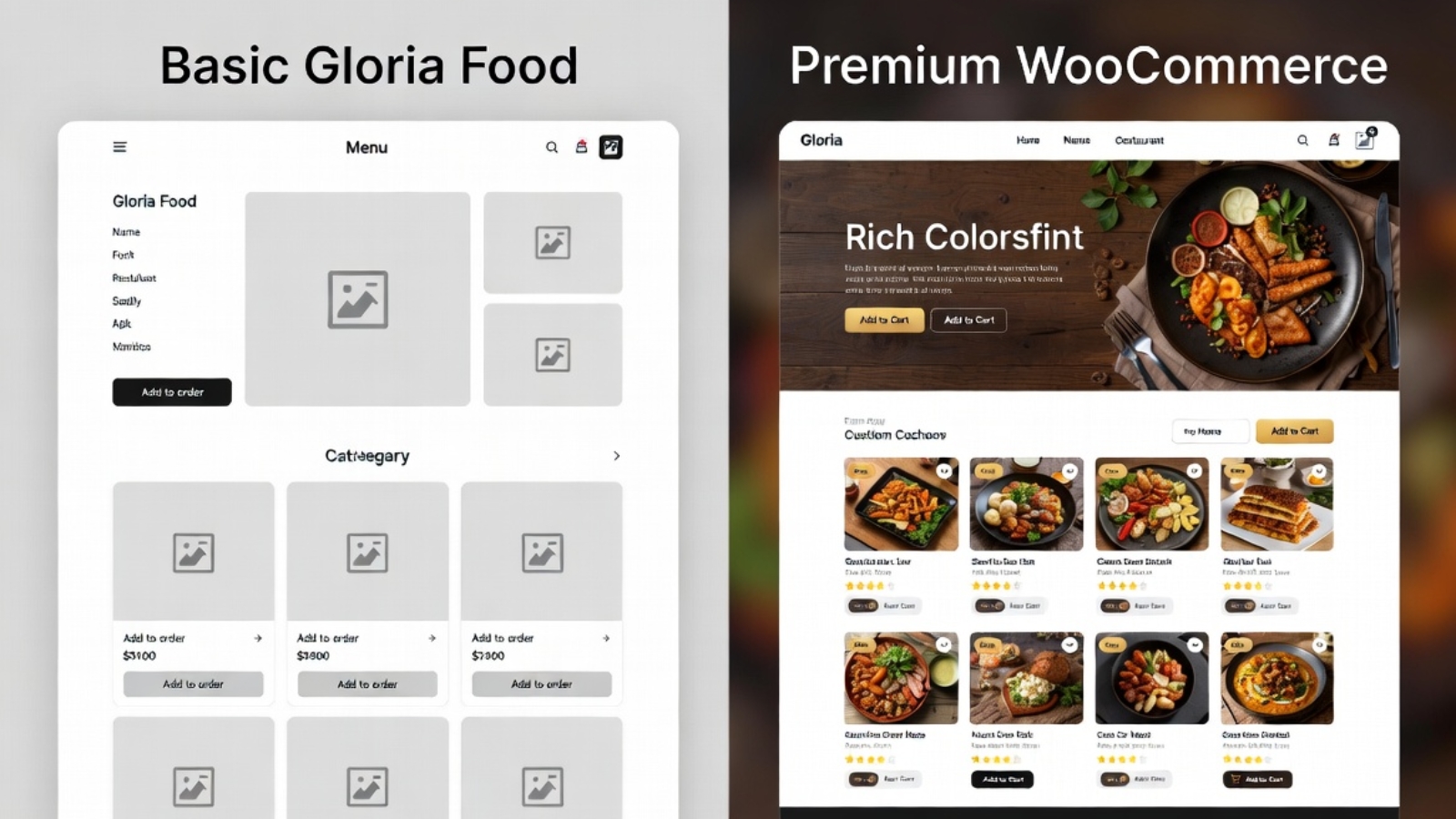
- An active ordering system (WooCommerce, Gloria Food, or a booking platform)
- Payment gateway connections that are IP or domain-specific
- Email order notifications that may be tied to the old hosting
- Google My Business listing pointing to the domain
- Third-party delivery platform integrations
All of these need to keep working during and after the migration.
✅ Pro Tip: Never schedule a DNS change on a Friday, Saturday, or any day before a known busy period for your restaurant. Tuesday or Wednesday morning is ideal — lower traffic, your hosting support team is available, and you have the rest of the week to fix anything unexpected.
The Right Way to Migrate — Zero Downtime Approach
The single most important thing you can do to avoid DNS propagation problems is to never actually take your restaurant offline during the migration.
Here’s the approach I use for every restaurant migration:
Step 1 — Build the New Site on a Temporary URL
Build and fully test the new WordPress site on a staging URL or a temporary subdomain provided by your new host. For example:
staging.yourrestaurant.com
OR
yourrestaurant.newhost.com/staging
The old site stays completely live and taking orders throughout this entire phase. Customers never see anything different.
Step 2 — Test Everything on the Staging URL
Before touching any DNS settings, confirm all of the following work on the staging URL:
- Full menu loads correctly with all items and prices
- Add to cart and checkout work end to end
- Payment processes successfully (use a real test transaction)
- Order confirmation email arrives
- All images load correctly
- Site loads on mobile in Safari and Chrome
Do not change DNS until every item on this list passes.
Step 3 — Lower Your TTL Before Changing DNS
TTL (Time To Live) is the number of seconds DNS servers cache your record before checking for updates. Most domains default to 3600 seconds (1 hour) or 86400 seconds (24 hours).
Lower your TTL to 300 seconds (5 minutes) at least 24 hours before you plan to change your DNS records. This means when you do make the change, it propagates in minutes rather than hours.
To lower TTL:
- Log in to your domain registrar (Punkt.um, GoDaddy, Namecheap, etc.)
- Go to DNS management
- Find your A record for @ (root domain) and www
- Change the TTL value to 300
- Save and wait 24 hours before proceeding
✅ Pro Tip: Most restaurant owners don’t know about TTL and skip this step. It’s the single most effective thing you can do to speed up propagation. A 5-minute TTL means your DNS change reaches most of the world within 15–30 minutes instead of 24–48 hours.
Step 4 — Change Your DNS Records
Once your new site is fully tested and your TTL has been lowered for 24 hours, make the DNS change.
Option A — Change Nameservers (Recommended)
Nameservers control all DNS for your domain. Pointing them to your new host means the new host manages all DNS records.
Find your new host’s nameservers in your hosting control panel — they look like:
ns1.hostinger.com
ns2.hostinger.com
At your registrar, replace the current nameservers with these. Save.
Option B — Update A Records Only
If you want to keep your domain’s DNS managed at your registrar, update only the A records:
- Find your new hosting server’s IP address in your hosting control panel
- At your registrar, edit the A record for @ (root domain) — change IP to new hosting IP
- Edit the A record for www — same new IP
- Save
A record changes propagate faster than nameserver changes in most cases.
Step 5 — Keep the Old Site Live During Propagation
This is critical. Do not cancel your old hosting until propagation is fully complete.
During the propagation window, some visitors will reach the old site and some will reach the new one. If your old hosting is still live, old-site visitors still see a working restaurant — they can still order. The only downside is you’re running two hosting accounts temporarily.
Wait at least 48 hours after the DNS change before cancelling old hosting. Check propagation status at whatsmydns.net — enter your domain and confirm it shows the new IP from locations around the world before cancelling anything.
Punkt.um Specific — Danish Domain Registrar
If your restaurant domain is registered at Punkt.um — common for Danish restaurants — here’s what you need to know that their documentation doesn’t make obvious.
Finding DNS settings in Punkt.um:
Punkt.um’s interface is in Danish. The sections you need:
- Nameservers: look for “Navneservere” in your domain management panel
- DNS records (A records): look for “DNS-zoner”
Punkt.um propagation is slow. In my experience migrating Danish restaurant domains through Punkt.um, propagation consistently took 36–48 hours — longer than most registrars. Build this into your timeline and warn the client upfront.
Punkt.um TTL settings: TTL adjustment is available in the DNS-zoner section. Lower it to 300 before your migration window exactly as described above — it makes a significant difference even with Punkt.um’s slower propagation.
⚠️ Watch Out: Punkt.um requires you to confirm DNS changes via email. After saving your nameserver or A record change, check the email address registered with your Punkt.um account immediately — the change won’t apply until you click the confirmation link. This confirmation requirement catches people out, especially if the registered email is an old address they don’t check regularly.
How to Check If DNS Has Propagated
Don’t rely on your own browser to check propagation — your local DNS cache may be showing you the old site even after the change.
Use these tools instead:
whatsmydns.net — shows your domain’s DNS resolution from servers in 20+ countries simultaneously. Enter your domain, select A record, and click Search. Green checkmarks mean that location sees the new IP. This is the most reliable way to see real-world propagation status.
dnschecker.org — similar tool with a slightly different server list. Use both for a complete picture.
Clear your local DNS cache:
On Windows:
ipconfig /flushdnsOn Mac:
sudo dscacheutil -flushcache; sudo killall -HUP mDNSResponderOn Chrome browser: go to chrome://net-internals/#dns → click Clear host cache.
After clearing cache, open your domain in an incognito window to see which version of the site your connection currently resolves to.
Common DNS Propagation Problems and Fixes
Problem: Site shows blank page or connection error during propagation
This usually means your new hosting is live but SSL hasn’t been issued yet for the domain. Most hosting providers issue a free SSL certificate automatically when your domain points to their servers — but this can take 10–30 minutes after DNS resolves.
Fix: Wait 30 minutes after DNS propagates and check again. If still no SSL, log in to your hosting control panel and manually trigger SSL issuance (Hostinger: hPanel → SSL → Install, SiteGround: Site Tools → Security → SSL Manager).
Problem: Old site showing after 48 hours
Fix: Your local DNS cache is still showing the old site. Clear your cache using the commands above and test in incognito. If whatsmydns.net shows the new IP globally but you still see the old site locally, it’s definitely a local cache issue — not a real propagation problem.
Problem: Email stops working after migration
Fix: When you change nameservers, you move DNS management to your new host — which may not have your MX records (email routing) set up. Before changing nameservers, log your existing MX records at your old registrar and recreate them at the new host.
Check MX records with:
nslookup -type=MX yourrestaurant.comProblem: WooCommerce ordering breaks after migration
Fix: Check two things. First, your SSL certificate is active on the new host — WooCommerce checkout requires HTTPS. Second, your WordPress site URL is set correctly. Go to Settings → General and confirm both WordPress Address and Site Address show the correct domain with https://.
Problem: Google My Business still showing old site
Fix: This isn’t a DNS issue — it’s a Google cache issue. After migration, log in to your Google Business Profile and update the website URL to confirm it’s correct. Google will recrawl your site within a few days.
Migration Checklist — Full Timeline
One week before migration:
- Build and fully test new site on staging URL
- Confirm all payment gateways work on new host
- Screenshot all existing DNS records at old registrar
- Lower TTL to 300 on all A records
Day of migration:
- Confirm TTL has been low for at least 24 hours
- Run final test on staging URL
- Change nameservers or A records at registrar
- Confirm Punkt.um email confirmation if applicable
- Monitor whatsmydns.net every 30 minutes
48 hours after DNS change:
- Confirm full propagation on whatsmydns.net
- Test complete ordering flow on live domain
- Confirm order confirmation emails arriving correctly
- Confirm SSL active with green padlock in browser
- Clear your local DNS cache and test in incognito
After full confirmation:
- Cancel old hosting
- Restore TTL to 3600 on DNS records
- Submit new sitemap to Google Search Console
- Update any hardcoded old hosting URLs in WordPress database using Search Replace DB
Common Questions
Q: How long does DNS propagation actually take?
A: Typically 24–48 hours globally. With a low TTL set in advance it can be as fast as 15–30 minutes for most locations. Punkt.um specifically tends toward the 36–48 hour end of the range.
Q: Can I speed up DNS propagation?
A: Yes — lower your TTL to 300 seconds at least 24 hours before the change. This is the most effective method. You cannot force other DNS servers to update faster than their cache expiry.
Q: Will my restaurant lose orders during migration?
A: Not if you keep the old hosting live during propagation. Visitors hitting the old site during propagation still see a working restaurant and can still order. Only cancel old hosting after full propagation is confirmed.
Q: Do I need to change DNS if I’m keeping the same domain?
A: Yes — if you’re moving to new hosting, you need to update DNS regardless of whether you keep the same domain. The domain name stays the same but it needs to point to the new server’s IP address.
Q: What if my domain registrar doesn’t let me change TTL?
A: Some budget registrars don’t expose TTL settings. In this case, change your DNS records on a Tuesday morning when traffic is lowest and accept the standard 24–48 hour propagation window.
Final Thoughts
DNS propagation issues during a restaurant website migration are almost entirely avoidable with the right preparation. Lower your TTL a day before the switch, keep the old site live during propagation, use whatsmydns.net to monitor in real time, and never schedule a DNS change before a busy trading period.
The Punkt.um-specific issues — Danish confirmation emails, slower propagation, Danish-language interface — add complexity that catches people out if they haven’t worked with that registrar before. Now you know what to expect.
If you’re migrating a restaurant website — from Gloria Food to WooCommerce, from one host to another, or from a third-party platform to a self-hosted WordPress site — and want a developer who has done this before without taking the restaurant offline, Contact me and let’s get it done properly.