

Business owner discovering common WordPress mistakes hurt rankings after checking dashboard settings

Common WordPress Mistakes That Hurt Rankings

Quick answer: Common WordPress mistakes that hurt Google rankings include an accidentally enabled “discourage search engines” setting, bloated plugins slowing load speed, missing image alt text, and thin auto-generated tag pages. Most of these are fixable in under an hour. Left unchecked, they can quietly block rankings for months.

I audit WordPress sites for a living, and the same handful of mistakes show up over and over. What surprises most business owners is how small some of these fixes actually are, once you know exactly where to look.

The One-Click Mistake That Kills Everything Else

Here’s the one I always check first, because it makes every other SEO effort pointless if it’s on. In your WordPress dashboard, go to Settings, then Reading. There’s a checkbox labeled “Discourage search engines from indexing this site.”

If that box is checked, WordPress tells Google not to index your site at all, according to WordPress.org’s own support documentation. It’s meant for staging sites during development. However, it gets left checked after launch far more often than you’d expect, sometimes flipped back on accidentally by a plugin update.

If your traffic mysteriously dropped to zero, or never started, check this box first. It’s a thirty-second fix that undoes months of invisible damage.

Mistake 2: Too Many Plugins Slowing Everything Down

Each plugin adds code your site loads on every visit, whether or not you actually use its features. A site running fifteen plugins for functions covered by three or four almost always loads slower than it should.

Page speed is a confirmed ranking factor, according to Google’s official SEO starter guide. That bloat directly costs you rankings, not just user experience. Audit your plugin list regularly and remove anything you can’t clearly justify keeping.

Mistake 3: Missing or Lazy Image Alt Text

Alt text describes an image for search engines and for visitors using screen readers. Leaving it blank, or filling it with generic filler like “image1.jpg,” wastes a genuine, easy ranking opportunity. This matters especially for businesses that rely on image search traffic.

This one takes minutes to fix retroactively. Go through your most important pages and add a short, honest description of each image. Include relevant keywords naturally where they actually fit.

Mistake 4: Thin, Auto-Generated Tag and Category Pages

WordPress automatically creates archive pages for every tag and category you use. If you’ve tagged loosely over the years, you likely have dozens of near-empty pages Google sees as thin, low-value content.

Keep your categories focused, ideally 8-12 broad topics, and use tags sparingly for specifics rather than treating them interchangeably. Too many overlapping tags and categories confuse both visitors and search engines about your site’s actual structure.

Mistake 5: Broken or Sloppy Permalink Structure

Permalinks are your page URLs. Changing them after a site has been indexed can quietly tank existing rankings if redirects aren’t set up correctly. A URL structure like yoursite.com/?p=123 also tells search engines and visitors nothing about the page’s actual content.

Use a clean, descriptive permalink structure from the start. If you ever do need to change it, make sure old URLs redirect properly to their new locations first.

Mistake 6: No Mobile Optimization Despite a “Responsive” Theme

A theme labeled responsive doesn’t automatically mean it performs well on mobile. Test your actual pages on a real phone, not just a resized browser window. Text size, tap target spacing, and image loading often behave differently than expected.

Google evaluates your mobile version as the primary version of your site for ranking purposes. That’s why a poor mobile experience directly limits how well you can rank, regardless of how polished your desktop version looks.

Mistake 7: Skipping HTTPS or Letting the Certificate Lapse

An expired or missing SSL certificate triggers browser security warnings that scare visitors away before they read a word of your content. Beyond the trust issue, HTTPS itself factors into how search engines evaluate your site’s security posture.

Most hosting providers now offer free SSL certificates through Let’s Encrypt or similar services. If your site still shows “Not Secure” in the browser bar, this is one of the fastest fixes on this entire list.

Which of These Mistakes Should You Fix First?

Not every mistake here carries equal weight, so prioritizing matters. The “discourage search engines” setting comes first, always, because it makes every other fix meaningless while it’s active. Check it before touching anything else on this list.

After that, page speed issues, plugin bloat, uncompressed images, poor hosting, have the broadest impact across rankings, user experience, and conversion rates simultaneously. Alt text, permalink cleanup, and tag pruning matter too, but they’re slower-burning problems worth tackling once the urgent issues are resolved.

I’ve covered the broader ranking diagnosis process, beyond just WordPress-specific issues, in more detail in why your website isn’t ranking on Google, worth reading alongside this checklist if you’re troubleshooting from scratch.

The Nuance Most Guides Skip: Plugins Aren’t the Enemy, Bad Choices Are

Here’s my honest take. I’ve seen articles blame “too many plugins” as if plugin count alone is the problem. It isn’t, not directly. A site running twenty well-coded, actively maintained plugins can outperform a site running five poorly built ones.

The real issue is unmaintained plugins, abandoned by their developers, never updated, quietly conflicting with WordPress core updates. Audit for quality and necessity, not just raw plugin count, and you’ll fix the actual problem instead of removing tools you genuinely need.

This overlaps with a broader question worth asking before you hire anyone to fix these issues: does your developer actually understand current WordPress standards? I’ve covered what separates a genuinely current developer from an outdated one in what a good WordPress developer should know in 2026.

Frequently Asked Questions

What is the most damaging WordPress mistake for SEO?
The “discourage search engines from indexing this site” setting under Settings > Reading is the most damaging, since it can block your entire site from Google regardless of how well everything else is optimized.

Do too many WordPress plugins really hurt SEO?
Indirectly, yes. Excessive or poorly maintained plugins slow page speed, which is a confirmed Google ranking factor, and can create conflicts that break other functionality.

How do I check if my WordPress site is accidentally hidden from Google?
Check Settings > Reading for the “Discourage search engines” checkbox, and search site:yourdomain.com on Google to confirm your pages are actually indexed.

Does missing image alt text actually affect rankings?
Yes. Alt text helps search engines understand image content and can contribute to image search visibility, often an overlooked traffic source for businesses.

Can changing my WordPress permalink structure hurt my SEO?
Yes, if done without proper redirects. Changing URLs after a site is indexed without redirecting old URLs to new ones can cause a sudden drop in existing rankings.

Is my responsive WordPress theme automatically mobile-friendly for SEO?
Not necessarily. Test actual pages on a real mobile device, since text size, spacing, and load behavior can differ from what “responsive” theme labeling suggests.

Want a Real Audit Instead of Guessing?

If you’re not sure which of these mistakes apply to your site, message me on WhatsApp and send me your link. I’ll give you a straight read on what’s actually holding your rankings back.
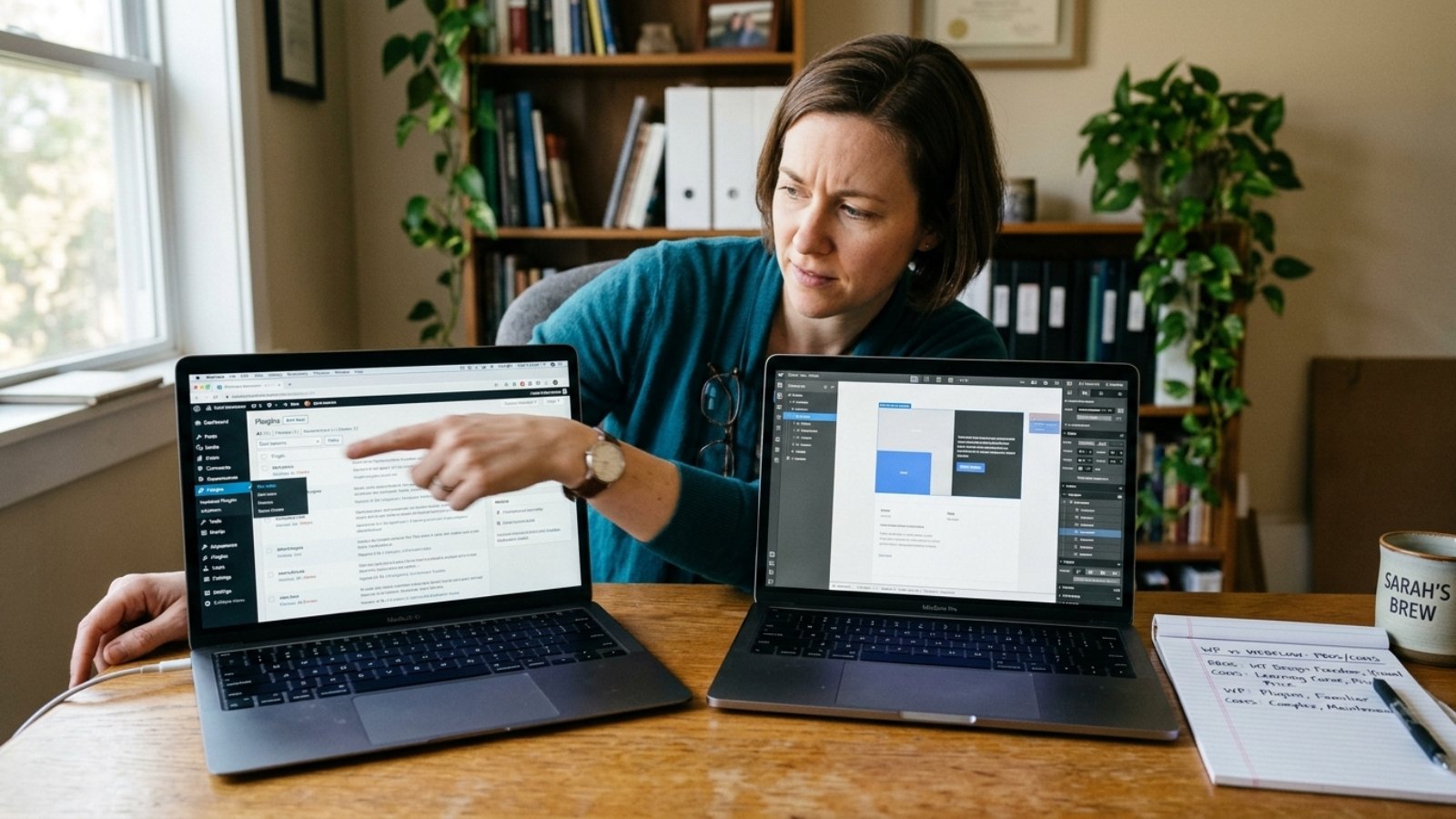
Small business owner comparing WordPress vs Webflow interfaces side by side before choosing a platform

WordPress vs Webflow: Which Is Better for Small Business?

Quick answer: WordPress vs Webflow comes down to flexibility versus predictability. WordPress costs less upfront and scales further, but you own the maintenance. Webflow bundles hosting, security, and updates into one monthly fee, which usually costs more over time but saves you from ongoing technical management.

I get asked this comparison constantly, usually from someone who’s already spent an hour reading conflicting blog posts. Here’s the honest version, not the version written by someone selling one platform over the other.

The Core Difference You Actually Need to Understand

WordPress is open-source software you install on hosting you choose. That gives you total control, an enormous plugin ecosystem, and no platform lock-in. However, you’re also responsible for updates, security, and backups, unless you pay someone else to handle them.

Webflow is a hosted platform where design, hosting, and infrastructure come bundled together. You get predictable pricing and built-in security, but you’re building inside Webflow’s ecosystem specifically, with far fewer third-party plugins available compared to WordPress.

Neither approach is objectively better. They’re built for different priorities, and that’s exactly why this comparison keeps confusing people who expect a single clear winner.

What Do They Actually Cost in 2026?

Webflow’s paid plans run $14 to $39 a month for standard business use, according to Webflow’s official pricing page, with hosting, SSL, and backups included in that fee. A professional Webflow build for a small business typically costs $3,000 to $15,000 upfront.

WordPress itself is free, but that number is misleading on its own. Shared hosting runs $5 to $30 a month, while managed WordPress hosting runs $30 to $100 a month. Add premium themes, plugins, and a professional build, and total upfront cost typically lands between $2,000 and $8,000, similar to figures I’ve broken down in my small business website cost guide.

Here’s the part that changes the comparison entirely: over three years, a typical Webflow small business site often lands around $4,500 to $15,000 all-in, while a comparable WordPress site frequently reaches $8,000 to $40,000 once ongoing maintenance gets factored in. WordPress looks cheaper at launch. It doesn’t always stay that way.

When WordPress Actually Wins

WordPress remains the dominant CMS by a wide margin. According to W3Techs’ usage tracking, WordPress powers a substantial share of all websites globally, far more than any single competitor. That scale brings real advantages: more developers available, more plugins for nearly any function, and no risk of the platform disappearing or pivoting business models.

WordPress wins clearly for content-heavy sites, blogs publishing frequently, and businesses planning significant future growth or custom functionality. If you eventually need something highly specific, a custom booking system, a complex membership structure, a niche integration, WordPress’s plugin ecosystem almost always has a path forward. Webflow’s more closed ecosystem sometimes doesn’t.

WordPress also wins if you genuinely plan to manage the site yourself long-term and don’t mind learning the admin dashboard. Its interface, while not simple, has decades of tutorials and community support behind it.

When Webflow Actually Wins

Webflow wins clearly for design-first businesses where visual polish and brand storytelling matter more than backend complexity. Its visual builder gives designers pixel-level control that WordPress themes rarely match without custom development.

It also wins for businesses that want to avoid technical management entirely. No plugin updates to track, no security patches to apply, no separate hosting bill to manage. That predictability has real value if you’d rather spend your time running your business than maintaining a website.

For marketing teams that need to launch landing pages quickly and independently, Webflow’s editor allows same-day publishing without developer involvement for routine changes. That speed advantage is real, and it’s one WordPress struggles to match without significant custom setup.

The Hidden Cost Most Comparisons Get Wrong

Here’s my honest opinion after building on both platforms: most “WordPress vs Webflow” comparisons undersell WordPress’s true long-term cost. The free software narrative hides developer time for plugin updates, security patches, and compatibility testing after WordPress core updates, costs that rarely show up in a simple pricing chart.

That doesn’t make Webflow automatically the better choice. It means the comparison isn’t really “free versus paid.” It’s “pay upfront and maintain it yourself versus pay monthly and let someone else maintain it.” Frame the decision that way, and it becomes much easier to answer honestly for your specific situation.

If you’re weighing a WordPress build and want realistic numbers on developer costs specifically, my WordPress developer cost breakdown covers current 2026 rates in detail.

Does the Platform Choice Affect SEO?

Both platforms can rank well when built properly. Neither one has an inherent SEO advantage baked into the platform itself. Execution, content quality, site structure, and technical health matter far more than which CMS powers the site underneath.

That said, WordPress’s plugin ecosystem gives you more granular SEO control if you want it, while Webflow’s built-in performance and clean code output can mean less optimization work needed out of the box. Neither difference is large enough to be the deciding factor on its own.

If you want a clear number for your specific project on either platform, the Free Website Cost Calculator gives you a realistic starting range in a couple of minutes.

Frequently Asked Questions

Is WordPress or Webflow cheaper for a small business?
WordPress usually costs less upfront, $2,000–$8,000 for a professional build, but Webflow’s bundled hosting and maintenance can make it cheaper over three years once WordPress’s ongoing maintenance costs are factored in.

Which platform is easier to manage without a developer?
Webflow is generally easier for non-technical owners, since hosting, security, and updates are handled automatically. WordPress requires more ongoing technical management unless you hire someone for maintenance.

Does Webflow rank as well as WordPress on Google?
Yes, both platforms can rank well when built properly. SEO success depends far more on content quality and site structure than which CMS powers the site.

Can Webflow handle complex custom functionality like WordPress can?
Not always as easily. WordPress’s plugin ecosystem is significantly larger, so highly specific or custom features often have more available solutions on WordPress than on Webflow.

Is WordPress still the most popular website platform in 2026?
Yes. WordPress remains the dominant content management system by a wide margin, according to W3Techs’ usage tracking across the web.

Should a growing business choose WordPress or Webflow?
It depends on growth type. Content-heavy or feature-heavy growth usually favors WordPress’s ecosystem, while design-focused, low-maintenance growth often favors Webflow’s simplicity.

Still Not Sure Which Platform Fits Your Business?

If you’re weighing WordPress against Webflow for your specific project, message me on WhatsApp and tell me what you’re building. I’ll give you a straight, platform-agnostic answer based on what actually fits your needs.