
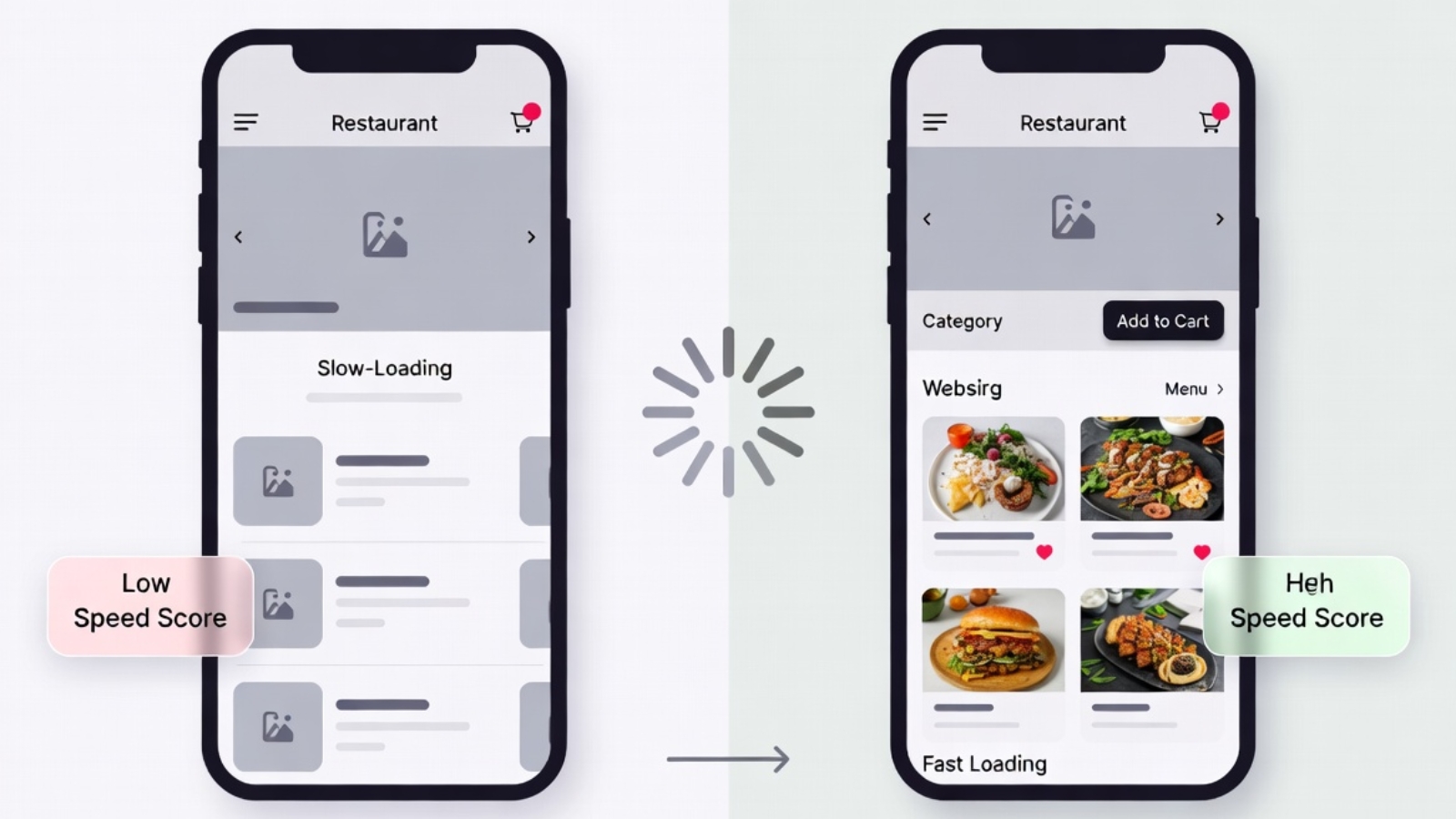
A slow WordPress restaurant website loses you customers before they even see your menu. Studies by Google show that 53% of mobile visitors leave a page that takes longer than 3 seconds to load — and restaurant customers searching for a place to eat are not patient people.
If your WordPress restaurant website feels sluggish, ordering pages take forever to respond, or your Google PageSpeed score is embarrassingly low — this guide covers every real fix, in order of impact. I’ve optimized WordPress restaurant sites for clients across Europe and the Caribbean, so these are hands-on solutions, not theoretical advice.
Start with a baseline score before touching anything. Run your site through Google PageSpeed Insights and GTmetrix — both are free. Screenshot your current scores. You’ll want to compare before and after each fix.
Why Restaurant Websites Are Especially Slow
Restaurant websites have specific speed problems that generic WordPress sites don’t always face.
Food photography is heavy. A single unoptimized hero image of your signature dish can be 4–6MB — enough to tank your entire page load on mobile. Multiply that across a full menu with 40 items and you have a serious problem.
Ordering plugins add weight. WooCommerce plus a restaurant ordering plugin like Orderable loads significantly more JavaScript and CSS than a simple brochure site. Every extra plugin adds to the page weight.
Google Maps embeds are slow. Almost every restaurant site has a map embed — and Google Maps is one of the heaviest third-party scripts you can load on a page.
Third-party ordering widgets add latency. If you’re using FareHarbor, Gloria Food, or any external booking widget, each one makes additional network requests that slow initial page load.
⚠️ Watch Out: Don’t try to fix everything at once. Make one change, test your PageSpeed score, then make the next. If you change ten things simultaneously and something breaks, you won’t know what caused it.
Fix 1 — Compress and Convert All Your Food Photos
This is the single highest-impact fix for almost every restaurant website. Food photos are the #1 cause of slow load times and the easiest problem to fix.
What to do:
Convert every image on your site to WebP format. WebP files are 25–35% smaller than JPEG at the same visual quality — invisible difference to the customer, massive difference to load time.
Use Squoosh.app — it’s free, runs in your browser, and converts images to WebP with a quality slider so you can see the difference before downloading.
Target file sizes:
- Hero images: under 200KB
- Menu item photos: under 80KB each
- Logo: under 30KB
In WordPress, install Smush or ShortPixel — both have free tiers that automatically compress new uploads and bulk-optimize your existing media library.
Enable lazy loading so images below the fold only load as the visitor scrolls down — not all at once when the page first opens. Smush handles this automatically. WordPress also has native lazy loading built in since version 5.5.
✅ Pro Tip: Resize images before uploading, not after. WordPress generates multiple image sizes from every upload — if you upload a 4000px wide photo, WordPress creates five versions of that massive file. Resize to 1200px wide maximum before uploading and you cut the storage and processing load significantly.
Fix 2 — Install a Caching Plugin
Caching stores a static version of your pages so WordPress doesn’t rebuild them from scratch on every visit. For a restaurant site, this alone can cut load time in half.
LiteSpeed Cache (Best Option if on Hostinger)
If your restaurant site runs on Hostinger — which supports LiteSpeed servers natively — install LiteSpeed Cache. It’s free and the most powerful caching plugin available for WordPress because it works directly with the server rather than around it.
After installing, go to LiteSpeed Cache → Presets → apply the recommended preset for WooCommerce sites.
WP Rocket (Best Paid Option)
WP Rocket is the gold standard paid caching plugin at $59/year. It handles page caching, file minification, lazy loading, and database cleanup in one dashboard — without requiring any technical knowledge. Worth it if you’re managing multiple restaurant sites or want a set-and-forget solution.
W3 Total Cache (Free Alternative)
W3 Total Cache is a solid free option if you’re not on a LiteSpeed server and don’t want to pay for WP Rocket. More configuration required than LiteSpeed Cache but very capable.
Fix 3 — Enable a CDN (Content Delivery Network)
A CDN stores copies of your site’s static files (images, CSS, JavaScript) on servers around the world. When a customer visits your site from Denmark, they load files from a nearby server rather than wherever your hosting is physically located — dramatically reducing latency.
Cloudflare free plan is the easiest option. Go to cloudflare.com, add your site, and update your domain’s nameservers to Cloudflare’s. The free plan includes a CDN, basic DDoS protection, and SSL — all relevant for a restaurant site taking online orders.
Hostinger also has a built-in CDN in their hPanel — enable it under your hosting settings if you’re on a Business plan or higher.
✅ Pro Tip: After enabling Cloudflare, go to Cloudflare dashboard → Speed → Optimization → enable Auto Minify for JavaScript, CSS, and HTML. This removes unnecessary whitespace from your code files, reducing their size without any visible change to your site.
Fix 4 — Fix Your Google Maps Embed
Google Maps is one of the heaviest things you can put on a restaurant website — and almost every restaurant has it. A standard Google Maps iframe loads the entire Maps JavaScript API, which can add 500KB–1MB to your page weight.
The fix: lazy load your map.
Replace your standard Google Maps iframe with a click-to-load version. The map shows as a static image initially — only loading the full interactive map when the visitor clicks on it.
Install WP Google Maps or use this simple approach — replace your iframe with a static map image linked to Google Maps:
html
<a href="https://maps.google.com/?q=YOUR+RESTAURANT+ADDRESS" target="_blank">
  <img
    src="https://maps.googleapis.com/maps/api/staticmap?center=YOUR+ADDRESS&zoom=15&size=600x300&key=YOUR_API_KEY"
    alt="Restaurant location map — click to open in Google Maps"
    loading="lazy"
  />
</a>
This loads a static image instead of the full Maps JavaScript library — much faster, still shows your location, still links to full Google Maps when clicked.
Fix 5 — Minify CSS and JavaScript
Your WordPress theme and plugins generate a lot of CSS and JavaScript files. Minification removes unnecessary whitespace, comments, and formatting from these files — making them smaller without changing how they work.
LiteSpeed Cache handles this automatically under its CSS/JS settings. WP Rocket does the same. If you’re using W3 Total Cache, enable Minify under the performance settings.
⚠️ Watch Out: Minification occasionally breaks things — especially JavaScript. After enabling it, click through your entire site including the ordering flow. If anything breaks, disable JS minification first (CSS minification is almost always safe).
Fix 6 — Reduce Plugin Bloat
Every active WordPress plugin adds load to your site — some a tiny amount, some a significant amount. Restaurant sites often accumulate plugins over time without anyone reviewing whether they’re all still needed.
Audit your plugins:
- Go to Plugins → Installed Plugins
- Deactivate any plugin you’re not actively using
- Delete deactivated plugins entirely — deactivated plugins still appear in file scans
Test each plugin’s impact:
Install Query Monitor — a free developer plugin that shows exactly how much load time each plugin adds. You might discover one plugin is responsible for 40% of your page load time.
Common restaurant site plugin offenders:
- Page builder plugins loaded on pages that don’t use them
- Slider plugins loading JavaScript on every page even when the slider only appears on the homepage
- Social media feed plugins that make external API calls on every page load
Fix 7 — Optimize Your WooCommerce Database
WooCommerce stores a lot of data — every cart session, every order, every product revision. Over time this bloats your database and slows down queries.
Install WP-Optimize — free plugin that cleans up:
- Post revisions (WordPress saves a new revision every time you save a post)
- Expired transients (temporary data WooCommerce stores that builds up over time)
- Orphaned order data
- Spam comments
Run a database cleanup once a month. Schedule it to happen automatically overnight so it doesn’t interfere with ordering hours.
✅ Pro Tip: In WooCommerce → Settings → Advanced, limit the number of saved product revisions to 3 or 5. By default WordPress saves unlimited revisions — on a menu with 50+ products that gets updated regularly, this adds up fast.
Fix 8 — Choose Better Hosting
If you’ve done everything above and your site is still slow, the problem might be your hosting. Shared hosting plans at the cheapest tier put hundreds of sites on one server — when other sites on that server get traffic spikes, your restaurant site slows down too.
For a restaurant site taking live orders, consider:
- Hostinger Business plan — good performance, LiteSpeed server support, reasonable price
- SiteGround GrowBig — excellent performance, good WooCommerce support
- Cloudways — managed cloud hosting on DigitalOcean or AWS, more technical to set up but significantly faster than shared hosting
Migrating hosting is the most disruptive fix on this list — do it last, after trying everything else first.
Checking Your Results
After making these fixes, run your site through Google PageSpeed Insights and GTmetrix again. Compare to your baseline scores.
Target scores for a restaurant site:
- Google PageSpeed Mobile: 70+ (aim for 85+)
- Google PageSpeed Desktop: 85+
- GTmetrix Grade: B or higher
- Fully loaded time: under 3 seconds on mobile
If you’re still under 70 on mobile after all fixes, the problem is almost always unoptimized images or hosting quality.
Common Questions
Q: Will caching break my WooCommerce ordering?
A: Good caching plugins like LiteSpeed Cache and WP Rocket automatically exclude cart, checkout, and account pages from caching. These pages need to be dynamic. Always test your full ordering flow after enabling caching.
Q: My site was fast before, now it’s slow — what changed?
A: The most common causes are a recently added plugin, a large image upload, or a hosting issue. Install Query Monitor and check which queries are slowest. Also check if a new plugin was installed around the time the slowdown started.
Q: Does page speed affect my Google ranking?
A: Yes — Google uses Core Web Vitals (LCP, CLS, FID) as ranking signals, especially on mobile. A faster site ranks better and converts better. Both matter for a restaurant taking online orders.
Q: How often should I check my speed?
A: Run a PageSpeed check once a month and after any major change — new plugin, theme update, or large content addition.
Final Thoughts
Speeding up a WordPress restaurant website comes down to four things done well: compressed images, server-side caching, a CDN, and a lean plugin setup. Fix those four and most restaurant sites go from embarrassingly slow to genuinely fast without touching a line of code.
The order matters — start with images, then caching, then CDN. These three fixes alone will move the needle more than anything else on the list.
If your restaurant website is slow and you’d rather have a developer handle the optimization properly — including WooCommerce performance tuning and hosting migration if needed — Contact me and I’ll get it running fast.